Attendance Not Yet Taken

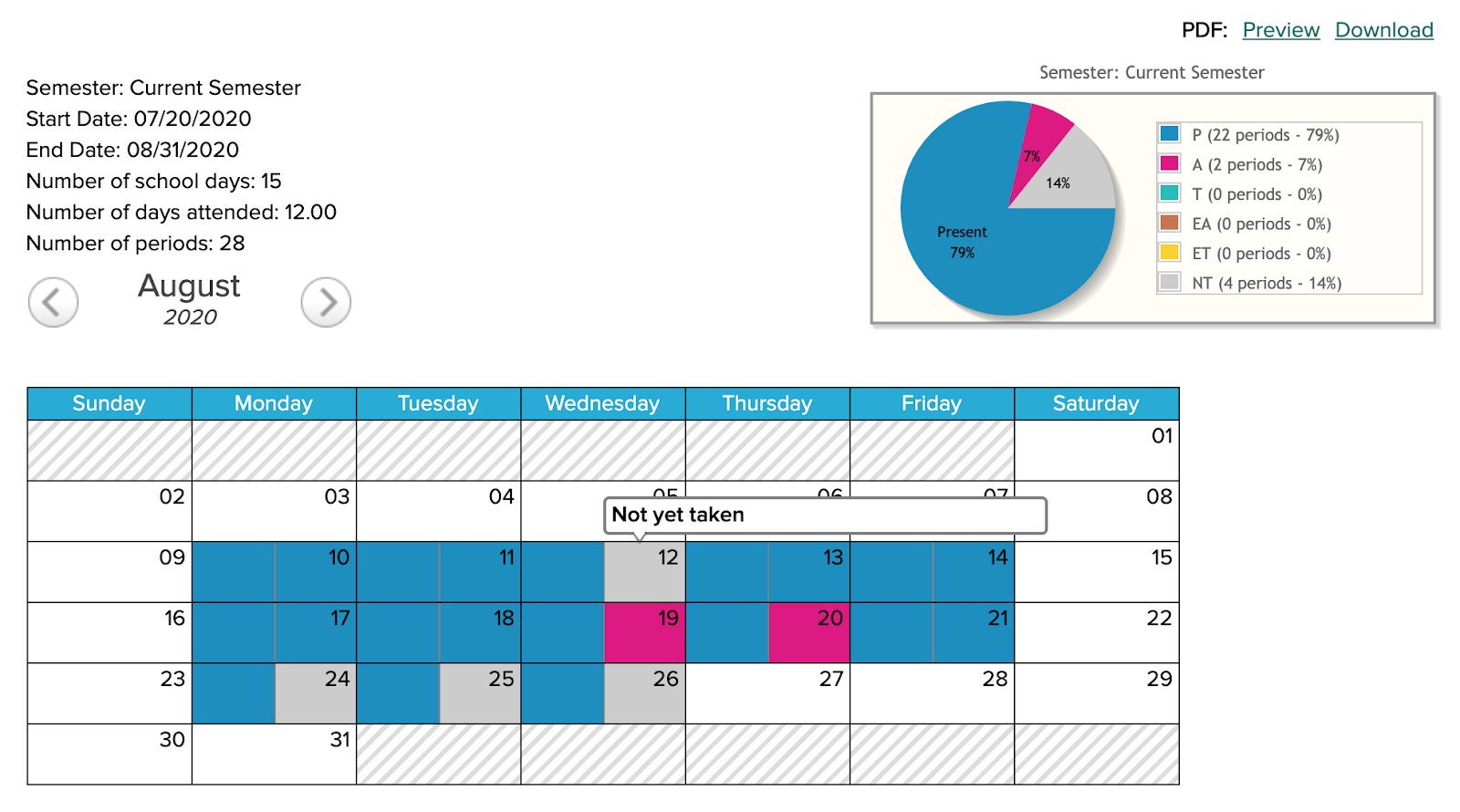
We wanted to briefly discuss how the Attendance module works in QuickSchools, and what happens when a teacher does NOT take (or has not taken) attendance on a designated school day. In these cases, the system will grey out the student record for the period, and reports will indicate that it has not yet been taken for that day/period.

Attendance Calendar on the Student record with attendance "Not Yet Taken"
Calendar on the Student record with “Not Yet Taken”

Taking attendance for the first time

The calendar adds school days in real-time when it is first taken on any particular day. For instance, you can establish holidays and school days in the Calendar (found under “New Semester Setup”), but the system will not designate a date as a school day until attendance is taken on that day.

Read More »

Parent Portal Features

If you have yet to enable the Parent Portal for your QuickSchools account, you’re missing out! This article describes some of the features offered via the QuickSchools Parent Portal:

Information at a Glance

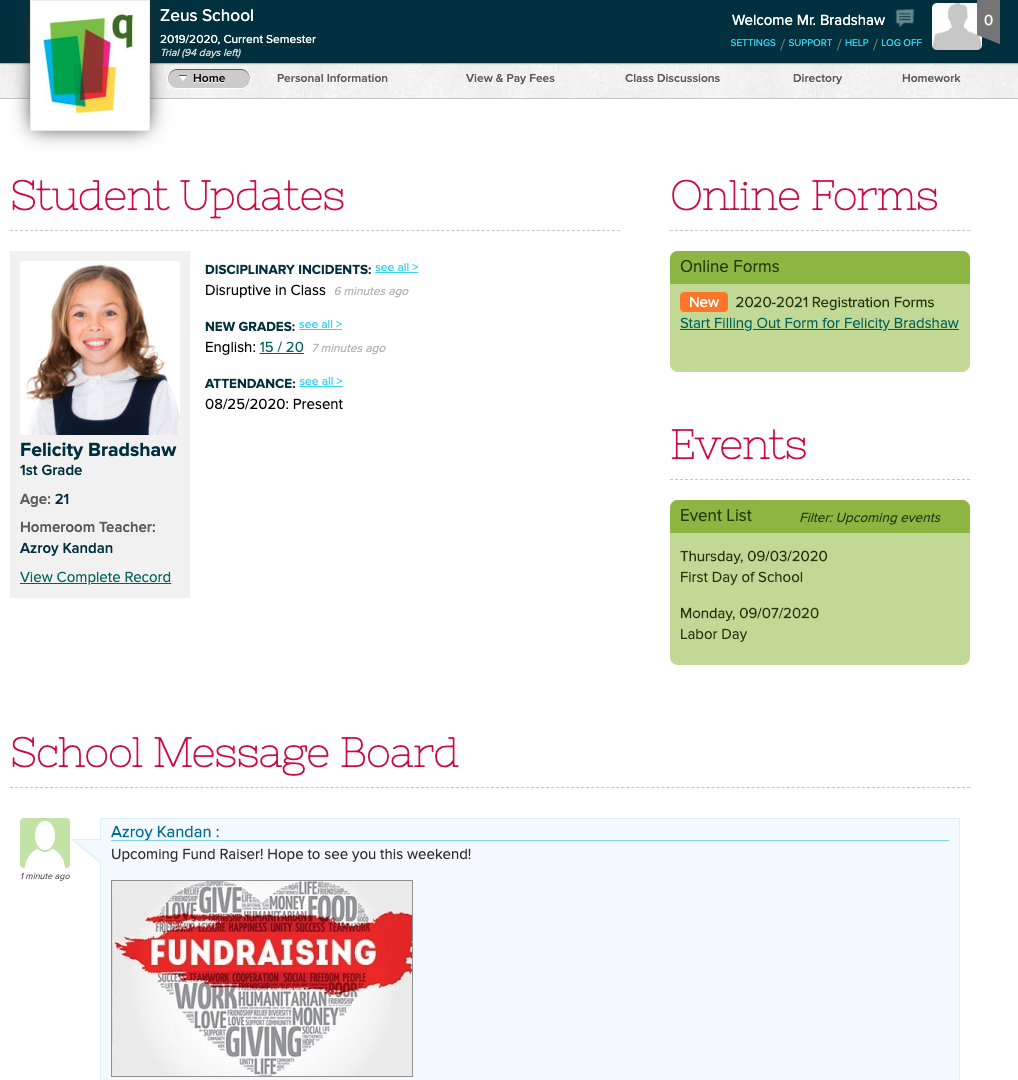
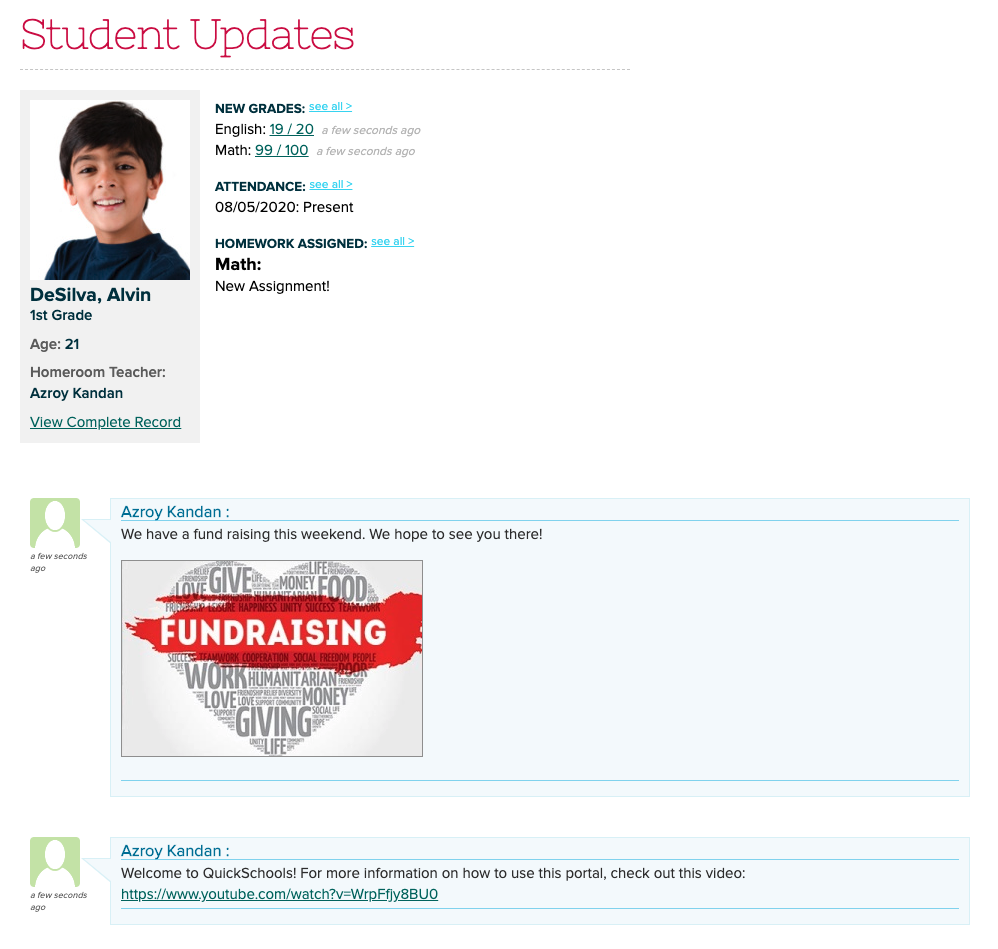
From the Home page, parents can quickly see recent activity like recent attendance, grades, homework assignments and disciplinary incidents. Events are listed on the right, and the Parent Message Board is at the bottom of the screen. Parents can click on the various elements to view more information.

Read More »

Subject-Specific Criteria for QuickSchools Report Cards

Most Quickschools Report Cards simply display marks and/or letter grades for each subject being evaluated. But some schools want to show evaluations based on additional criteria.

Three Four Galore Sample
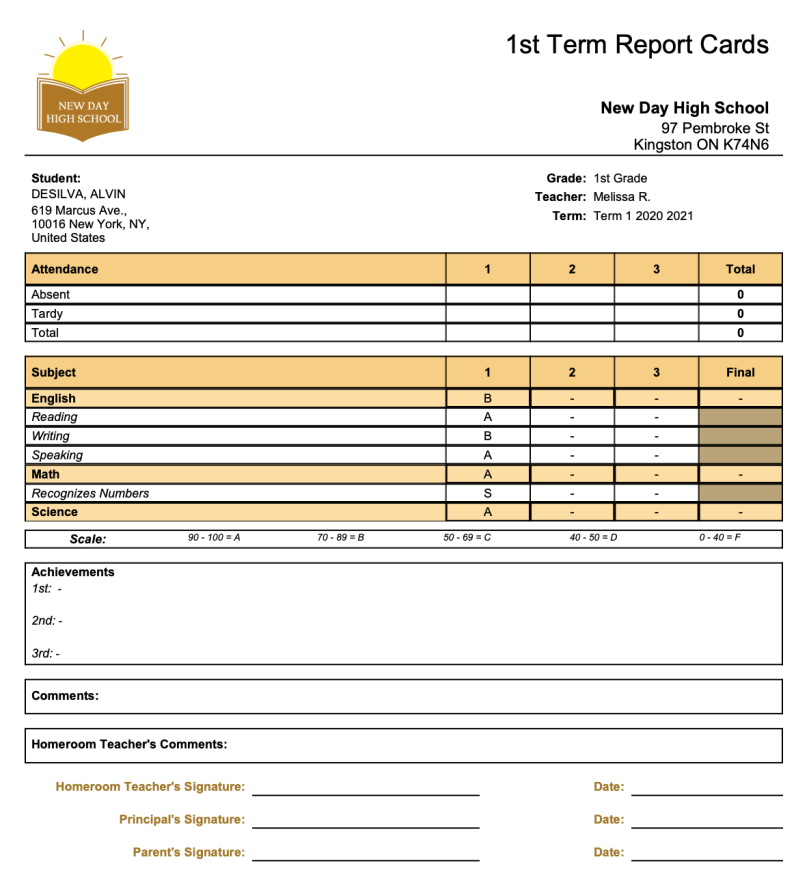
Alvin DeSilva’s Report Card with Subject Specific Criteria

In the example above, we’ve created a report card for Alvin DeSilva using the “Three Four Galore” Report Card template. Alvin is taking English and Math. And under English, you’ll notice that he also received evaluations for Reading, Writing and Speaking. You can configure your own criteria for specific subjects, as this article describes.

STEP 1: Select an Appropriate Report Card Template

The first step is to select a Report Card template that has a section for “Subject-Specific Criteria”. If you go to the “Report Cards” > “Setup Report Cards” menu, you can click on “Change Template” to select a different report card template. The selected template will appear on the left, with configuration elements on the right. Look for the “Subject-Specific Criteria” section on the report card.

Read More »

Apps for LMS Integration

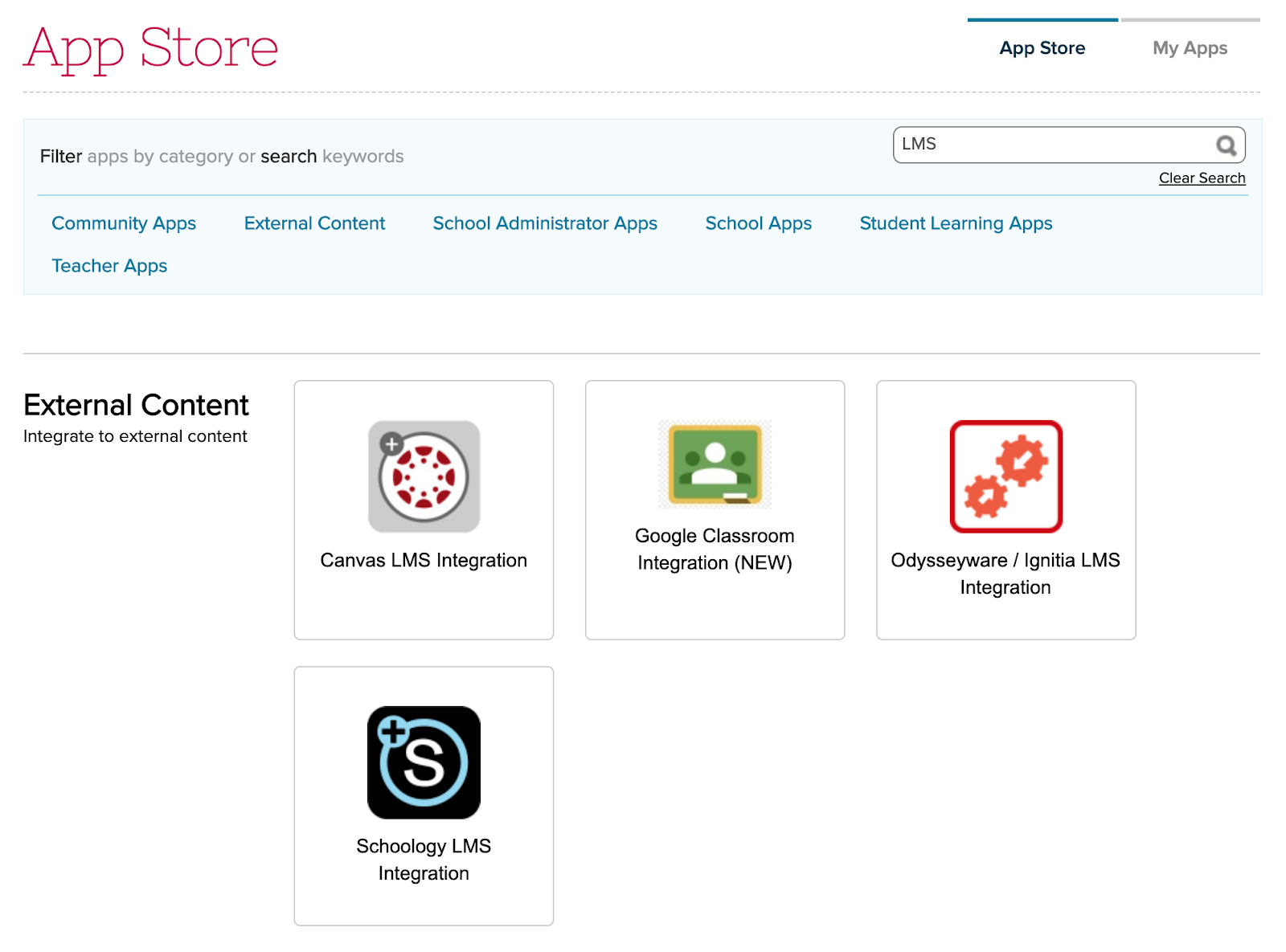
QuickSchools has several apps that integrate to an external LMS. Although there are slight differences in the functionality for each app, the overall approach and style is very similar.

apps for the LSM integration

Gradebook Sync

The primary goal of the Integration App is to pull the latest Gradebook data from the external LMS into QuickSchools. This is essentially an import, and no changes are made to the external LMS during this process. However, the synchronization process also includes changes in enrollment. So if you add a student to a course and add grades for that student in the external LMS, or if you remove a student from a course, the integration will automatically enroll or unenroll the student accordingly, in order to match the local QuickSchools Gradebook with the external LMS.

Read More »

Online Learning V1

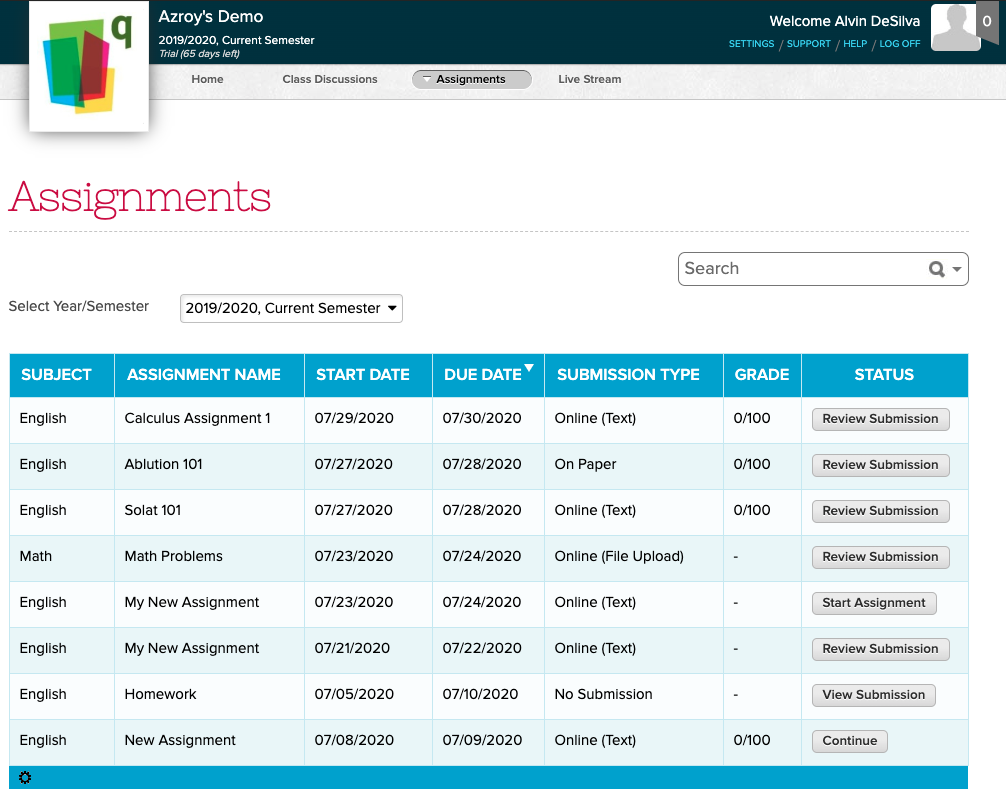
QuickSchools has traditionally been a Student Information System (SIS), not a Learning Management System (LMS). However, there has always been some overlap (i.e. Gradebook). But given the changing times, and a strong need for all schools to have an online learning capability, we’ve decided to beef up our in-house support for Online Learning. We may not be as full-featured as many of the big players out there, like Canvas, Schoology, Google Classroom, Odysseyware and Ignitia (all of which we do integrate with), but there’s a lot to be said about having a simple core set of features that works seamlessly with an SIS. 

New Assignments module as part of Online Learning capability

So here we’d like to outline some of these features, that make up the Online Learning experience within QuickSchools:

Read More »

Parent Message Board

The Parent Message Board is a great way to share information with parents in an unobtrusive manner in QuickSchools. Parents simply see these messages when logging into the Parent Portal. New messages appear at the bottom of the Home screen, just below the Student Updates:

Parent Message Board on the Parent Portal

As an administrator, just to go to the “Parent Portal” menu to post messages. Images are automatically displayed on screen. You can also share links and files too:

Read More »

Use Case: Single-Term Yearly Gradebook

The Admin Columns feature has given our users the ability to add grading columns to all gradebooks in one go. There are many other benefits to the admin columns that you can take advantage of in Quickschools. Two little known features would be the ability to specify date ranges, and the meta-id field. In the following example, we demonstrate how you can setup your gradebook using only a single yearly term, while having the gradebook broken down into multiple terms.

To that end, QuickSchools offers an add-on service to build custom templates for you. And with a custom Report Card template, you can make use of the Gradebook Default Columns which provide more structure in the way grades are transferred from the Gradebook to the Report Cards.

With ONE single yearly term, each subject will have ONE cumulative Gradebook for the entire school year, allowing teachers to use grades from the entire year when calculating final grades for each academic term and the final school year.

In the screenshot below, we have an admin column for each quarter in the year. These could also be configured as trimester or semester, depending on what’s needed for your academic year setup.

Each of the admin columns has a date range specified, as well as the meta-id. The meta-id is provided by our support team, and designates a particular column in the report card template. This allows the grade in the gradebook to be passed along to the report cards systematically.

Read More »