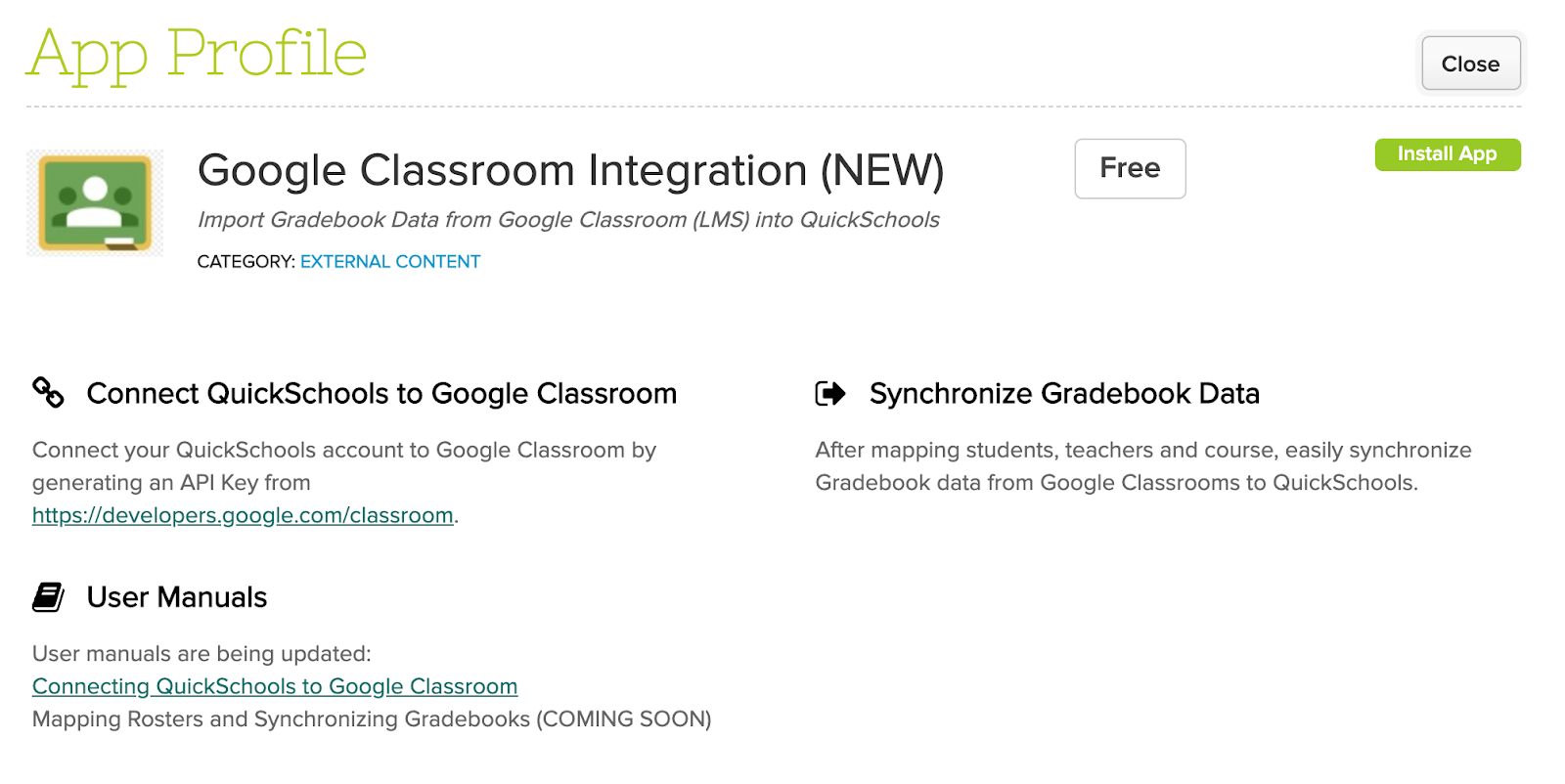
QuickSchools is delighted to announce this exciting new! The Google Classroom (LMS) Integration app has been moved out of Private Beta, and is now readily available on our App Store:
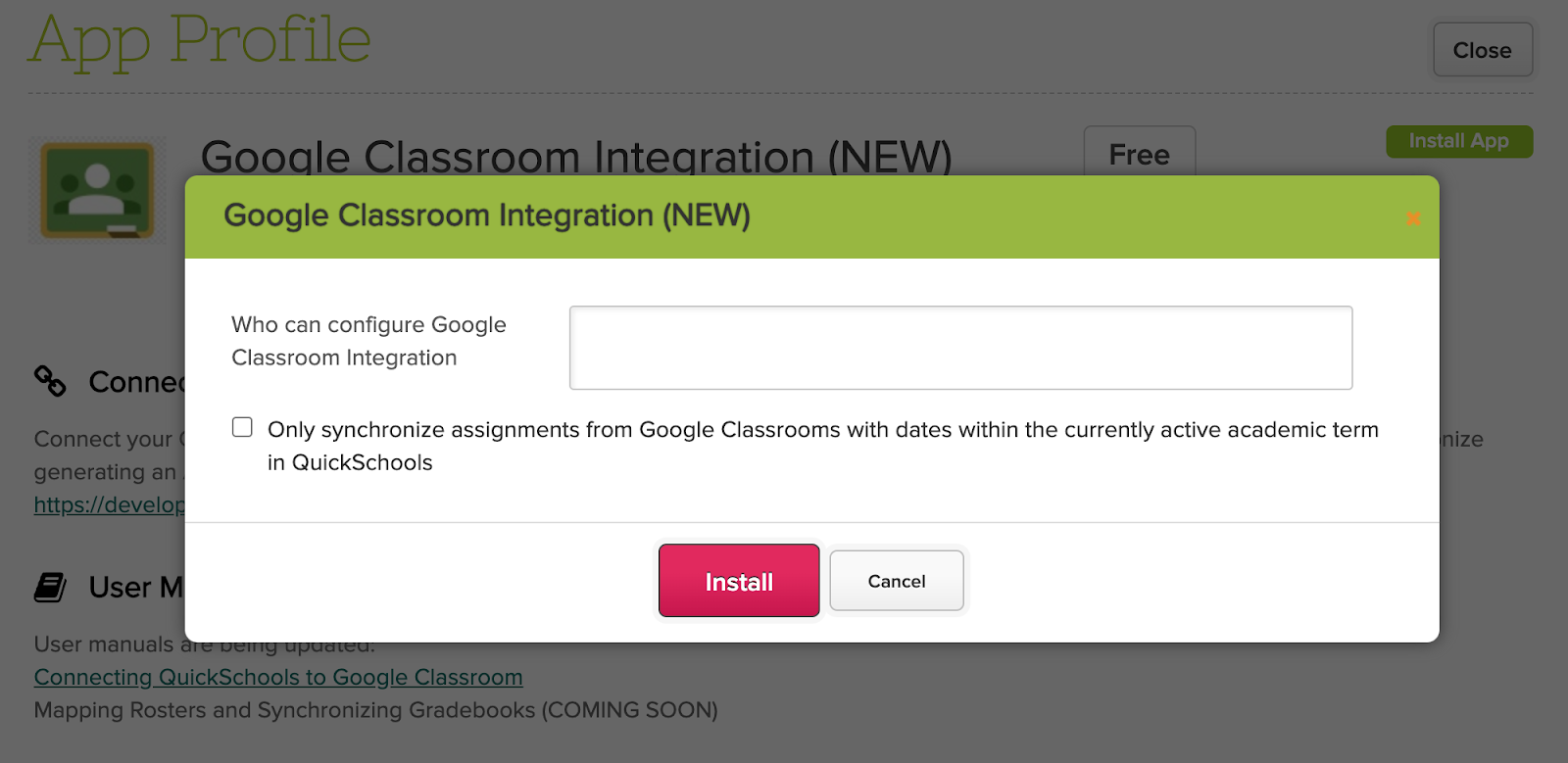
We’ve made several refinements since this app was introduced late last year. One key feature is the new option to “Only synchronize assignments from Google Classrooms with dates within the currently active academic term in QuickSchools”:
Here are some key features to note about Google Classroom, and how it relates to QuickSchools:
Both Odysseyware and Ignitia (LMS) are part of the same company, and thus use the same API framework. For schools using Ignitia, you can actually use the Odysseyware Integration App from the our App Store, to map data and transfer grades. However, it may be confusing to see references to Odysseyware in QuickSchools, if you’re actually using Ignitia.
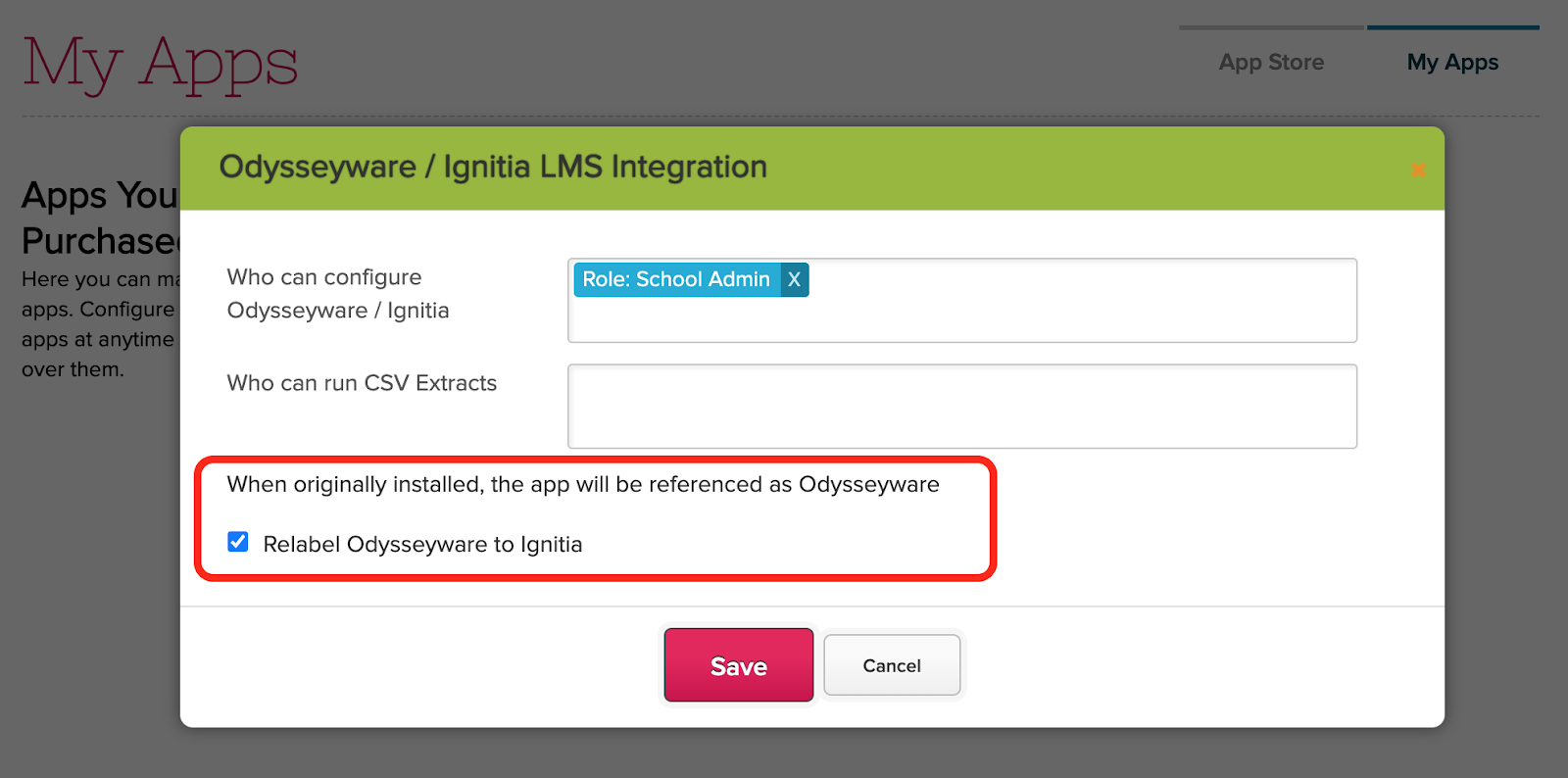
To help improve the experience, if you install the Odysseyware Integration App, you can now relabel the word “Odysseyware” to “Ignitia” when configuring access for the app:
Once configured, all the screens within your QuickSchools account will say “Ignitia” instead of “Odysseyware”:
There is a little known feature within QuickSchools, that allows users to filter the student listing on certain modules based on a custom report from the Report Creator. You’ll need to expand the Search options to view the “Advanced Filtering” option:
Building Reports
You’ll need to have the Report Creator installed and enabled in order to use this feature. With the report creator, you can build custom reports to suit almost any scenario. We’ll illustrate a few examples below.
Here’s an example report that shows all students taking the English course:
Example Report showing Students enrolled in the English course
Here’s an example report that shows all students with the “Allergy” tag:
Since early on, QuickSchools has been supporting schools grow, by providing a flexible monthly subscription plan that’s simply based on the number of active student records in the account. Especially in these difficult times, if enrollment goes down, your subscription cost will also go down. All you have to do is make sure that you deactivate your students when they leave / graduate:
Deactivating Student Records
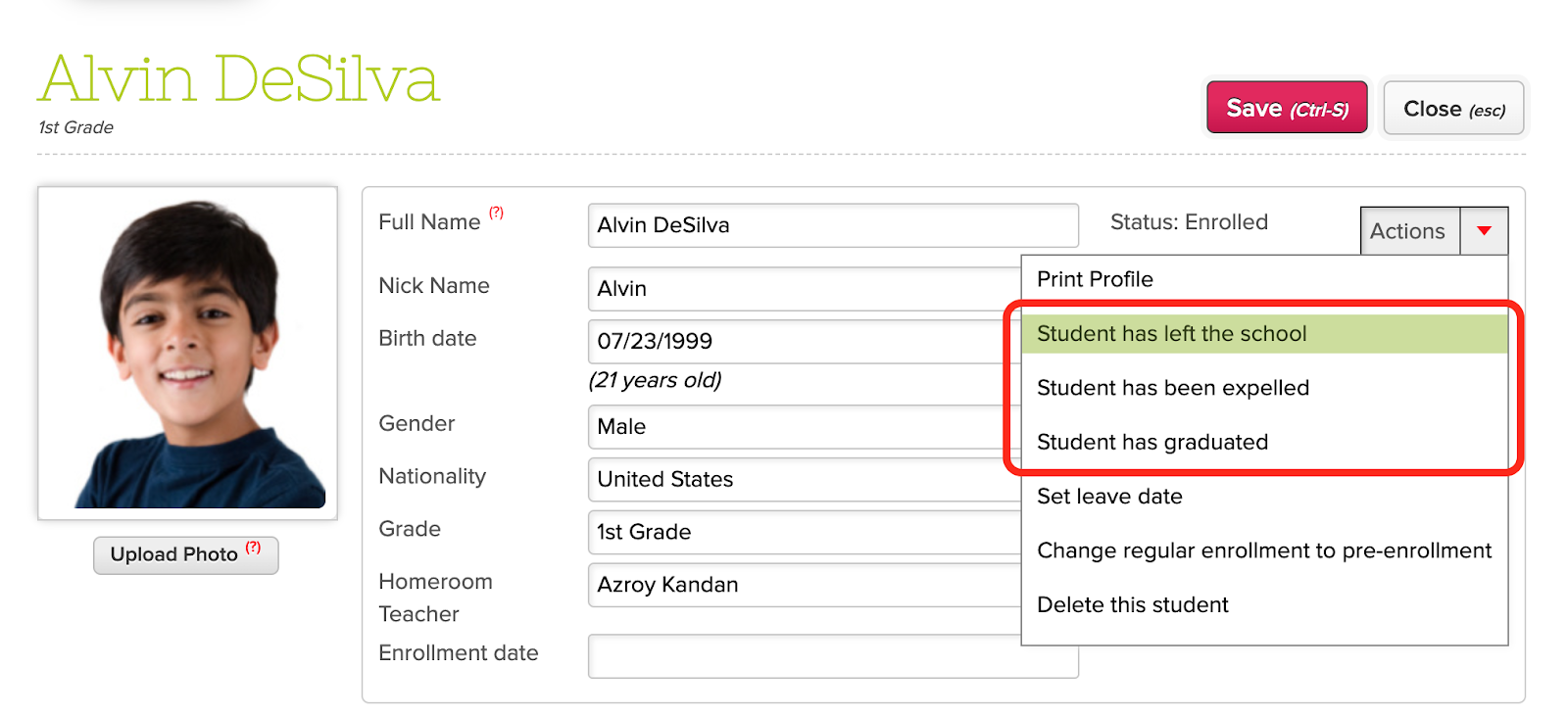
To deactivate a student record, all you have to do is open the student record from the Students listing, and select either “Student has left the school”, “Student has been expelled” or “Student has graduated” from the “Actions” dropdown on the top right corner:
Once a student is inactive, the student record no longer appears on the main Students listing.
Accessing Inactive Records
To view inactive student records, use the triangle on the search box to activate the Advanced Search options, and select one of the available options to include inactive students (like “ Show deleted students”, “Show students who have left” or “Show expelled students”):
An important aspect of the QuickSchools system is the concept of Academic Terms. An academic term is used to manage all subjects/courses that a student is enrolled in within a specific time frame. This containment is important in order to easily manage a group of students that all start/end courses at the same time. It is also important that these academic terms do not overlap, as the system can only support one term to be active at any time.
So what if a school does not have academic terms? There are still courses with multiple students starting and learning together, but some courses run for a week, others for a month, and so on. This is more typical for vocational schools that offer private courses like a Photography School, or a Barber/Beauty School. In this case, we recommend having just ONE academic term, which you can archive on a yearly basis.
This set up works if:
Students learn together in groups. All students within a course start and end together, but also go through the same curriculum (i.e. not Self-Paced)
You have courses of varying lengths.
You want to track students as cohorts, even though the same cohort of students may leave the school at different times (because of the length of their courses)
One question we often get asked is if QuickSchools is beneficial for schools that only operate 1-2 days a week, or just on the weekends. Some would think that since instruction is sporadic, then a system is less necessary. But to the contrary, the less teachers meet with students, the more impact a system like QuickSchools can make.
Interact with Students
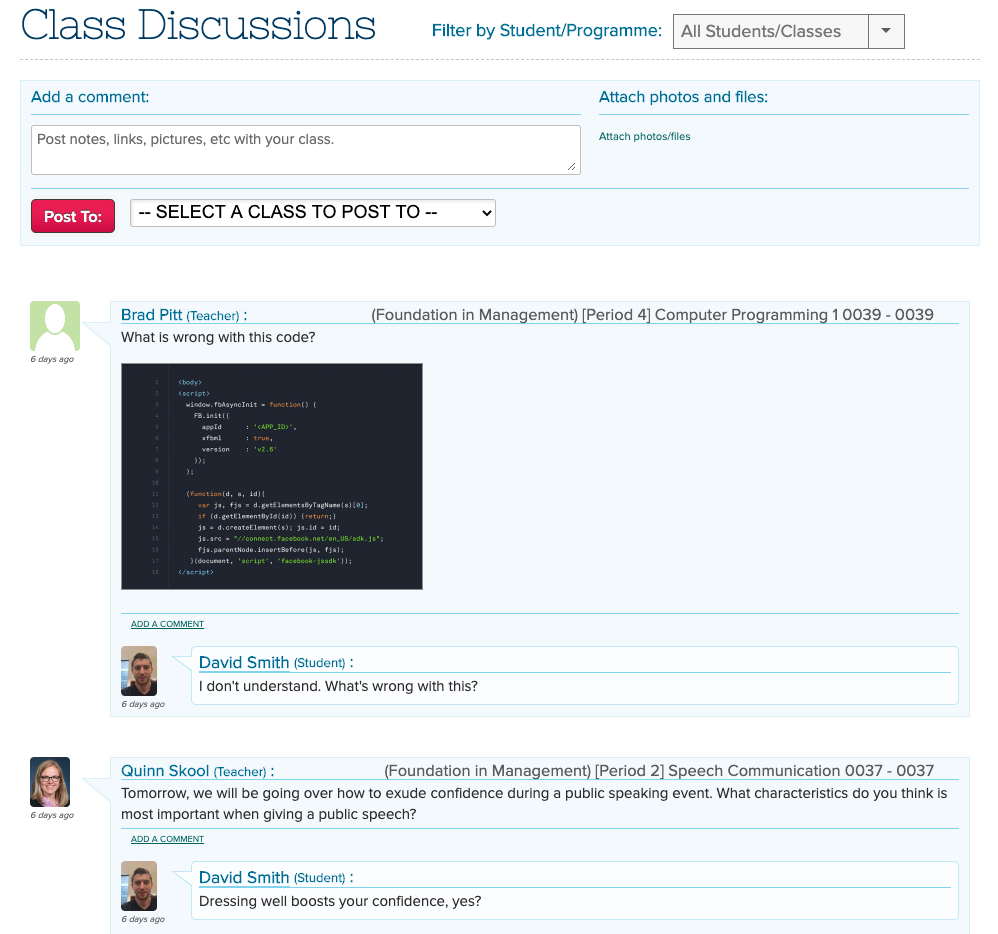
While students are not at school, you can use the Class Discussion module to discuss learning topics online. Share pictures, links and files. The Student Portal is a great way for students to stay ahead by accessing all related student information like homework assignments, grades and report cards. Teachers and students can also communicate directly via the Private Messaging module.
Class Discussions for Students
Share information
Throughout the course of the week, teachers and staff can more easily share / broadcast information to students and parents using our Mass Messaging Module, which includes email, text and voice. Administrators can also make announcements via the Parent Message Board. And when teachers use the Class Discussions module, an email notification can also be sent out as well. Finally, we have new apps on iOS and Android to make notifications even easier.
You’re still a school
So in addition to engaging students and parents throughout the course of the week (ie. when students are actually in front of the teacher), there are still many benefits to having a centralized system. Just to name a few:
QuickSchools has been supporting Trade Schools and Vocational schools for many years now, primarily due to the flexibility afforded by our platform. In this article, we’d like to elaborate specifically on setting up your Programs.
Class Setup
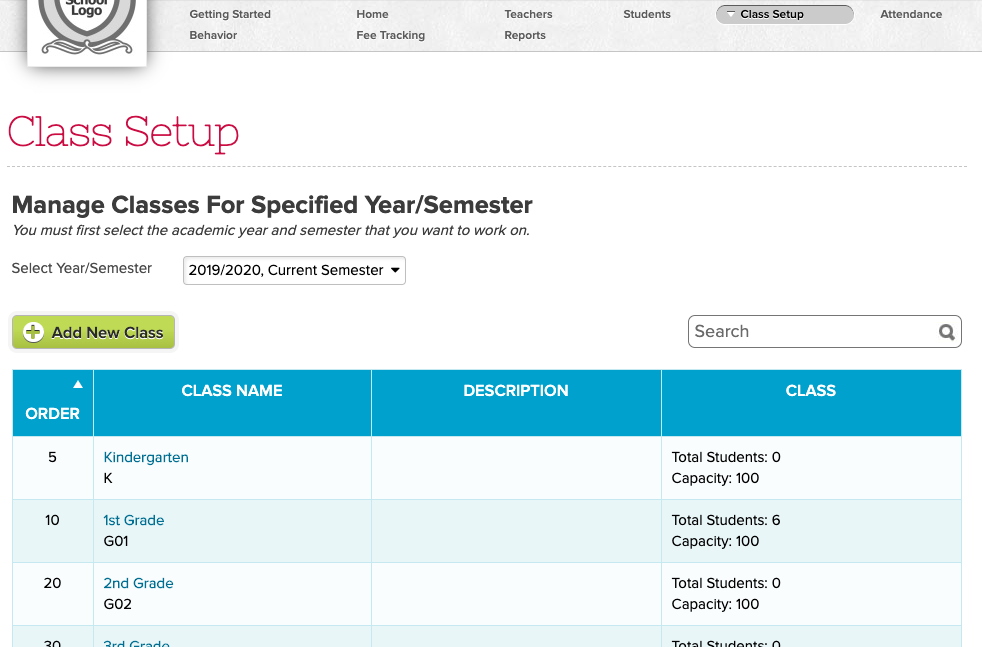
When “College-Level Settings” is turned on, you’ll see a new module called “Class Setup”, which displays all the grade levels (relabelled as “year levels” or “classes”):
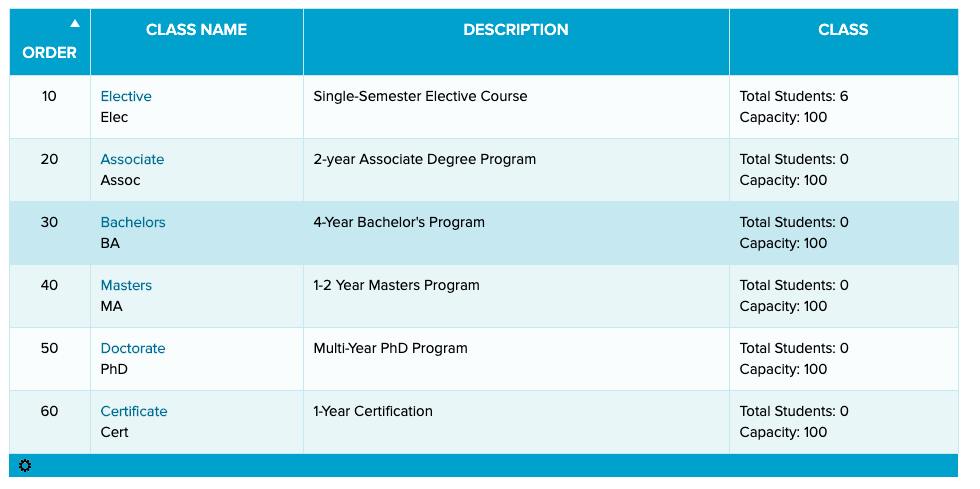
Depending on your institution, you can repurpose this module to display the program or year levels. For example, you can set up classes as Programs:
For vocational schools, your programs may look like this:
Collecting fees is an important part of the school operations. And although QuickSchools provides an integrated way to collect fees online via Stripe, many schools choose to collect fees via their own payment gateway. When doing this, keeping both systems in sync can be a challenge. So here’s what you can do:
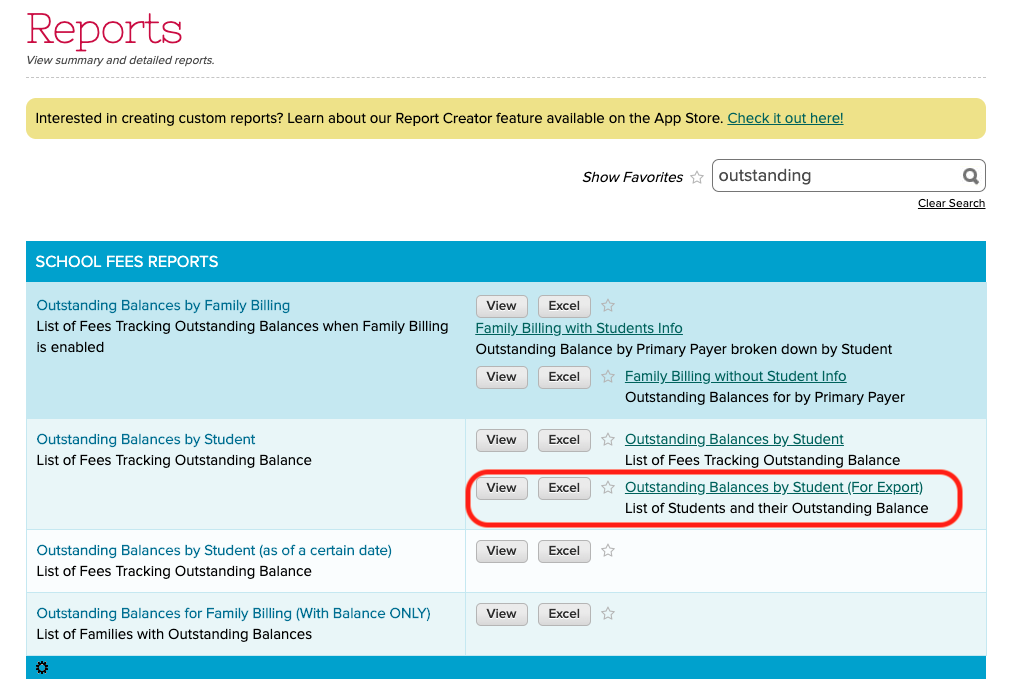
First off, you can use the “Outstanding Balances by Student (For Export)” Summary Report to export all outstanding balances out of QuickSchools in Excel format. Simply search for “Outstanding”, and you should see it:
Outstanding Balances by Student (For Export) Report
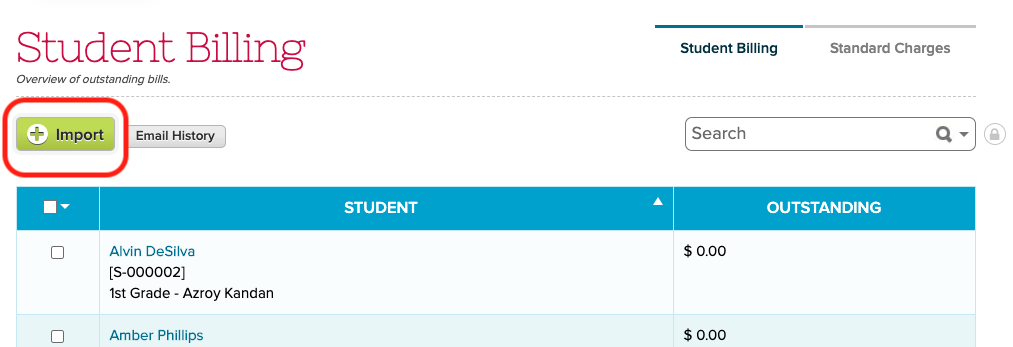
You should hopefully be able to import the outstanding balances back into your payment gateway, and then charge your students/parents based on the new outstanding balances. Successful payments should create payment transactions (i.e. receipts) within your external system. Finally, you can then export all the payment transactions, and re-import them back into QuickSchools.
Import Fees into QuickSchools
If you’re using an external system to manage all payments and fees, and you simply want to display all fees and payments in QuickSchools via the Student and Parent Portal, you could import all transactions as well, but this is a different scenario.