SSO via Google SAML

We recently announced that QuickSchools now provides Single Sign-On (SSO) functionality via the SAML protocol. This means that for schools on the Google ecosystem, you can use Google SAML as the Identity Provider (IDP), and have it manage users centrally.
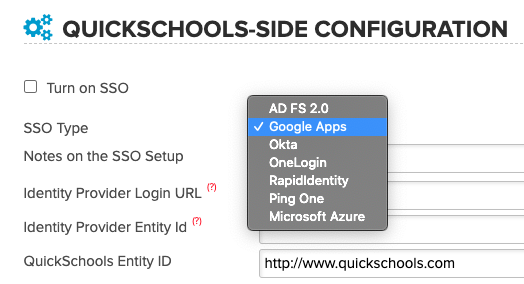
QuickSchools Single Sign-On (SSO) via Google SAML

The SSO functionality is still in Private Beta, but schools can start using it at their own discretion. You will need to have the District (or Group) School feature enabled, in order to use this feature. We are looking for feedback to make the experience better. For more information on the new SSO functionality, you can check out this article:

https://www.quickschools.com/blog/2020/11/20/single-sign-on-sso-via-saml/

For Google SAML in particular, we’ve written up some quick notes on how to set it up (with screenshots and instructions). You can check it out on our support site here:

https://support.quickschools.com/hc/en-us/articles/360053886052

Please note that to set up Google SAML for your school, you will need a Google Workspace (formerly G Suite) account.
Let us know how it goes!

Online Forms: Electronic Signature

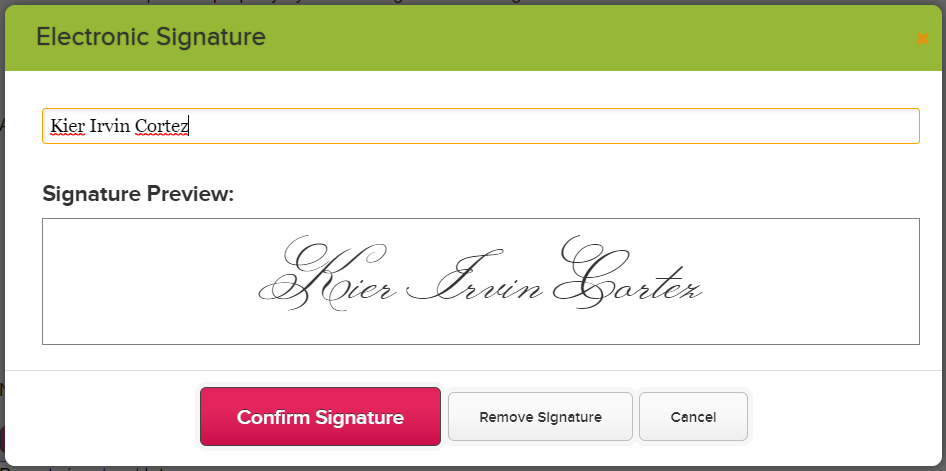
As most of you know, our Online Forms App allows you to add Fillable PDF Forms to your online form packet. To further allow your forms to go paperless, the online forms also allows users to add their electronic signature into the pdf form. This is useful for situations where you need a contract signed by the students as well as by the school.

Setting up Online Forms Signature

If you have not yet installed the Online Forms App in your QuickSchools account, you can do so via our App Store — search for Online Forms and click on Install

Once the app has been installed and configured, we would need to enable SVG for the online forms. This will allow Cross-Browser Compatibility and allow you to add digital signatures to the form. This is currently a hidden feature. To have this enabled please send us an email at support@quickschools.com

After SVG has been enabled for your account, we can now start setting up our Online Form Packet. Please note that when configuring the Online Form Packet, enable the One Form per Child option. This will allow parents to send a form per child, and allows any mapped information to be automatically filled (i.e. Student Data):

Read More »

Schedule Dropdown

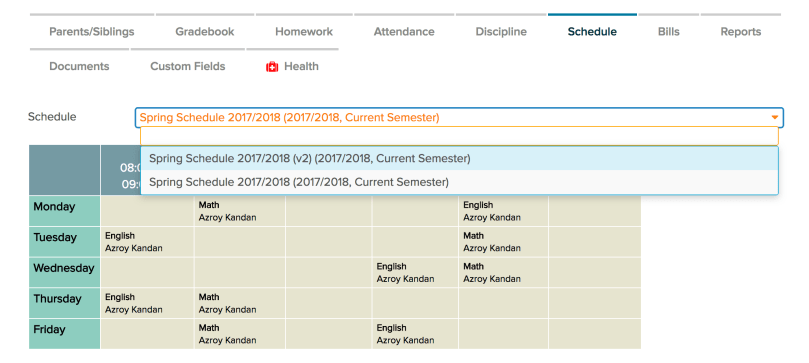
For those who wish to print a Schedule that has not been activated yet, QuickSchools has a new dropdown in Private Beta that can be activated for your school. This feature is for the original (and simplified) Scheduling Module, and not for the new Master Scheduler that is currently also in Private Beta.

Here’s what the dropdown looks like from the “Schedule” tab (available for both Students and Teachers):

Screen Shot 2018-05-27 at 6.21.53 AM.png

Please contact support if you’d like this feature to be turned on for your Scheduling module.

BETA: Yearlong Attendance in Student Record

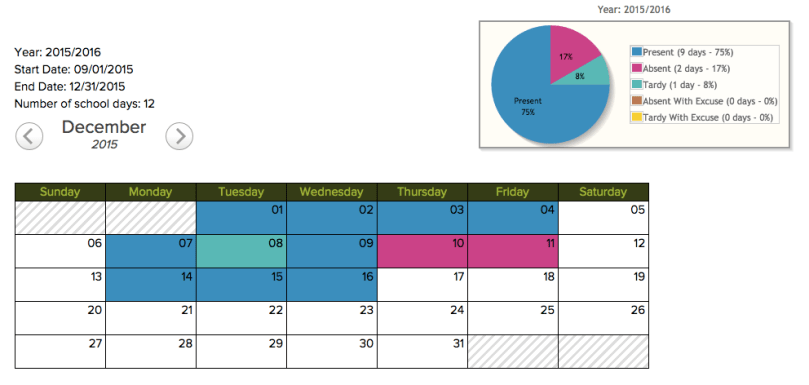
If you would like to have the Attendance tab in the student record show attendance data for the entire school year, this is now possible (in beta only) thanks to several requests we’ve received. You’ll need to contact us to set it up (you can just chat in or email us at support@quickschools.com), and we’ll be more than happy to enable this new capability.

Here’s a preview of what the attendance tab will look like using some dummy data:

Screen Shot 2015-12-16 at 9.57.46 AM.png

Caller ID for Voice Messaging

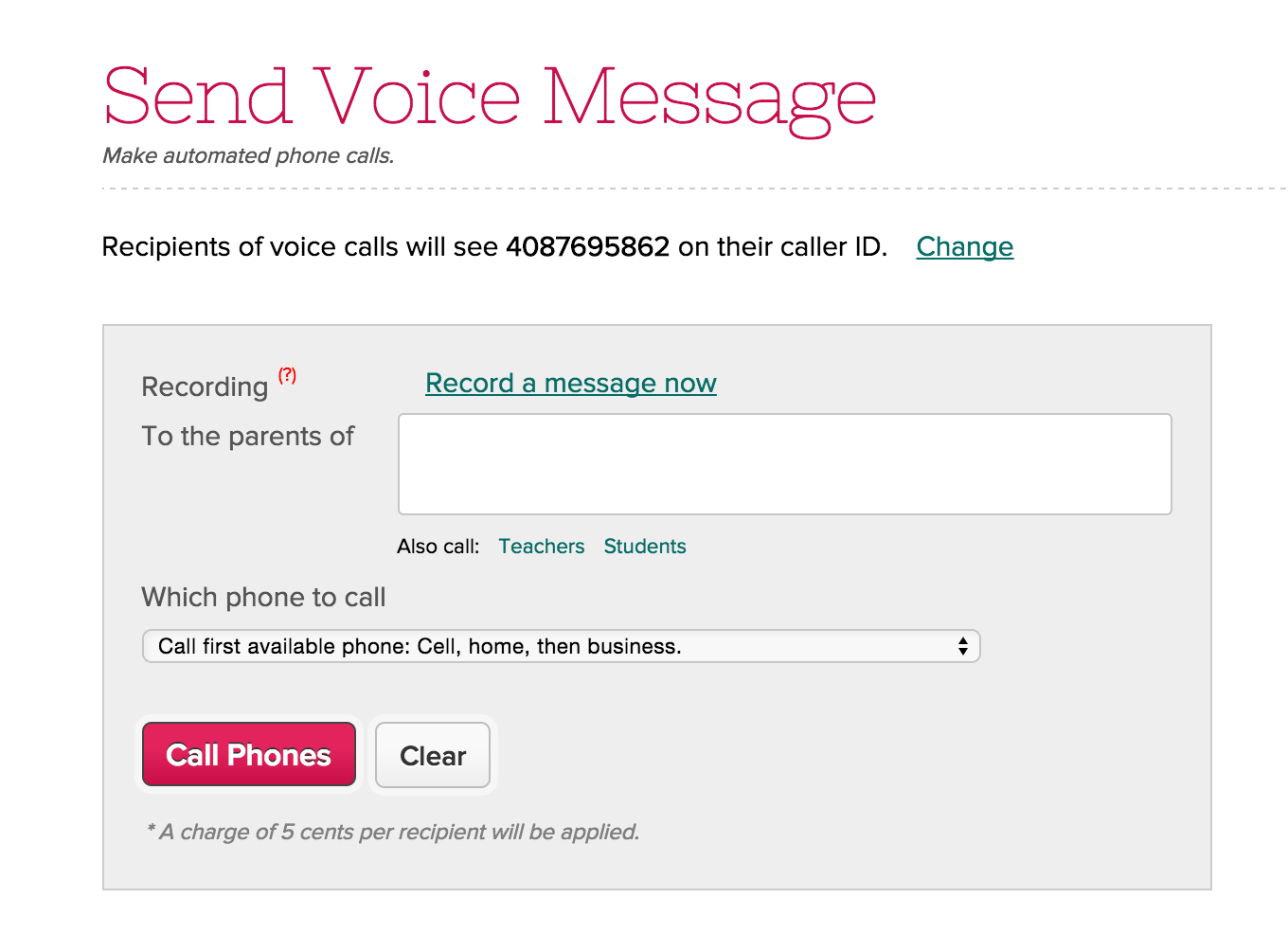
We have a new feature in Mass Parent Messaging (still in beta as of Aug 31, 2015), where you can now specify your own phone number for caller ID when sending out voice messaging. This process does require that you verify your phone number, but once verified, all calls that you make will have your specified phone number, and when parents call back, they will reach you directly. Here’s how you set it up:

Go to “Parent Messaging” > “Voice Message”, and click on the “Change” link if you’d like to change the caller ID from what has been currently set:

Set Caller ID for Voice Messaging

Then on the pop-up dialog box, specify the number you’d like to use:Read More »

Lesson Plans by Month & Copy Lessons from Archive (Private Beta)

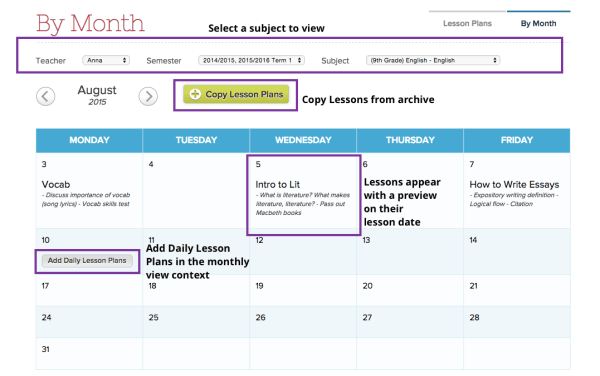
We’ve been building out from our Lesson Plans by Subject and Lesson Plan Dates updates and have some cool new views to share. These work with the Lesson Plans by Subject feature and allow teachers to view a long-term calendar of lessons as well as copy them forward from the school archive of past terms’ lessons. Here’s a quick look at the setup.

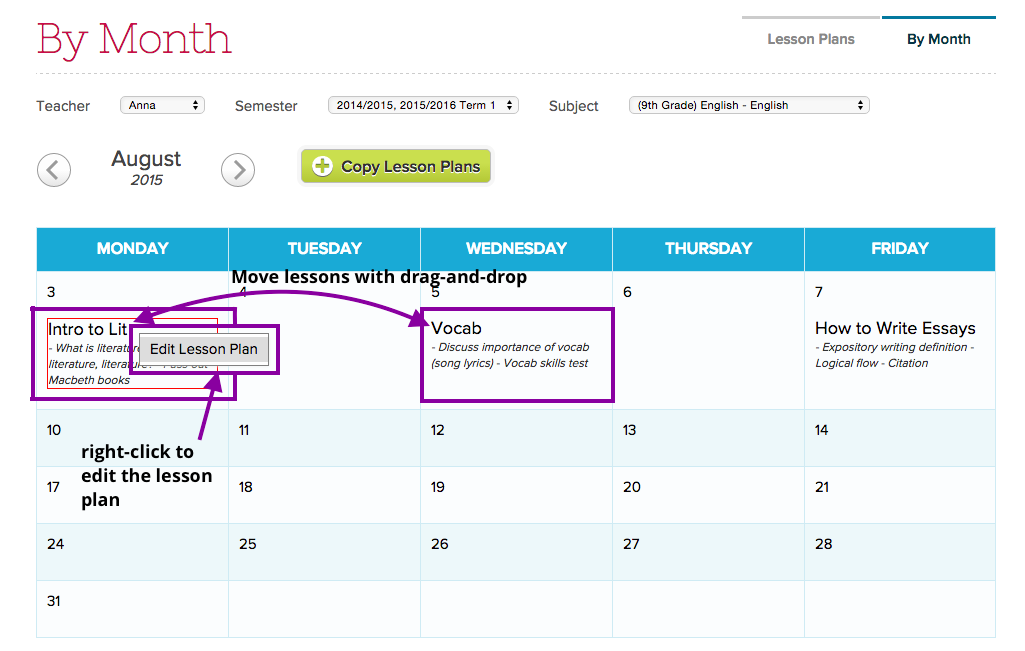
The Lesson Plans by Month view works a lot like the the Lesson Plans by Subject view, and even the Gradebook. Simply select a subject that you’re teaching and the lesson plans you have setup for the current term view will appear on their lesson date. Also, you can mouse over a day, click the “Add Daily Lesson” button to add a new lesson for that day.

by Month

You can drag and drop the lesson around to a different day, and right click to edit the lesson:

Edit Lesson

In addition, one of the coolest features of the by Month view is that “Copy Lessons” button at the top. It directs you to a wizard that helps you migrate past terms’ lessons forward so as to view and update lessons for a new term. From the wizard, you can select which term and subject you’d like copy forward from the archive.Read More »

Lesson Plan by Subject (Private Beta)

We’re testing a new version of the Lesson Plans that can now be specific to subjects. In the existing QuickSchools module, you can create a Lesson Plan Set. This set is applicable to multiple subjects across different semesters. However, with the introduction of Lesson Plan Dates, we decided to directly link Lesson Plans to each subject/section within a specific academic term.
This new Lesson Plan module will operate similarly to the Gradebook and Homework modules. Just select the subject you’re teaching, and you can promptly add/edit lessons for that subject.

Lesson Plans by Subject

Here are some differences for comparison:

Current: Lesson Plan Sets (Shared and Re-Usable)Private Beta: Lesson Plans by Subject (Archived and Re-Created)
You have to create a Lesson Plan Set first, and then apply it to a subject. You can re-apply the same lesson plan set to multiple subjects across different academic terms.You simply select a subject, and the Lesson Plan Set is already created. When you select a different subject, you get a different Lesson Plan Set.
When you move to a new academic term/year, you can re-use the same Lesson Plan Set, and apply it to the new subject.When you move to a new academic term/year, the old Lesson Plans are automatically archived, and you get a new (empty) Lesson Plan Set for the new term (similar to getting a new Gradebook for every term).
Lesson Plans can be shared with parents/students (just like Gradebook and Homework can be shared with parents and students) – COMING SOONEnable the sharing of Lesson Plans with parents and students, similar to how Gradebook and Homework can be shared. – COMING SOON

These are some pretty significant differences, in terms of how the modules behave. Because this feature is in private beta, we are actively seeking ways to enhance the management of new lesson plans. You should still be able to easily copy lesson plans from previous terms into the new term. For instance, while you start each term with a new/empty lesson plan set, you can still use some previously created lesson plans. However, changing the lesson plans for the current term will not impact lesson plans archived in previous terms.

If you’re eager to test out this new version (currently in Private Beta), please contact our technical support.

Hidden Features and Private Beta

As a company that works tirelessly to provide a system that is simple, intuitive, and easy-to-use, it’s often difficult to introduce new features, without making it more complicated for the majority of our customers. For us at QuickSchools, it’s less about simply providing a feature, and more about providing a feature that simply works.

With that in mind, we have several features that are intentionally hidden, either because (1) they are in private beta (and thus requires more testing before it goes out for public release), (2) they are designed for a specific target market, or (3) they are too complicated to enable without the help of our technical support personnel.

One such example is our Reporting feature. We only recently introduced our new Report Creator app, which was in private beta for several months. Before that, we had (and still have) an internal report designer that is very complicated to use but also much more flexible for those more complex reports. The aim is to provide a capability (in this case reporting) that simply works for the majority of our customers, but still have something more flexible for those that need that flexibility.

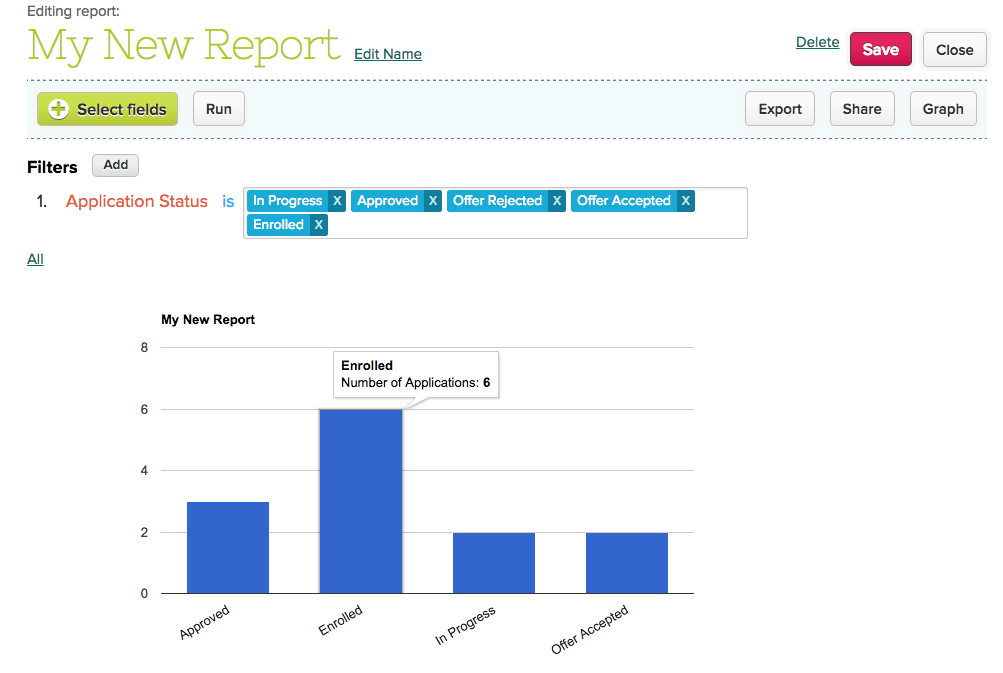
Admissions Graph on Report Creator
Read More »