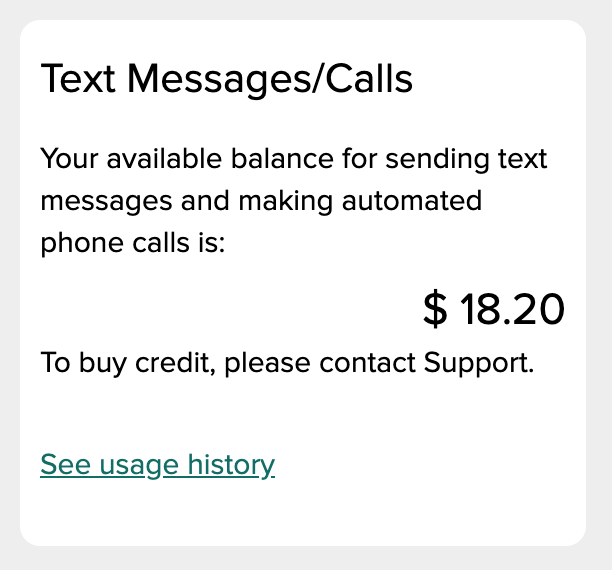
Unfortunately, QuickSchools has recently been targeted for Phone Fraud and the 809 phone scam. This is where a malicious user attempts to use the Voice Messaging feature to call toll numbers which charge exorbitant rates for calls. As a result, we’ve had to disable the “Buy Credit” feature for Paid Messaging in this patch release:
New schools will have to go through a verification process, before they can be allowed to purchase credit in order to make paid phone calls. If you see this message and would like to purchase credit, please contact our support team to have the feature reinstated.
QuickSchools has just released some minor improvements to the Online Forms apps, to help schools with processing new students for the new school year. Improvements are described below:
Download Forms
As users are filling up the forms within your form packet, there is now a new “Download Forms” button, that allows users to download completed forms before submission:
Users can select whether to download all forms, or just specific forms from the packet:
Remember selected Subject when moving between modules
Display Homework module on Student and Parent Portal
Featured Improvements
Option to copy gradebook formula on semester activation
Online Form Importer Bug Fixes and Improvements
General Bug Fixes / Improvements
Improve support for changing the Bell Schedule in Master Scheduler
New Framework for sending Emails from Summary Reports (App)
New Report Creator Filter for incoming days
Report Creator improvement for Communications Enabled
Improve server performance during cross-domain functions
General Security Improvements
Bug Fix when connecting to Stripe
Bug Fix when connecting to Google Classroom
Online Learning Improvements
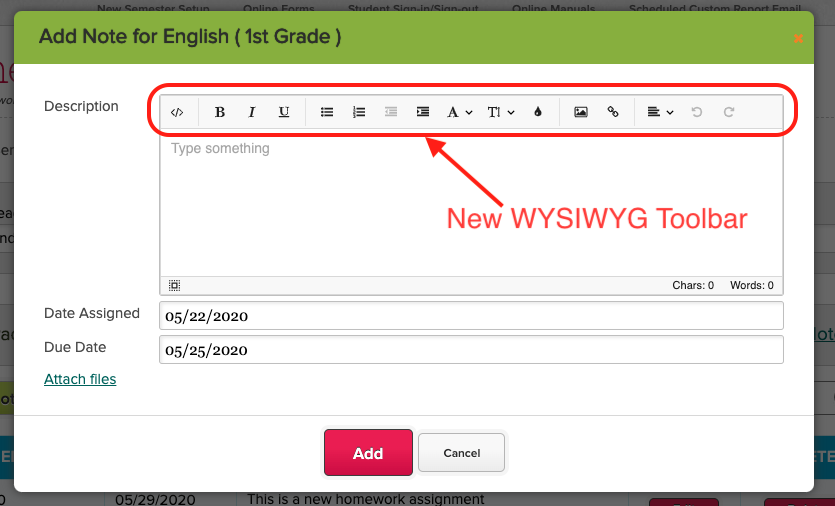
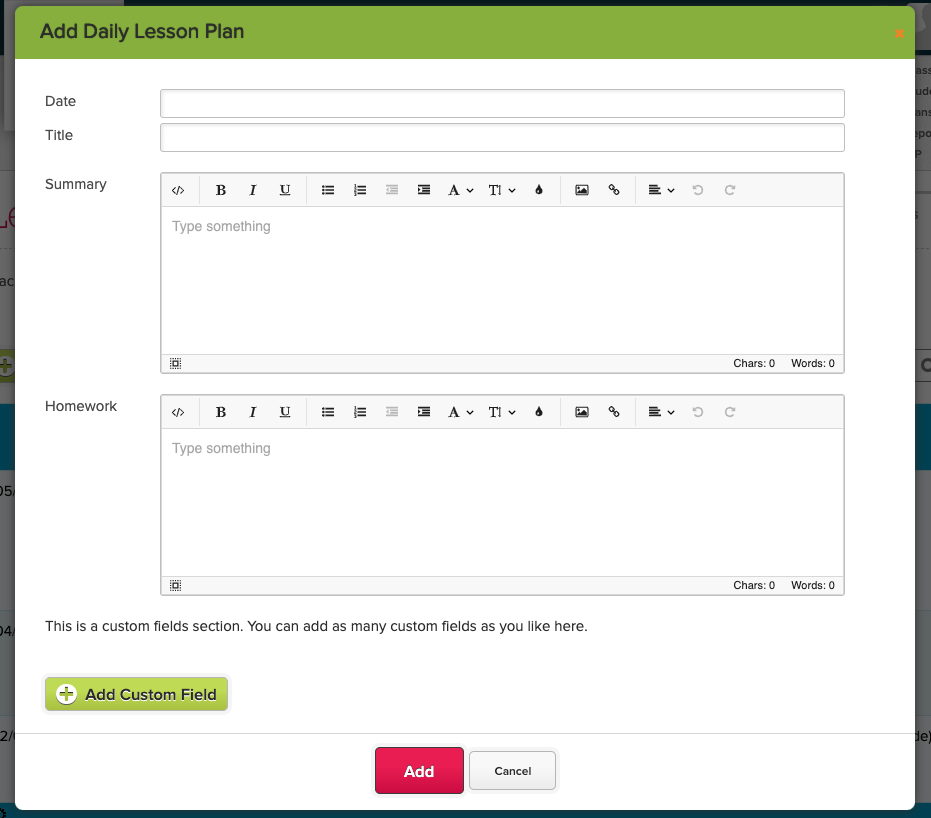
With more and more schools relying on QuickSchools to deliver online learning, we’re introducing a few new features in the coming months, the first of which is the new WYSIWYG toolbar when creating Homework and Lesson Plans:
You’ll also find that when navigating between modules like Homework, Gradebook and Subject-based Lesson Plans, the system will remember the selected subject:
In the recent QuickSchools release on May 6, 2020, we introduced some new improvements to our Email Templating module. This article aims to highlight a few key features of this capability.
The Email Templates feature is currently available in several modules, namely:
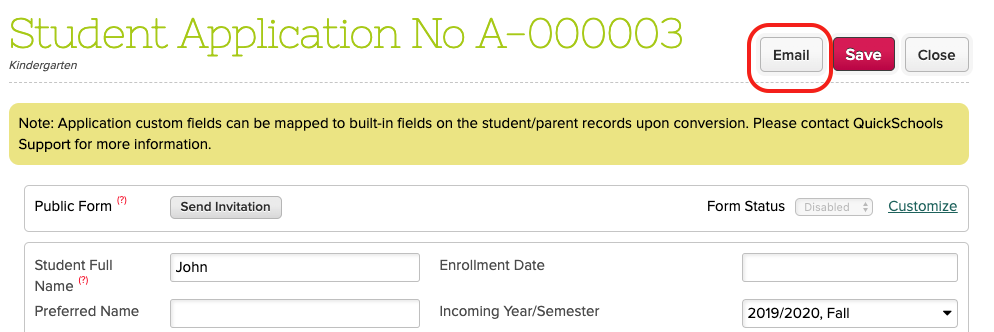
When accessing a record in these modules, there is an “Email” button that allows you to send emails that utilize fields from the module. Here’s an example from the Admissions module:
Send Emails from the Admissions module
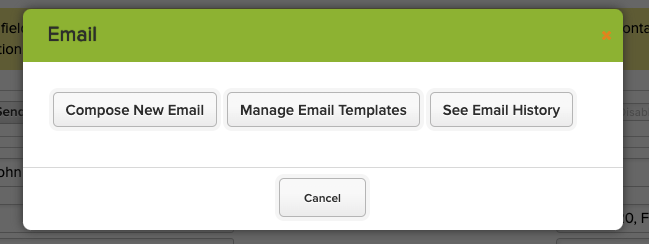
You then have the option of creating an ad hoc email, use a template, or view the history for this record:
Options when using the Email Template capability
Each module has its own set of fields that you can use. Just click on the “Insert Field” link to view list of fields:
Here are the latest improvements in the New Release May 6 2020 QuickSchools:
Google Classroom
Cosmetic Layout Improvements
Disable mapping of Grading Category
Support using Grading Category in QuickSchools Gradebook
Synchronize Assignments based on Assignment Date
Online Payments Improvements on Allocation Functionality
Ability to manually fix Allocation for Credit Card Fees
Fix Decimal Formatting
Featured Improvements
Dedicated screen for students to access Homework Assignments (Beta)
General Improvements and Bug Fixes to Bulk Email from Template
General Bug Fixes / Improvements
Gradebook ToolTip temporarily removed for performance tuning
WYSIWYG Editor is now enabled by default for Email Messaging
Expand Support for Auto-Enrollment by Homeroom
Support for Section Attendance on the Student Attendance tab
Support personalized Announcements
Improve display of multiple Announcements
Improve Auto-Logoff Feature on Browser Refresh
Improve Attendance Calendar Support for deleted Attendance Codes
Improve Reporting on Student and Parents with Communications Enabled
Improve support when multiple schools initiate Email Messages at the same time
Fix Sorting of Formulas in Gradebook Templates
Fix installation error for Online Forms App
Expand API Resources for Mobile Apps
Google Classroom
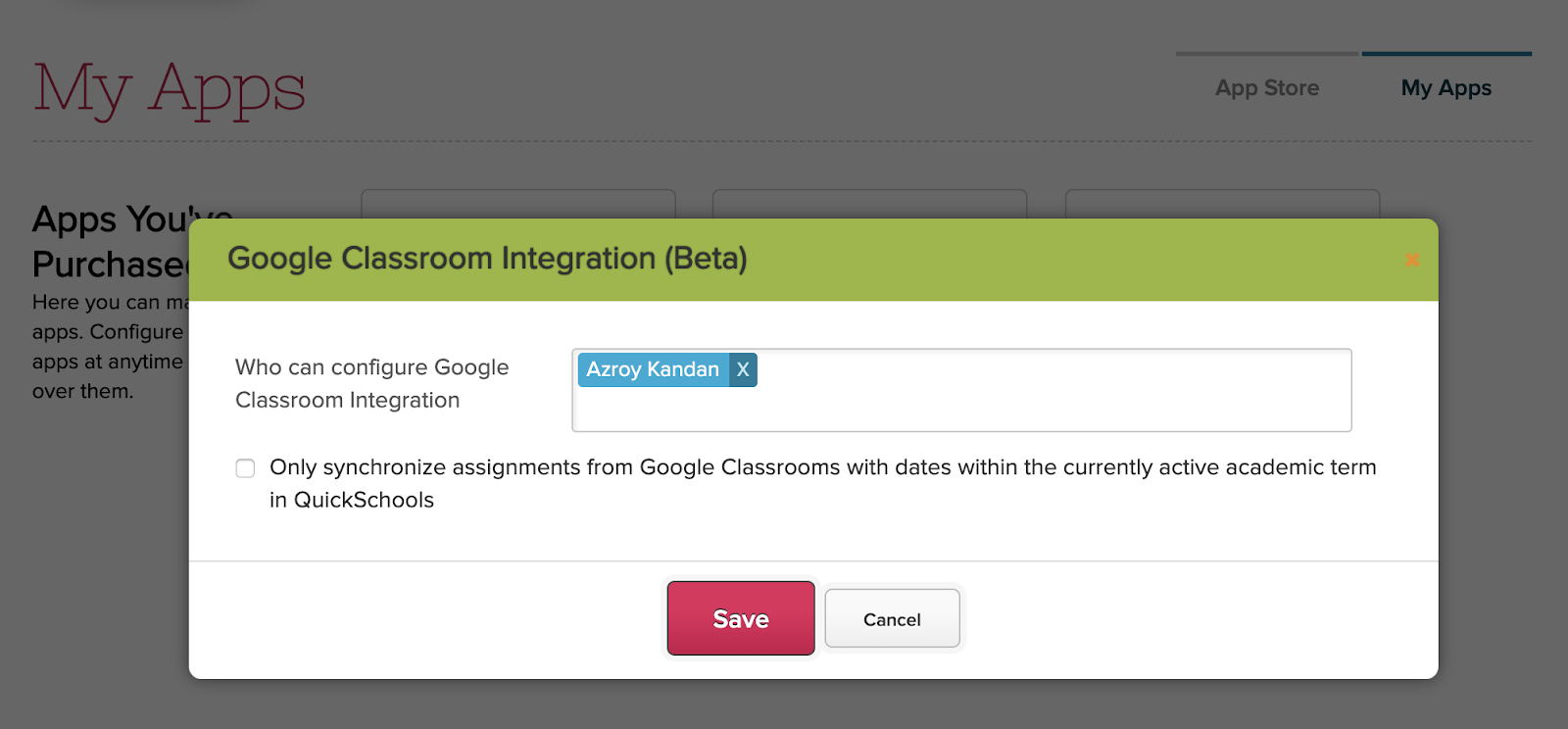
We’ve had a lot of traction with our integration to Google Classroom, as more and more schools adopt the free Google Classroom system for online learning. In this latest iteration, we’ve introduced a new setting that will only synchronize assignments in Google Classroom based on the assignment date, as compared to the dates within the currently active academic term:
By default, the synchronization pulls ALL assignments from Google Classroom into QuickSchools. But if you have a single Google Classroom course for the whole year, and you have multiple academic terms in QuickSchools, this setting will help separate the Gradebook data being pulled.
Another reminder is that the Google Classroom API currently does not support Final Grade and Mark Categories. So these will need to be set up in QuickSchools. After pulling the grades from Google Classroom, teachers can freely change the grading categories for each column, and create formulas and final grade calculations. These will not be overwritten by the synchronization process.
We’ll write more about the Google Classroom capability in a separate article to come.
We have a new importer available in Quickschools, this time for the Online Forms app. The importer allows you to create new submissions within a form packet. You can then manage each submission as you normally would. The importer is currently in private beta, so you’ll have to request it via chat or email. Here’s how it works:
A new “Import” button is made available for all form packets:
The mapping process is the same across all of our importers. Just map the fields from your excel file to those in your form. To make things easier, the drop down will show the form name first just in case you have similarly named fields in other forms.
We’ve made several improvements to the Online Forms app in recent months. In this article, we wanted to highlight the different ways you can give parents (or students) access to online forms in QuickSchools, in order to submit data that you’re collecting for the schools.
The methods to be discussed are as follows:
Portal Access (recommended for existing parents/students)
Public URL
Non-authenticated users
Inviting Applicants
HTML code snippet (i.e. Embed Code)
The access configuration elements are located near the top of the screen, right below the “Instructions” field:
Configuring Access to Online Forms
Don’t forget that the Online Form Packet needs to be “Published” in order for access to be enabled. Once published, you should see a green check mark on the top of the screen, with a button to “Unpublish”:
Update Transaction Fees when issuing Refunds via Stripe
Configure Sender Email address when Bulk Email Statement (See Below)
Send Email from Template (Details coming soon)
Other Featured Improvements
Online Forms Submission Importer – Private Beta (Details here)
Limit File Upload size to 25 MB
Display warning when upload takes too long
Gradebook ToolTip displays how formula is calculated (See Below)
Auto-LogOff based on Inactivity (See Below)
General Bug Fixes / Improvements
Notification for Class Discussion scrolls the browser to the latest comment.
Improve Automatic enrolment of students into subjects based on homeroom
Improve concurrent access to Report Card Print In Order
Improve Master Schedule PDF support for Alternate Bell Schedules
Migrate to Next Semester now supports Semester Activation
Limit access to print report cards for regular teachers
Fix for Standard-Based Gradebook, where Standard does not have any Assessments
Fix Archival of old Homework attachments
Fix duplicate Announcements for new schools
General Improvements to Google Classroom Integration
Cosmetic improvements to Tracking Changes by Parents
Cosmetic improvements when emailing Report Cards to parents/students.
Sender Info when Emailing Statements
When using the “Email Latest Statement” feature, you can now specify the Send Name and Email:
Specify Sender Name and Email with Bulk Email Latest Statement
This feature will allow recipients to reply directly to your specified email address with questions about billing.
Gradebook Tooltip
Due to popular demand, we’ve added a tooltip to the Gradebook formulas, which will display a summary breakdown of scores based on categories selected in the formula. In the example below, the formula contains 2 weight factors, one of which contains 2 categories: