Online Forms: Auto-Emails Based on Status

QuickSchools Online Forms app allows you to configure e-mail templates and send out e-mail notifications automatically. You can send auto emails when someone is invited to fill out a form or when someone makes a submission.

You can also send out emails based on form status. For example, if students are accepted into your site you can add an “Accepted” status and send them an email welcoming them to your school or if some submissions are in progress you can send an email with a reminder to fill out forms. Statuses are configured in your form packet under “WorkFlow”:
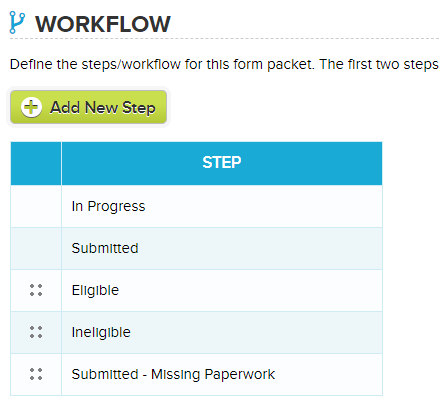
11.8 Blog 1

Once your statuses are entered there you will be able to report on them:
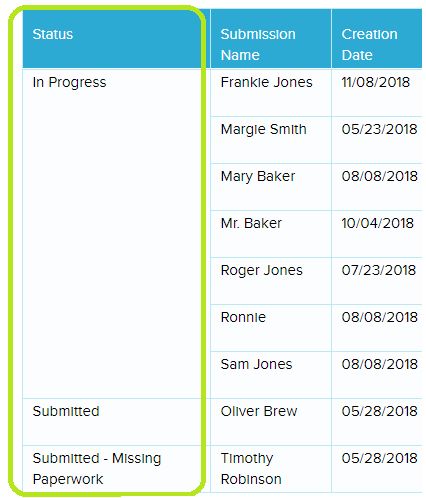
11.8Blog 2

Once your statuses are setup you can Send an Email From Report Creator to form packets based on status. Please chat in if you need any help setting this up.

Fillable PDFs for Online Forms App

QuickSchools Online Forms app allows you to upload fillable PDF forms into your form packet. This gives you the ability to turn your paper forms into a fully online form packet! Check out an example below:

11.6 Online Forms Blog

A great tool that we suggest for making PDF forms fillable is https://www.pdfescape.com/. PDF Escape allows you to create fillable PDFs for FREE! Check out the video below for instructions on how to use PDF Escape: How to Create a Fillable PDF Document for Free

Read More »

Community Service App

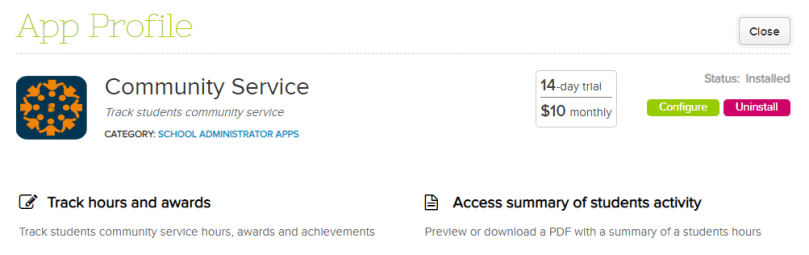
We have released our new Community Service app in our App Store. This QuickSchools app allows schools to track students’ Community Service hours from the Student Record. You can also keep track of awards that students have received.

CS Blog image 1

Once the app is installed users with access will see a new Community Service tab in the student record. Click here to learn more

New Principals for Long-Time Subscribers

If you are a new principal or administrator starting off at a school that has been with QuickSchools for a while you will want to check this out.

Learning how to navigate a Student Information System (SIS) that is already up and running may seem like a laborious task but no worries, we are here to help! Below are some tips on how to get yourself acquainted with QuickSchools and our different features.

Accessing QuickSchools for the First Time

In order to access QuickSchools an existing user with admin access will need to invite you to use the system and assign you to the “School Admin” role. Once you are invited you will receive an email with login instructions

Having School Admin access will give you full control of your schools QuickSchools account. School admin will have access to the subscription information and account information for your school. Some other things that only admin can do are:

Read More »

Check out the NEW Sports and After-School Activities Tracker App

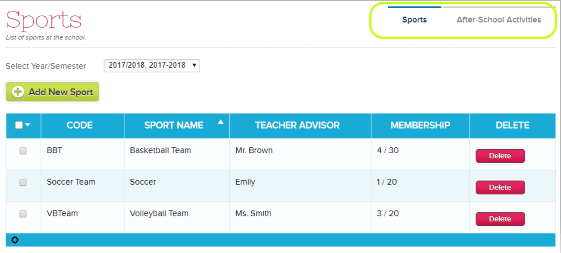
Our new QuickSchools Sports and After-School Activities Tracker App combines the Sports Tracking and After School Activities modules from the Athena plan.  This app allows you to keep track of activities and sports offered at your school. It’s super simple, quick to setup, and easy to use!

Once you have installed the app you will be able to add activities and sports, both work the same way. When adding an activity you will need to specify the activity name, teacher who oversees the activity and the max number of members allowed to participate:

9.5 Blog image 1

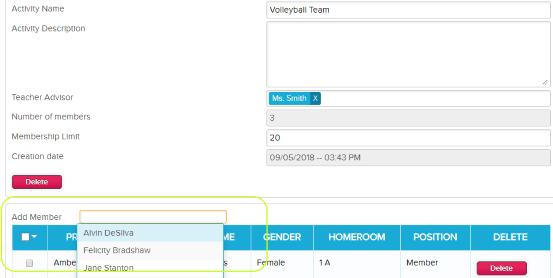
Once an activity has been added, you’ll then be able to add students who are participating:

9.5 blog image 2

For more details on how to set this up see our support article. Do try it out, and let us know if you have comments or suggestions!

Tips to Start the School Year Off Right

It’s about that time again, some schools are already in session while others are gearing up to start the new year. Here are a few tips to help you get these things rolling smoothly.

For users with admin access you will need to activate your new year and term before teachers are able to add grades or attendance for the new term. You also need the new term to be activated in order to work on a new schedule if you’re using our Simplified Scheduler.


A few other tips on what do at the start of the new school year:


As always, if you need help with anything please don’t hesitate to reach out via live chat.

Request an Online Demo with QuickSchools

We’ve designed QuickSchools to be as simple and easy-to-use as possible, with on-screen video tutorials, the QuickSchools support site, as well as live chat. Schools can easily jump in and try things out all on their own. But if you’d rather see QuickSchools live in action, or if you have more complicated questions to ask, you can schedule an online demo with us. We’d love to hear from you.

If you’re a new school looking for a quick assessment of how QuickSchools can help you manage your processes, or even if you’re a long-time subscriber looking to learn new features that we’ve recently released, this may be the best opportunity to get ramped up quickly. We will show you how to make the most of what QuickSchools has to offer.

If you are interested in scheduling a demo with us you can request a demo via chat, email via support@quickschools.com or you can request an online demo by going to this link:

https://www.quickschools.com/blog/2020/06/09/interested-in-an-online-demo/

Need more time exploring your trial?

QuickSchools is an easy-to-use, no-strings-attached, comprehensive student information system (SIS). For those with fluctuating student counts, we charge month-to-month, based on the number of active students in your account.

What this means is, you’re under no obligation to enter ALL your students at the beginning of your subscription. You can always start with just a pilot group of students, perhaps just one grade-level, or even just one classroom. And later on, as you become more accustomed to our product and services, you can add the remaining students.

If you are at the end of your free trial, but you haven’t decided to commit, no need to worry. As mentioned above, you can start a subscription with just a sample set of students. And you can add your remaining students later on. You can cancel your subscription at any time.

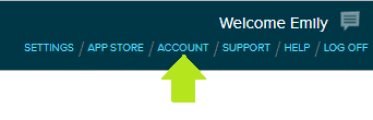
To subscribe, simply click on the “Account” link on the top right, and follow the instructions.

8.2 blog

If / when you do decide to commit to QuickSchools as your SIS, we do offer a discount for long-term commitments, typically 12-months and above. Please contact our support staff, if you’re interested.