New Labels for Sign In/Out App

Quick update for anyone using the Sign In/Sign Out app from the QuickSchools app store! We recently changed the labels for this app, so if you are using the parent sign in option you will now see “Parent Sign-In/Sign-Out” instead of Sign-In/Sign-Out. If you are using the student sign in function you will now see “Student Sign-In/Sign-Out” instead of Sign-In/Sign-Out.1.24 Blog.png

If you have not had a chance to check out this app you can try it now. Just head over to our App Store while logged into your QuickSchools account. This app gives you the option to have parents and/or students sign in/out each day.

See more in how it works here: Sign-In/Sign-Out App

Program Attendance App

We recently released a new Program Attendance app which allows you to track attendance for before and after school programs, or programs offered outside of normal attendance hours. Schools can use this to track attendance for detentions, after school programs, clubs, etc.

You can check out the app in your QuickSchools account by going to the App Store:

program attendance blog

Learn more on how this app works here: Setting up Program Attendance App

Archive Teachers Lounge Messages

The Teachers’ Lounge is an easy-to-use tool in your QuickSchools account that allows you to discuss topics with your fellow teachers. You can archive Teachers Lounge Messages. This is the first screen that you will see once you log in:

12.13 Blog photo

You can use the lounge to post important announcements,  chat about school happenings, or any other topics that come to mind; you can also attach photos or files. Other teachers and staff will be able to comment and share photos/files on posts.

If you find that your school uses it often you can choose to reset the Teachers’ Lounge for each new academic term. This means that when a new term is activated old posts will be hidden until the previous term is reactivated: Archive Teachers Lounge Messages.

Read More »

Manually Adding Semesters to Transcripts

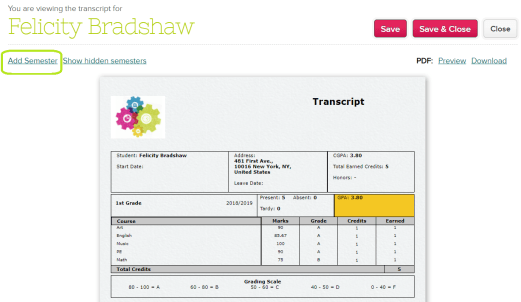
In QuickSchools students grades will automatically transfer over from teachers gradebooks to Transcripts. You can also manually add in semesters, grades, etc. onto a students transcript. You may need to do this if you are new to QuickSchools and want to add in grades from previous years, if you have a transfer student, etc.

Simply open a students transcript and click on the “Add Semester” option to begin adding in a semester manually:

Blog 12.5

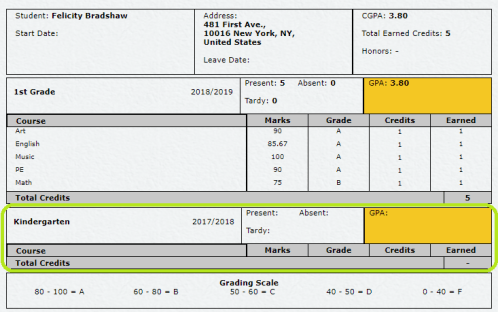
Once you do this you will notice that a new semester has been added to the transcript, you can click in the new fields to type in a name and year for the semester:

Blog 12.5 2

To add subjects to click on the new semester to see your options, there you will see the “Add Subject” option. Once you click on “Add Subject” a new entry will be added where you can enter the subject name, marks, grade, credits, etc.:

Blog 12.5 3

For more information on Transcripts see our Best Practices article and as always please chat in if you have any additional questions on how this process works.

New App Release: Library System

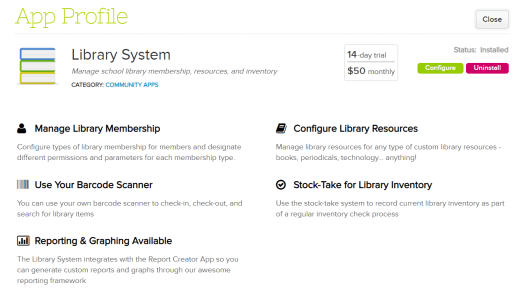
We have just released our new Library System app! This new app allows you to manage the library at your school(s). You can check it out on your QuickSchools account by going to the App Store. A few things you are able to do with this new app are:

  • Easily Manage Your Inventory
  • Search / View Books on Loan
  • Track Damaged or Lost Books
  • Configure Resources Offered
  • Scan Books Using Bar Code Scanner (Optional)
  • Track Penalties for Late Returns
  • And More!

To learn more about this app click here – Library System App

Blog 11.20

QuickSchools is Great for Adult Programs, Small Colleges & Trade Schools

QuickSchools is great for all kinds of adult programs and colleges, not just K12 schools. This includes trade schools, colleges, vocational institutes, etc. If you have a school for adults, albeit a nursing school, beauty school, driving school, seminary institute or a school for culinary arts, you can take advantage of QuickSchools to keep track of performance, communicate with all your students and much more.

The first time you sign up for a free QuickSchools trial, you’ll notice that your account is configured for K-12 by default. But you can very easily change your settings to accommodate your particular type of school:

11.20 Blog Photo 1

Click here for help getting started: Setup Guide for Colleges & Trade Schools

Locking/Publishing Report Cards

The first time you create a new QuickSchools Report Card set, they are not accessible in the student or parent portals. After all, recently created report cards need time to be filled and reviewed. Once the report card set is locked, and no further changes can be made, they are ready to be published online for parents and students to view.

Once you are satisfied with your report card set, you can lock it:
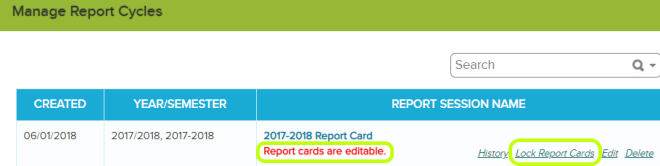
11.14 Blog 3

This will make it so that the report cards are no longer editable, if a teacher needs to make changes to a report card an admin will need to unlock the report card set before any changes can be made:

11.14 blog 4

Upon locking the report card set the system will automatically publish all report cards to the student and parent portals. If you want to prevent certain parents from viewing report cards online you can do so by simply deactivating the students report card, see details here – Hide Report Card from Student/Parent Portal

If a report card set was locked inadvertently we have function that will allow you to sync any updates that were made to grades after the fact see more here: Clear Locked Values

We also have a “History” link connected to each report card set that tracks any changes, you can use this link to see when and who locked a report card set:
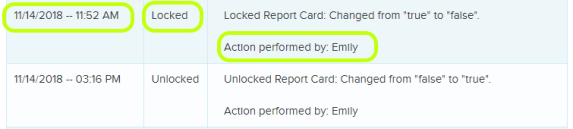
11.14 BLOG 5

IMPORTANT! One final note, when you create a new report card session, by default the system locks and published the previous session.

We have a new beta feature that allows you to turn off the auto locking function, this will give you the ability to work on multiple sessions at once. Please chat in with us if you find that you need this turned on in your account.

 

Hide Report Card from Student/Parent Portal

QuickSchools gives schools the ability to publish report cards online to the Student Portal and Parent portal. School admin have full control over which report cards get published. When a report card set is locked by default all students report cards are set to activated and are automatically published to the portals.

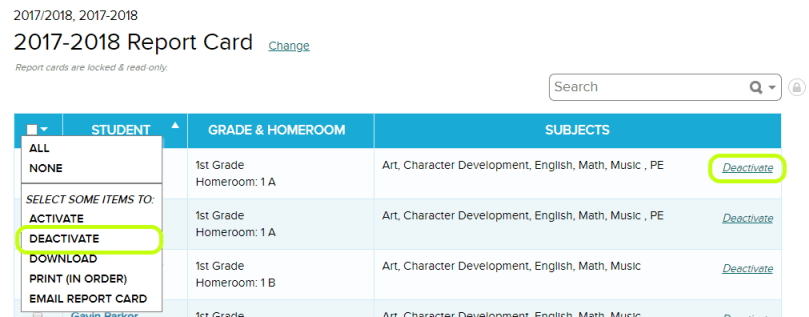
If you do not want a certain student or group of students report cards to be visible online you can simply deactivate the report card for those students. You can do this by clicking “Deactivate” next to the report card or by selecting several report cards and then selecting “Deactivate” from the drop down menu:

11.14 Blog 1

Deactivated report cards will not appear in either the student or parent portal. See more here.