

In an era defined by digital transformation, schools are increasingly turning to technology to streamline administrative tasks and improve efficiency. One such solution is the integration of school management systems like QuickSchools with educational platforms. For instance, leveraging Secure File Transfer Protocol (SFTP) for enhanced efficiency and collaboration with platforms such as Clever. In this blog post, we’ll explore the process of integrating QuickSchools with Clever via SFTP and discuss the benefits, step-by-step guide, and best practices to help you understand the importance and advantages of this integration.
- Overview of the Integration Process
- What is Clever?
- How Does the QuickSchools Clever Integration Benefit You?
- Key Features of the QuickSchools Clever Integration
- Step-by-Step Guide to Connecting QuickSchools with Clever via SFTP
- Best Practices for Smooth-Sailing Integration
- Experience the Clever Integration
Overview of the Integration Process
Integrating QuickSchools with Clever via SFTP allows schools to automate the synchronization of student rosters, streamline data management, and ensure accuracy across both platforms. This integration reduces the need for manual data entry, ultimately saving time and improving efficiency for educators and administrators alike.
What is Clever?
Clever is a platform that simplifies the integration of educational applications, providing a central hub for managing student data and facilitating seamless interaction between different tools used in schools.
How Does the QuickSchools Clever Integration Benefit You?
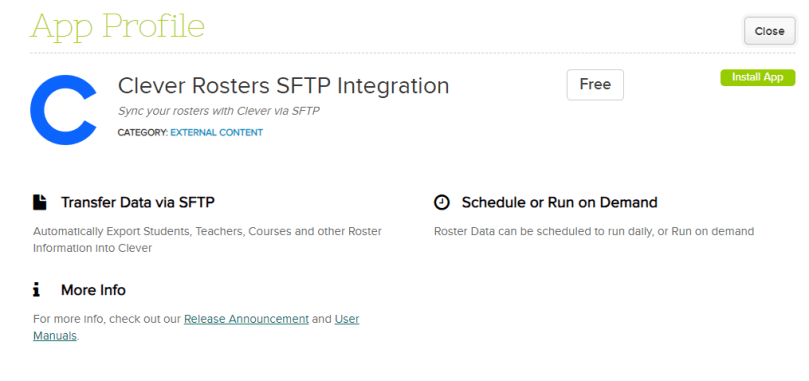
At QuickSchools, we’re thrilled about this integration because it brings incredible benefits to schools. Users can experience unparalleled convenience and efficiency, as data synchronization becomes effortless. Student and teacher data seamlessly flow between QuickSchools and Clever, ensuring accuracy and consistency across the educational ecosystem.
Additionally, the integration simplifies user management, enabling administrators to oversee accounts, permissions, and access rights from a single interface, making managing student data a breeze. Moreover, workflow automation takes center stage, allowing for the automation of routine processes like enrollment, rostering, and data updates. This automation not only saves time but also fosters a more strategic approach to educational initiatives.
And the best part? No more manual updates means fewer mistakes. Through automated roster synchronization, manual updates become a thing of the past thus improving data integrity. With data staying accurate and up-to-date in both QuickSchools and Clever, educators can make better-informed decisions. Ultimately, this integration is a game-changer for schools, allowing educators to focus more on teaching and supporting students, driving positive outcomes in the educational journey.
Key Features of the QuickSchools Clever Integration
- Data Mapping: Customize data mappings between QuickSchools and Clever to align with your institution’s specific requirements and workflows.
- Real-Time Updates: Enjoy real-time synchronization of data changes between QuickSchools and Clever, ensuring that your systems are always up-to-date.
Step-by-Step Guide to Connecting QuickSchools with Clever via SFTP
1. Installing the App:
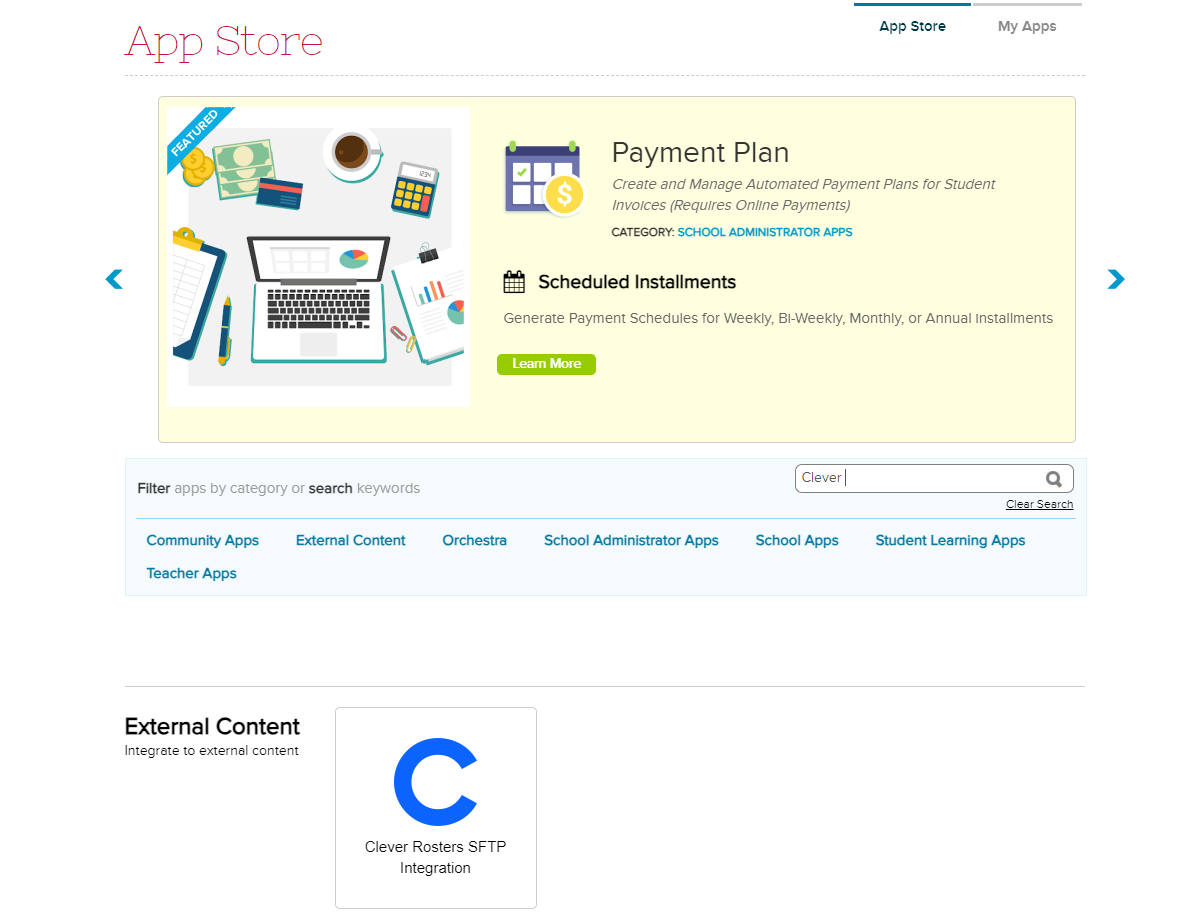
- Install the “Clever Rosters SFTP Integration” app from the QuickSchools App Store.
- Make sure the right users can set up the integration.
2. Connecting to Clever via SFTP:
- Log into your Clever account and obtain the SFTP credentials from the “Sync” > “Settings” menu.
3. Entering SFTP credentials into the QuickSchools system under the “Clever FTP” menu.
- Paste these credentials into the “SFTP Configuration” section in the “Clever FTP” menu.
- Click “Test Connection” to ensure the credentials work correctly.
4. Exporting your Roster to Clever:
- You can export your QuickSchools roster to Clever manually or schedule exports for later.
- Manual Run: Click “Run” to export immediately. Check the status under “Report History.”
- Scheduled Run: Click “Schedule” to set up future exports.
5. Verifying Export in Clever:
- Log into Clever and check under “Sync” > “Last Attempted Sync” to verify the export.
- Verifying the export in Clever to ensure that the synchronization was successful.
Best Practices for Smooth-Sailing Integration
First and foremost, aligning grade levels in QuickSchools with Clever’s format is crucial to prevent any hiccups in roster synchronization. This ensures student data flows smoothly between the systems, maintaining consistency across platforms. Additionally, it is also important to understand how co-teachers and student contacts are managed during the integration process. QuickSchools automatically sets up co-teachers in Clever based on existing data, simplifying collaboration between educators.
Meanwhile, when importing student contacts, attention to detail is key. Ensure that contact information is included in the import file with specific settings for contact types and phone numbers to facilitate effective communication with parents or guardians.
Lastly, it is best to stay informed about any changes in the School ID format, particularly when transitioning from manual reports to SFTP. Keeping abreast of such changes ensures a seamless transition and minimizes disruptions in the integration process.
By following these best practices, educators can navigate the QuickSchools-Clever integration with confidence, optimizing efficiency and collaboration within their educational ecosystem.
Experience the Clever Integration
Integrating QuickSchools with Clever via SFTP offers significant benefits for educational institutions. By following the step-by-step guide and best practices outlined in this blog post, schools can harness the power of technology to enhance efficiency and effectiveness in managing student data. One such benefit is automated roster synchronization, which eliminates manual updates and reduces the risk of errors. Embrace the integration today and empower your school!


[…] CleverSFTP App on the QuickSchools AppStore now support multiple SFTP hosts. This means that you can schedule the […]
[…] Streamlining Administrative Tasks: Integrating QuickSchools with Clever via SFTP […]