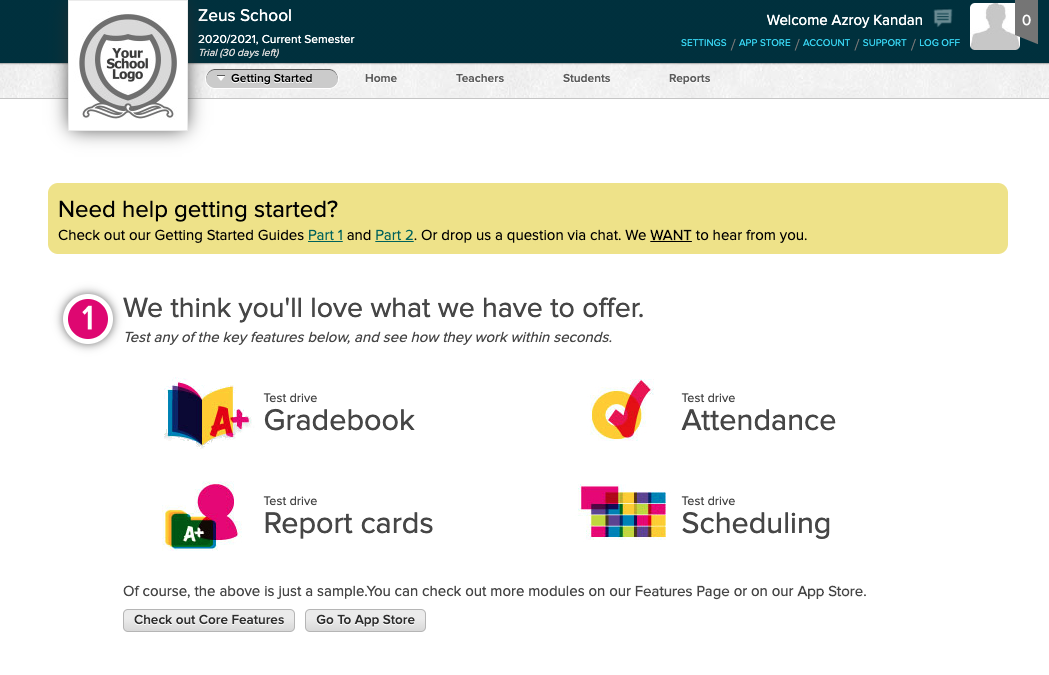
The Test Drive feature within QuickSchools creates test data in order for you to quickly evaluate the major modules, like Attendance, Gradebook, Report Cards and Scheduling. Just click on one of the “Test Drive” buttons on the “Getting Started” page:
Test Data includes 6 students, 2 courses and 12 grade levels (which can be customized):
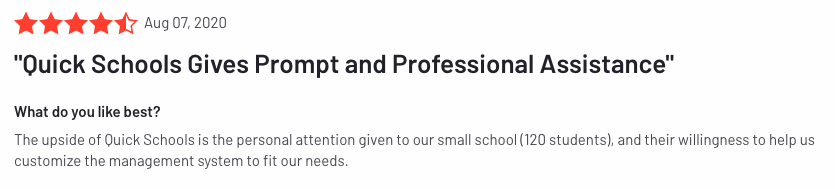
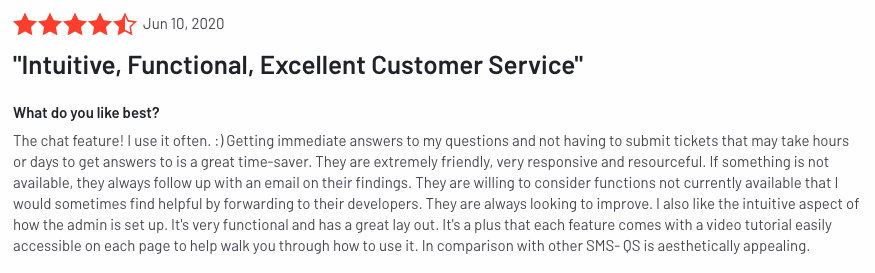
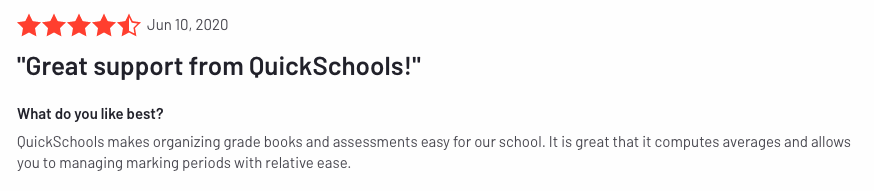
For a system that’s very deep in functionality, very few systems like ours offer as dependable and responsive support as QuickSchools. Don’t believe us, check out our reviews on G2Crowd:
QuickSchools Review on G2CrowdQuickSchools Review on G2CrowdQuickSchools Review on G2Crowd
There’s so much you can do with QuickSchools. And despite all the documentation, training videos, manuals, it can be overwhelming. And having a Live Person on chat can really be comforting, especially in a pinch. We’re there for you virtually all the time, late into the night on weekdays, and even partially on weekends. Just ask us what you need, and we’ll distill things down to just the relevant points to get you where you need to go. We are your IT Support Team.
So it’s the end of term, and your report cards are locked and published. How can you get the report cards generated in your QuickSchools account into the hands of your parents / students, especially if they’re not using the Parent Portal or Student Portal?
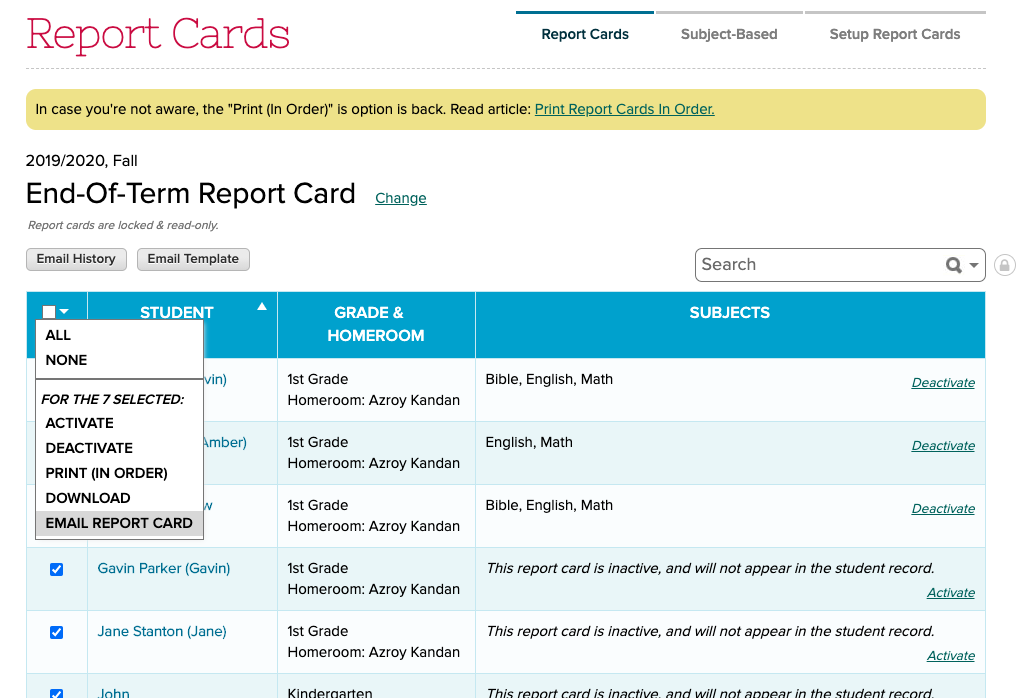
We introduced the ability to bulk email report cards back in October 2018. So we thought we’d highlight it again here, since it’s quite a useful tool. All you have to do is, from the main Report Cards listing, select all the report cards you want to email out, and then select “Email Report Card” from the menu:
Email Report Cards to parents or students in bulk
The system will prompt you for confirmation, so you don’t send it out accidentally:
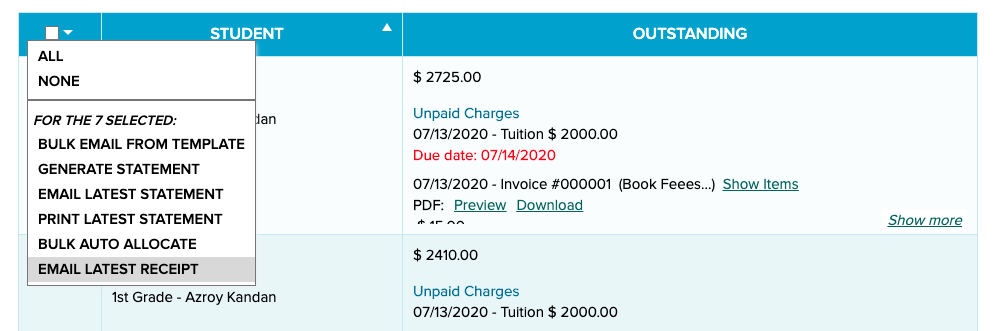
Due to popular demand, we’re introducing a new feature to Email Latest Receipt. From the Fee Tracking module, must select a few students / families, and then select “Email Latest Receipt” from the menu:
Email Latest Receipt
This feature works just like “Email Latest Statement”. A pop-up window will appear to confirm the action. You can also specify the sender information, as well as add an optional message:
Report Card season is coming around. If you’ve previously set up report cards on QuickSchools, here are some quick pointers on how to configure new sessions based on your previous settings:
Creating a new session
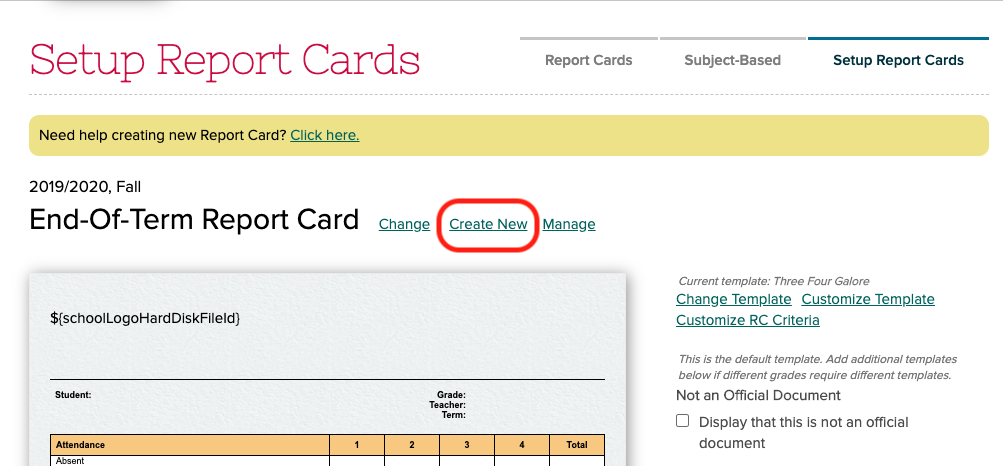
To create a new session, simply go to “Report Cards” > “Setup Report Cards” and click on the “Create New” link:
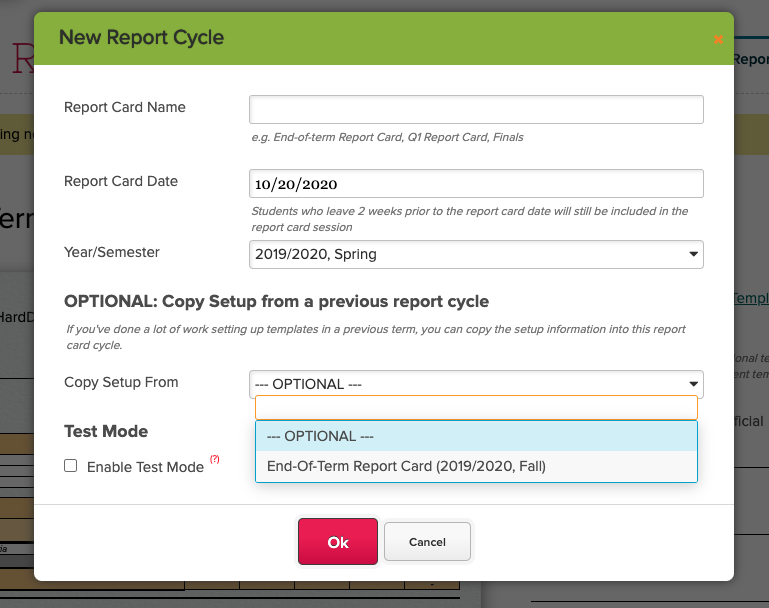
From there, you’ll just need to fill in the form. In particular, if you want to copy settings from a previous session, you can set the “Copy Setup From” field to a previously configured session:
NOTE: By default, when you create a new session, teachers will automatically get access to the session, in order to start filling in grades. Use the “Test Mode” feature to limit access to the report cards to specific users, in the event you want to make changes to the customization before allowing full access to teachers.
We’ve had a lot of usage with the Google Classroom Integration app that prompted an emergency patch that was deployed earlier this morning. We also included a quick fix to the Online Assignments app as well. Details of these improvements to QuickSchools are below:
Google Classroom Enrollment Synchronization
The Google Classroom Integration regards Google Classroom as the source for student enrollment into courses. This means that if you enroll a mapped student into a mapped course in Google Classroom, the same student will automatically be enrolled into the same course in QuickSchools. However, for safety reasons, if you unenroll a student from a course in Google Classroom, the student will remain enrolled in the corresponding course in QuickSchools.
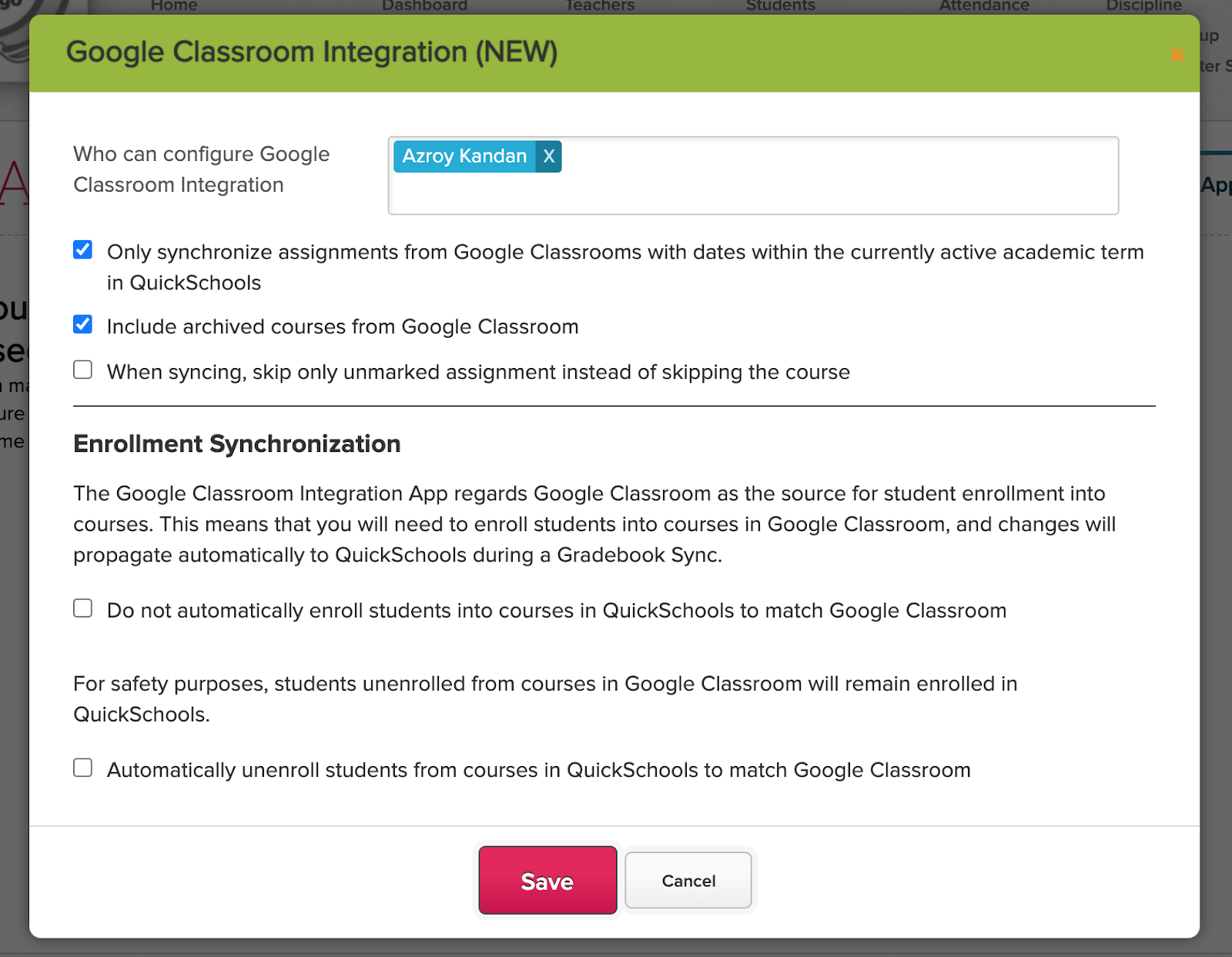
This new patch now provides schools with more control over the enrollment synchronization behaviour. When installing / configuring the app, you now have two new options:
Option to disable automatic enrollment of students into courses
Option to enable automatic unenrollment of students into courses
New Google Classroom Integration options to control the enrollment synchronization
These settings are optional. We typically expect courses to be linked one-to-one, but with the auto-enrollment enabled, it’s possible to have a single course in Google Classroom linked to multiple courses in QuickSchools (i.e. for combined courses). But on the flip side, whenever a new student is enrolled into a course, you’d now need to do it twice, once is Google Classroom, and again in QuickSchools.