Selection of Templates for Transcripts in QuickSchools
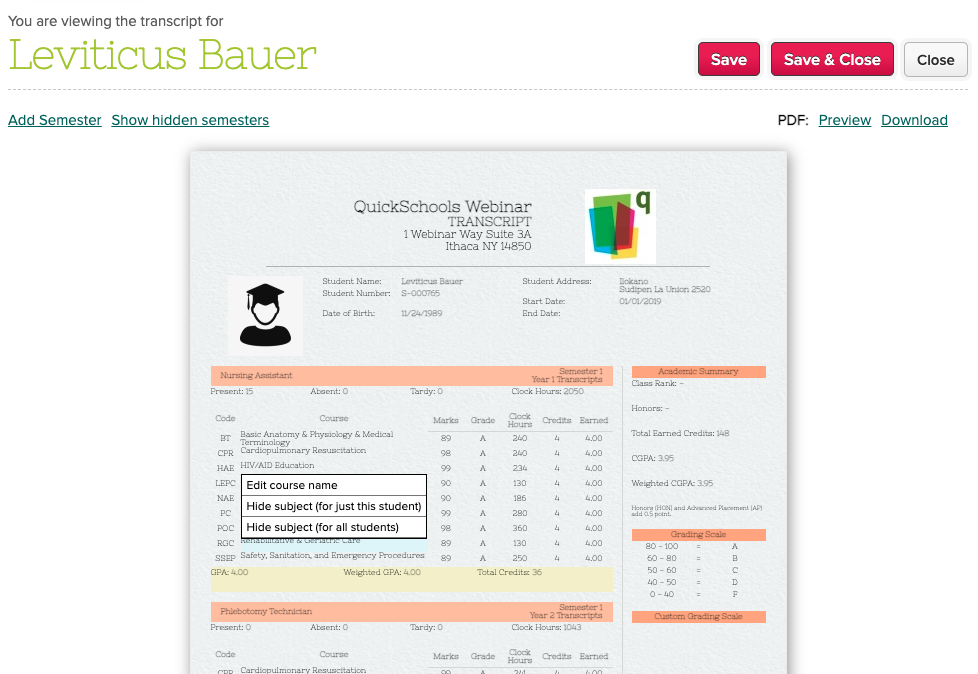
These are Year-Based transcripts, meaning that QuickSchools will consolidate courses within the academic year based on the course name. This configuration is set under “Transcripts” > “Transcript Configuration”:
In our last webinar, we went over how to customize beautiful Report Cards in QuickSchools. The Transcripts module is an extension of that framework, and can also be used to create professional-looking transcripts that convey your school’s brand and image.
Here are some highlights of the Transcripts module in QuickSchools:
Visually Intuitive (Add Semesters, and Grades)
Selection of Templates
Configurable (Relabel Fields and Enable Sections)
Customizable (Custom Sections and Calculations)
Powerful Administrative Features
Visually Intuitive Interface
Use the Transcripts menu to see how the transcripts look like BEFORE printing anything. You can make changes directly to the transcripts, by clicking on fields, and updating them. You can even hide subjects that you don’t need.
Selection of Templates
We have a library of templates to choose from depending on the type of school you run:
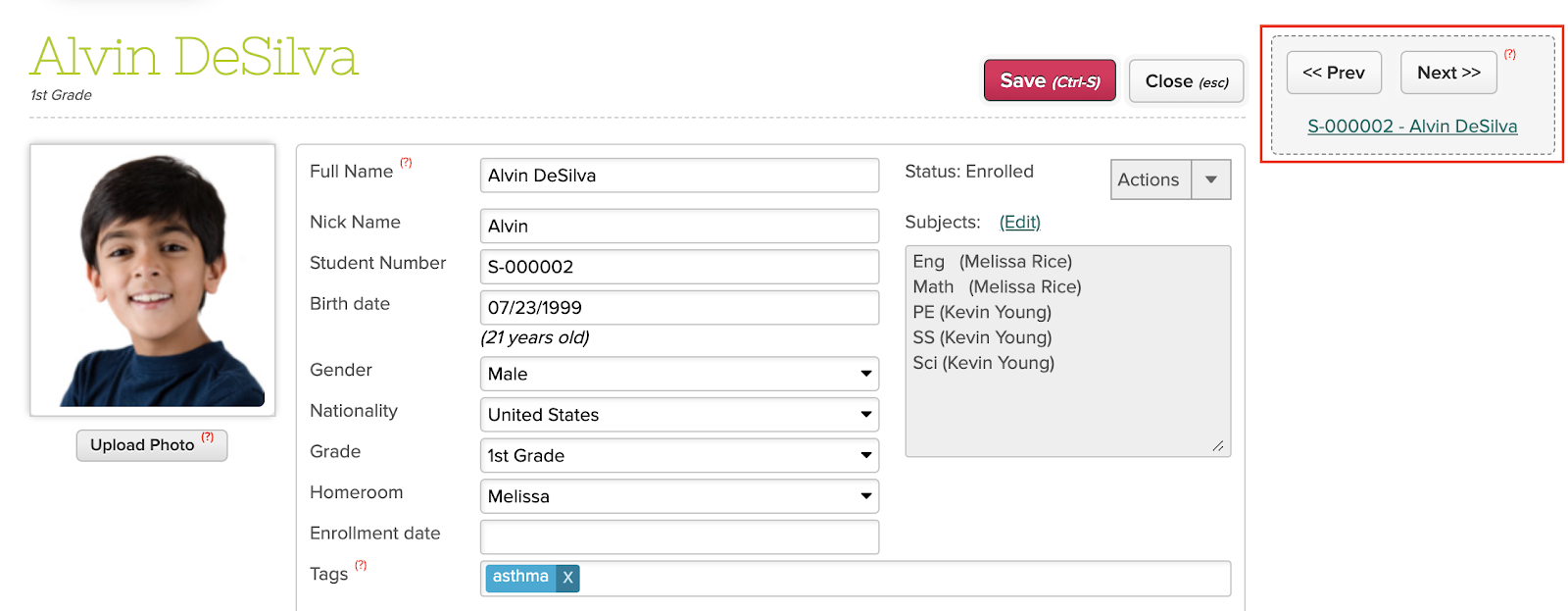
There is a little-known beta feature in QuickSchools called the Student Navigator. This widget, which appears when accessing the student record, allows you to easily navigate between students alphabetically, using the Previous and Next button. You can also search for students by student number or student name, and the system filters the records (similar to an auto-complete function).
If you’re using standards / criteria in your Report Cards, then you know there are many ways to set up standards / criteria in QuickSchools, including via the Standards-Based Gradebook. But did you know you can standardize your report cards while allowing teachers to skip the gradebook and submit grades directly to the report cards? Here we discuss how you can use Standard Groupings (or Standard Set Groupings) to configure standards that appear in your report cards.
Edit Groupings for Standards to appear in Report Cards
REMINDER: If you’re thinking of using Standards in your QuickSchools Report Cards for the first time, be sure to select a Report Card Template that supports Standards.
Setting up Standards
Before you begin, you’ll need to install the Standards-Based Gradebook app. More details on setup can be found here:
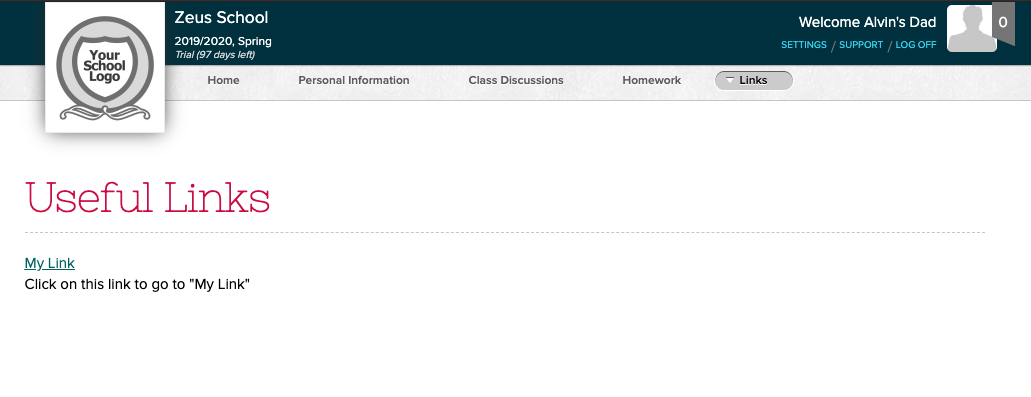
If you have a bunch of links that you’d like to share with students or parents (or even other teachers/staff) via their QuickSchools portal, then the Links App should come in handy. Here’s how sharing links can look like on the Parent Portal:
Sharing links on the QuickSchools Parent Portal
Essentially, you can create a link along with a description, to help provide context to parents/students about what the link is for. To enable this feature, you’ll need to install the “Links” app in the QuickSchools App Store:
QuickSchools uses the Single Assertion Mark-Up Language (SAML) to implement Single Sign-On (SSO) with external systems. You will need an Identity Provider (IDP) like Microsoft Azure or Active Directory to manage logins from multiple Service Providers like QuickSchools. For more information on SAML, check out this article:
This app is currently in Private Beta, and is not yet available on the QuickSchools App Store. This app is only available by request. Please contact our support team, if you would like to try out this feature.
Requirements
This app requires that your QuickSchools account be configured with District (or Group School) Settings. If you have multiple sites linked as a group, the IDP will be managed centrally by the main account in your group.
Installation and Set-Up
After installing the app, the configuration is in 2 parts:
Copy the configuration from the IDP into QuickSchools
Copy the QuickSchools SAML Configuration to the IDP
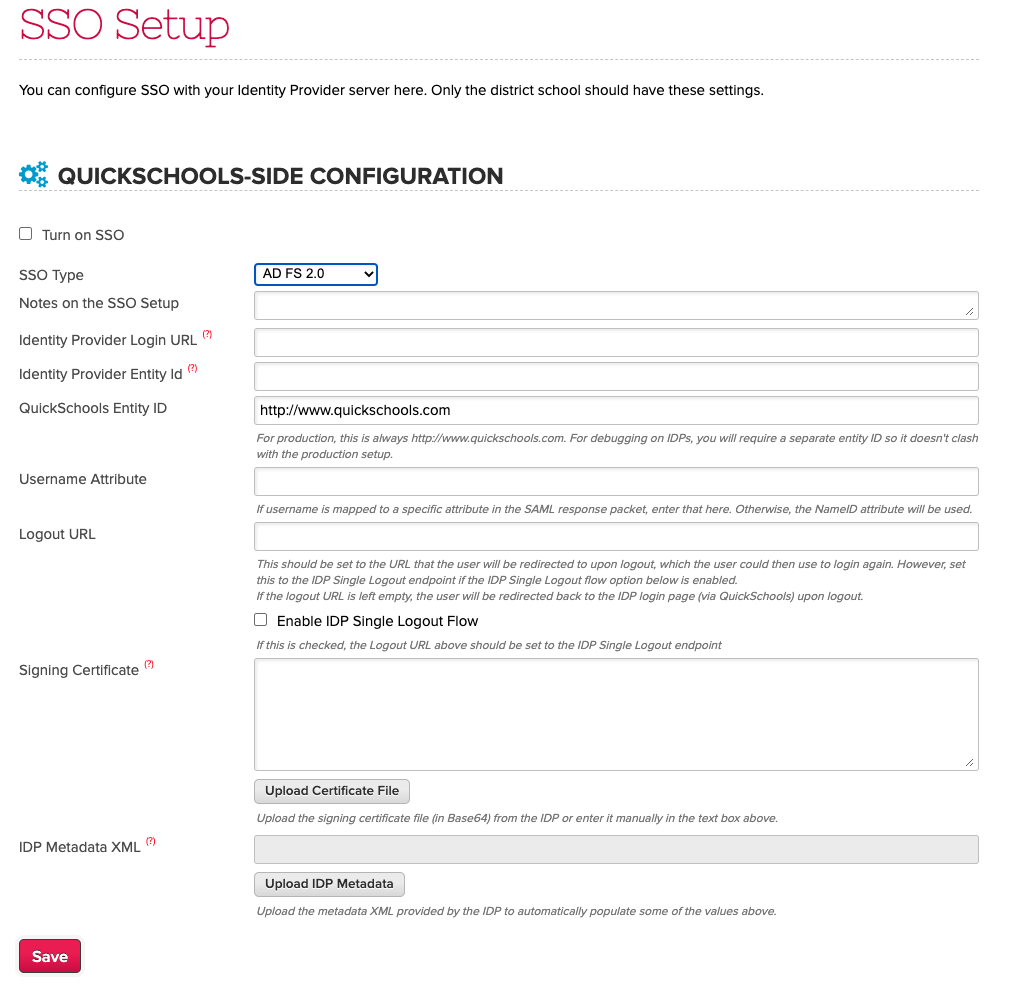
You’ll need to configure the IDP settings in QuickSchools. If you have the “Federation Metadata XML” file from your IDP, you can use the “Upload IDP Metadata” button to upload the configuration. Be sure to select the correct SSO type as well:
If you’re using GSuite for Education (formerly Google Apps for Education or GAFE), you may be having trouble connecting your Google Classroom account with QuickSchools, if Google Cloud Platform is not enabled. For example, when creating a project, if the connection is unresponsive, you may see a red icon on the top right:
Clicking on the icon will show you error notifications. If you receive the “Google Cloud Platform service has been disabled” error, you’ll need to enable it:
For those using the Schoology Integration app in QuickSchools, if you have both a Final Grade and Semester Grade in Schoology, there is a way to configure which final grade to pull into the QuickSchools Gradebook. This setting is under “STEP 7: SYNCHRONIZE GRADES”, under the “Synchronize Now” section:
If you don’t see this setting, be sure to include the appropriate user(s) to “Teachers that can manually synchronize Gradebooks” when configuring the app: