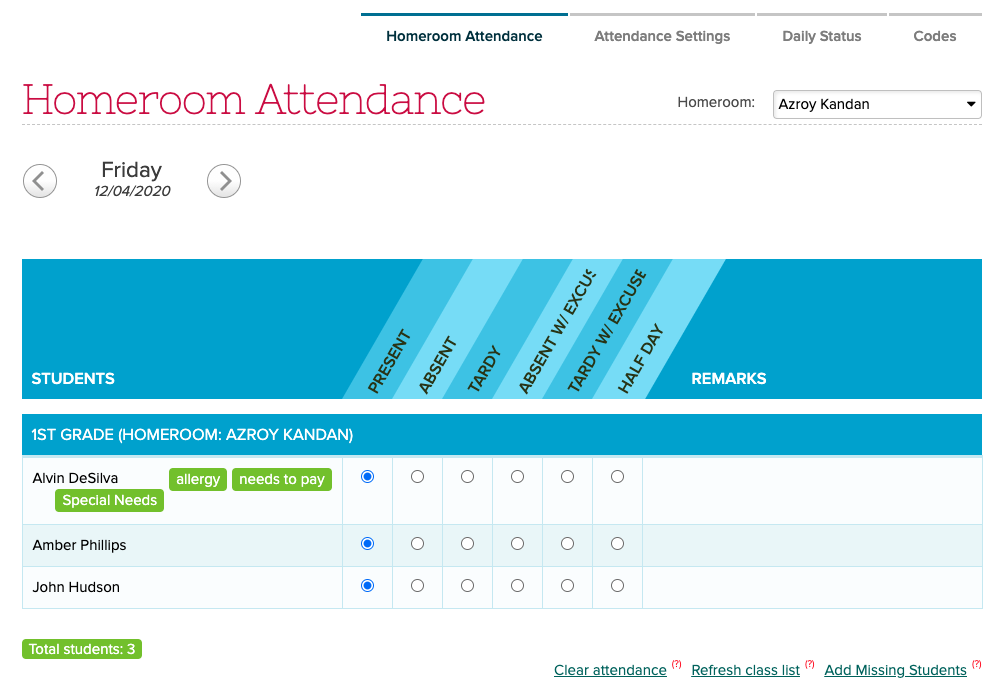
QuickSchools is introducing a new status for Daily Attendance, called Half-Day Attendance. So when taking daily attendance, you’ll see an additional option for “Half-Day”.
New Half-Day Option for Daily Homeroom-Based Attendance
NOTE: This feature is in Private Beta. Please request access by contacting QuickSchools Support.
Where do the half-day changes apply?
The new half-day status only applied to Daily Attendance. So anywhere you expect to be able to add/edit Daily Attendance, you should now see an option for Half Day.
Student Attendance tab
There is a new legend (and color) for Half-Day Attendance:
If you’re taking daily Homeroom-based attendance in QuickSchools with the Custom Attendance Codes app, we’d like to highlight a new report called “Homeroom/Class Teacher (Consolidated Exception) Attendance” Summary Report (Yes, it’s a mouth-full):
Summary Report on Attendance Codes in QuickSchools
This report consolidates all attendance codes, both custom and system codes, into a single roster-style report. Since this is an Exception report, all Present records are excluded. So the report only shows codes that are applied OTHER than Present. This will make it easy to identify trends in attendance for students and classes.
Since this app is in Private Beta, you’ll need to request access from our support team. Once beta access is granted, the app will appear under your “App Store” > “My Apps” menu. Click on “Configure” to configure access to the app:
Enable Course Catalog Importer (previously in Beta)
Other General Improvements
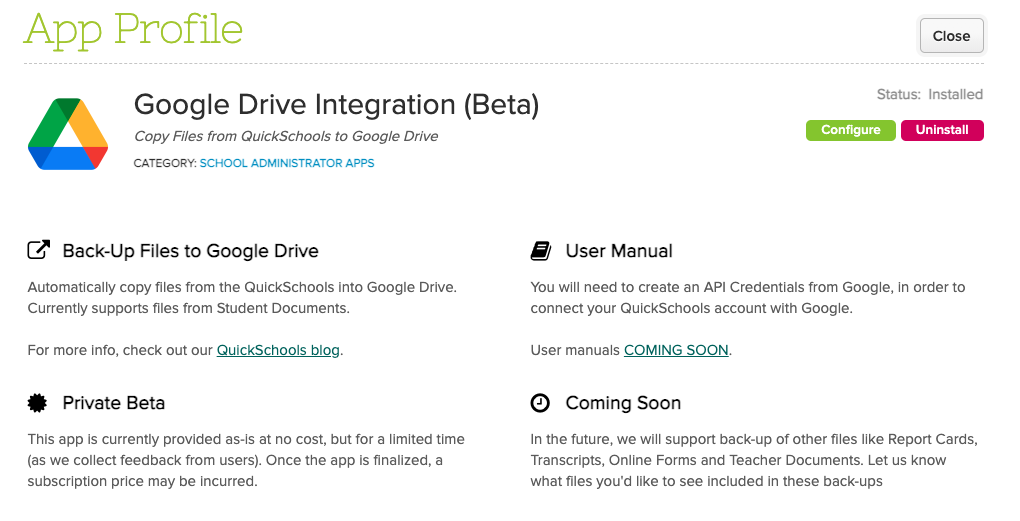
Google Drive Integration (Private Beta)
Sort students in Merit app PDF
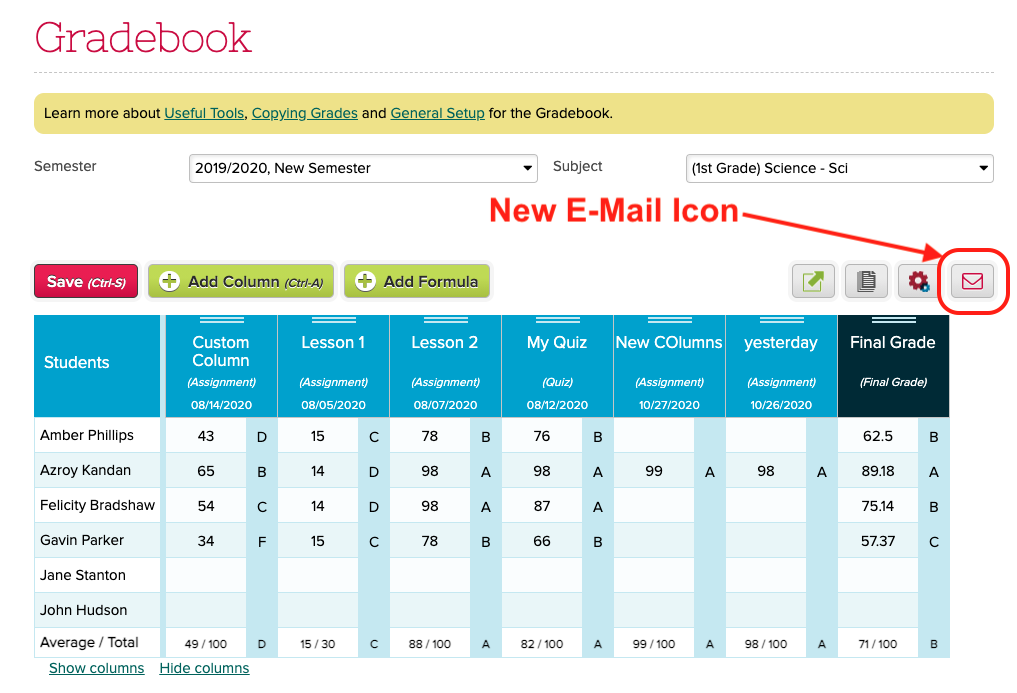
Bug fix to Gradebook Formula with no marks
Improve tracking of subscription payments via check
Roll-Out Gradebook Scale Scores (previously in Beta) – See Below
Roll-Out Gradebook formula date range (previously in Beta) – See Below
Bug fix when viewing District-Wide students (for Group Schools)
Support Leave Date when importing Students
Support Sort Order when importing Grade Levels
Support update by Subject ID when importing Subjects
Support additional fields when transferring students (for Group School)
Lives with Student
Emergency contact
Authorized for Pickup
Student Tags
Support End Date for recurring tasks
Extend timeout when recalculating penalties in Library App
Bug fix when refreshing transactions after exporting to QuickBooks
Bug fix when exporting Family Billing to QuickBooks
Advanced Search for QuickBooks Integration App – See Below
Gradebook Scale Score and Formula Date Range
These Gradebook features were previously in Private Beta, but is now available to all schools. You can enable this feature when you configure the “Report Cards / Gradebook” module under “Settings” > “Turn Features On / Off”:
When adding / editing a column, if Scale Score is enable, you will see a new section to scale up the weightage of the column:
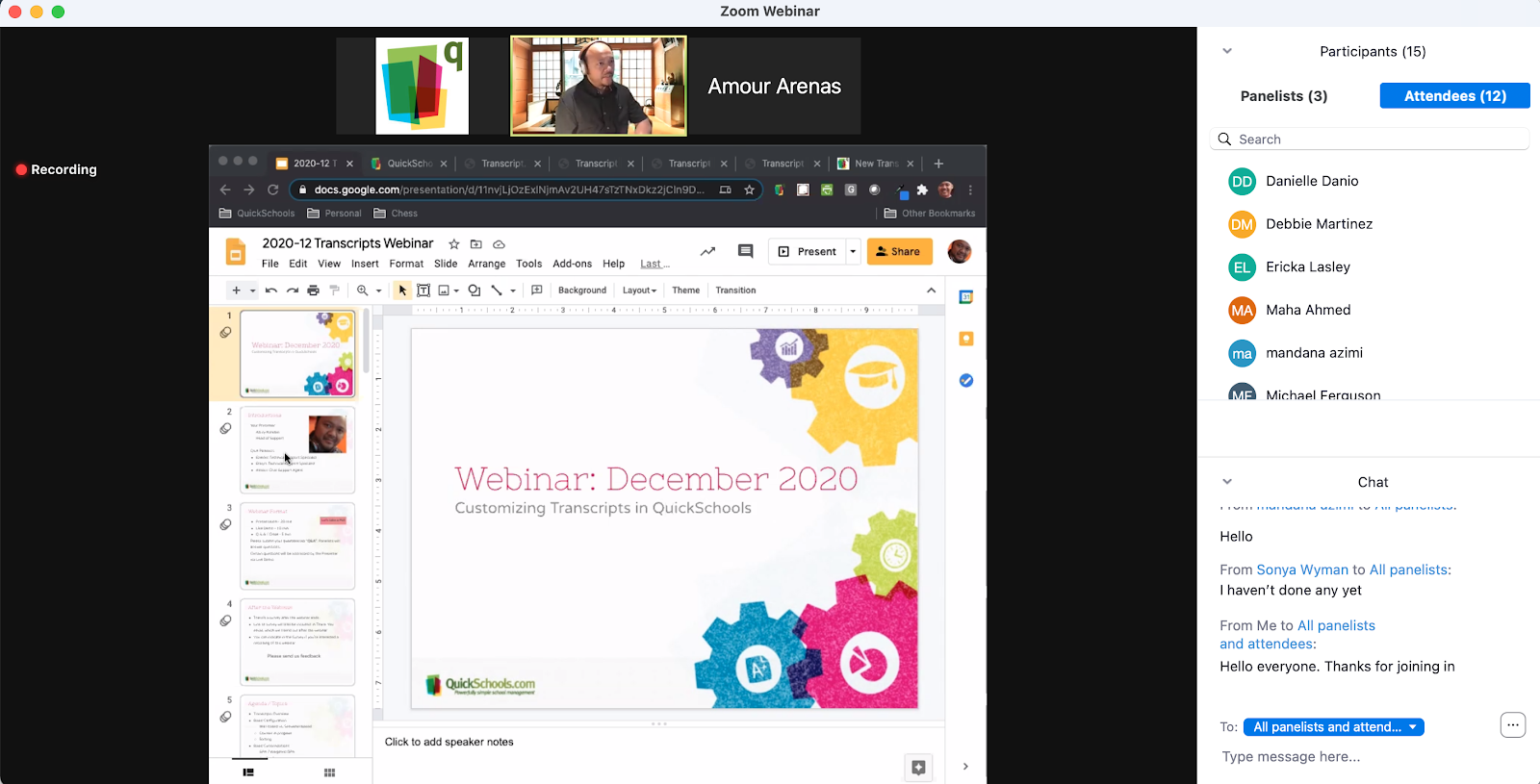
In case you missed, we had our second QuickSchools webinar yesterday, as part of our new Webinar Series. Our topic was on how to produce professional looking transcripts.
In preparation for this webinar, we published several new articles to help explain some of the functionality, as well as announce 4 new templates:
Thank you to those who were able to attend. We appreciate your participation, and hope you can give us feedback on how we can improve our product and services.
Azroy presenting the December Webinar on Transcripts in QuickSchools
Our next webinar will likely be in February. We’re considering many different topics like Admissions or Online Forms. If there’s a particular area you’d like to learn more about, or if you’re interested in attending our webinar in general, feel free to leave us a comment, and chat with our awesome support team.
You can now set up categories within each student transcript, and the system will add up all credits for subjects with the category name in the subject name. For example, if you set up one of the category names as “Spanish” (example below), the system will find all courses with the keyword “Spanish” in the name (across all academic years), and will add up the credits for those courses:
Set up Categories and display Credits for each Category in the Transcripts
This setting is currently on a per student basis. This means that you can set up different categories for each student. But you do have to set up the categories for each student individually. The values can also be manually overwritten.
Tests & Assessments (Custom School Section)
The “Test & Assessments” section is what we call a Custom School Section. This means that you can use the “Customize Template” function to add rows to this table, and it will be applied to all student transcripts. This is useful for areas where all students need the same entries, but different scores/values for each entry: