Career Employment Tracking for Adult Education

Our new Custom Fields are very versatile, and can be used for a variety of applications. We previously posted an article about how to use the custom fields to record immunizations. Here’s an example of how Adult Education schools can use the student custom fields in QuickSchools to track Career and Employment for students after they graduate:
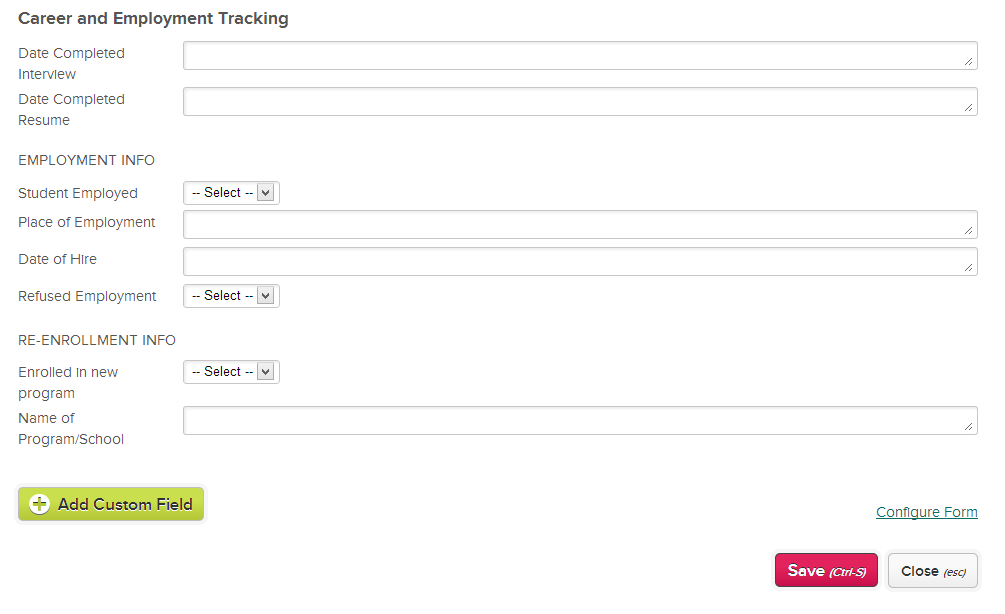
Career Tracking using QuickSchools Custom Fields for Students

All fields are also report-able via our Reports Module, so you can export them to Excel for further analysis. It’s a great way of recording static fields associated with a student. And you can also arrange the fields into sections so that they can be easily read and understood.

For fields that are more dynamic in nature (say a student has 2 employment records), then the App Store would be your best bet, as the App Store supports a separate database that can store linkages to multiple records. If you’re in need of an app that’s not already available in our App Store, come chat with us, and we’ll see what we can do you.
Auto-Generate Student ID Numbers

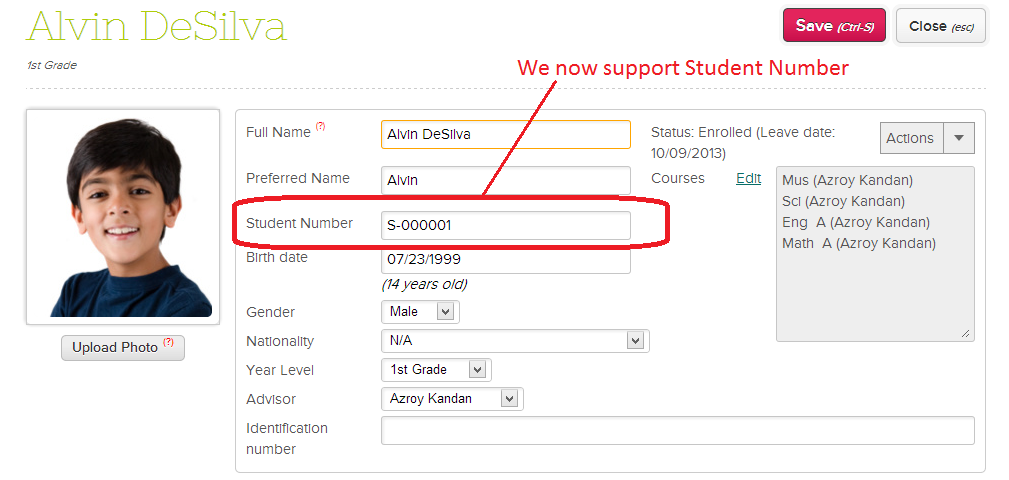
We’ve recently introduced a new way to auto-generate Student ID numbers in QuickSchools. The Student Number field appears in the student record:

QuickSchools Student ID Number

Just leave the field blank, and the system will generate a unique Student ID number for you.

To turn on this ability, you’ll need to go to the “Features” Page and click on the “Configure” link next to the “Student Tracking” module:Read More »

Change Parent / Guardian Relationships

You can now change the name of the relationship for parents and guardians in QuickSchools into something more meaningful:

Configure Parent/Guardian Relationship Names on QuickSchools

For example, you may want to use an alternate name like “Dad” instead of “Father”. You can also change the language to “Father / Padre”. You can delete unwanted relationships, as well as add new ones. Also, you can control the order in which these relationships by assigning an appropriate sort order to the record.

This new menu is accessible via the “Students” listing. Just click on the “Configure” button on the top right of the screen, available to School Administrators on the account:Read More »

Private Messaging Parent Directory

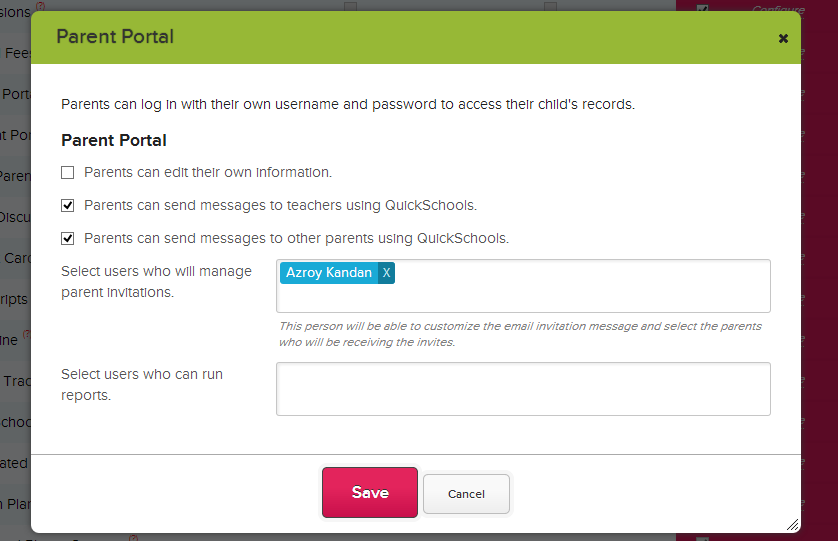
After much demand from schools, Quickschools now have separate access for Parents to send Private Messages to Teachers and to other Parents. This is all controlled via the Features page:

Parent Private Messaging

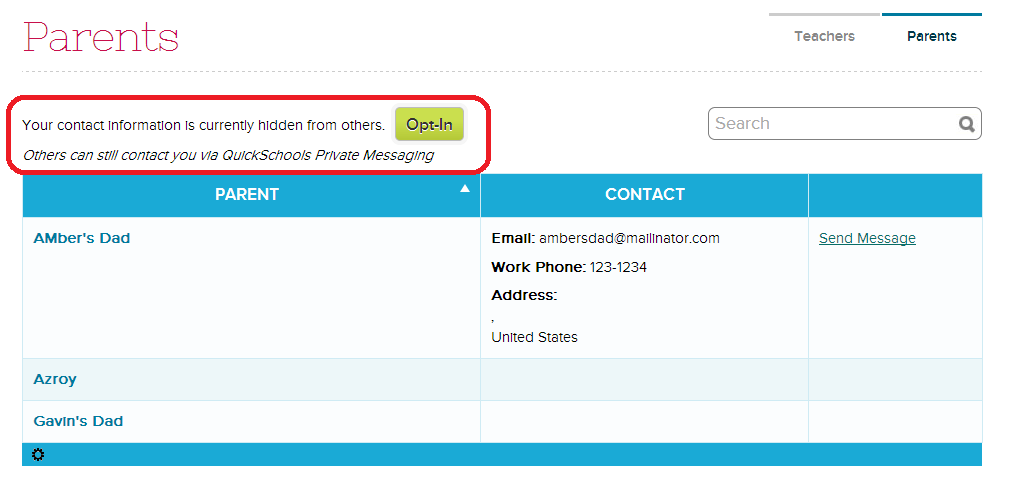
And if you do decide to allow parents to send Private Messages to other parents, this actually becomes our new Parent Directory feature:

Parent Directory on QuickSchools

Notice that with this new feature, Parents can specify which contact info can be shared with other parents, whether it’s an email address, telephone number of address:Read More »

Ways to Use Class Discussions

As you may know, Class Discussions was one of the awesome new features we rolled out over this summer. It’s a great platform that allows teachers, students, and parents to discuss topics related to a class in a controlled and safe environment.

To turn on Class Discussions on QuickSchools, Admins go into the Settings → Turn Features On/Off menus. The Class Discussions module is connected to the Homework module, so they are turned on together:

To enable teachers to post updates to their own classes, as well as configure who can post for to others’ classes, head over to the configure menu. Now, as to a few ways to use it…

Announcements

Because Parents, Students, and Teachers connected to a specific class all see the Class Discussions, the module is a great way to get the word out about specific events related to your class. It’s especially well-suited to class-related announcements since your posts can be emailed to students and parents when they are posted.

Blog

Because so much communication is done online now, blogging is one of those useful skills that many teachers want to encourage their students to develop. Because all QuickSchools data (including Class Discussions) is completely private and secure, student work is entirely safe while they practice their skills at writing for an online audience. For example, students could be encourage to rotate at writing a blog post for each week.Read More »

Rotating Attendance Schedule

We’ve got another new QuickSchools feature for you guys – Rotating Attendance Schedule. You can now define 4-day or 10-day (or any number of days) attendance schedules that rotate. Rotations can also take into account holidays and other non-school days (like In-Service or Professional Activity days). To turn it on, you’ll first need to configure the Attendance module on the Features page:

Turning on Rotating Attendance on QuickSchools

Note that you’ll also need to turn on “Period-Based Attendance”, and make sure your name is listed as someone who can “configure the periods”. This will turn on the “Attendance Settings” sub-menu under the main “Attendance” menu:

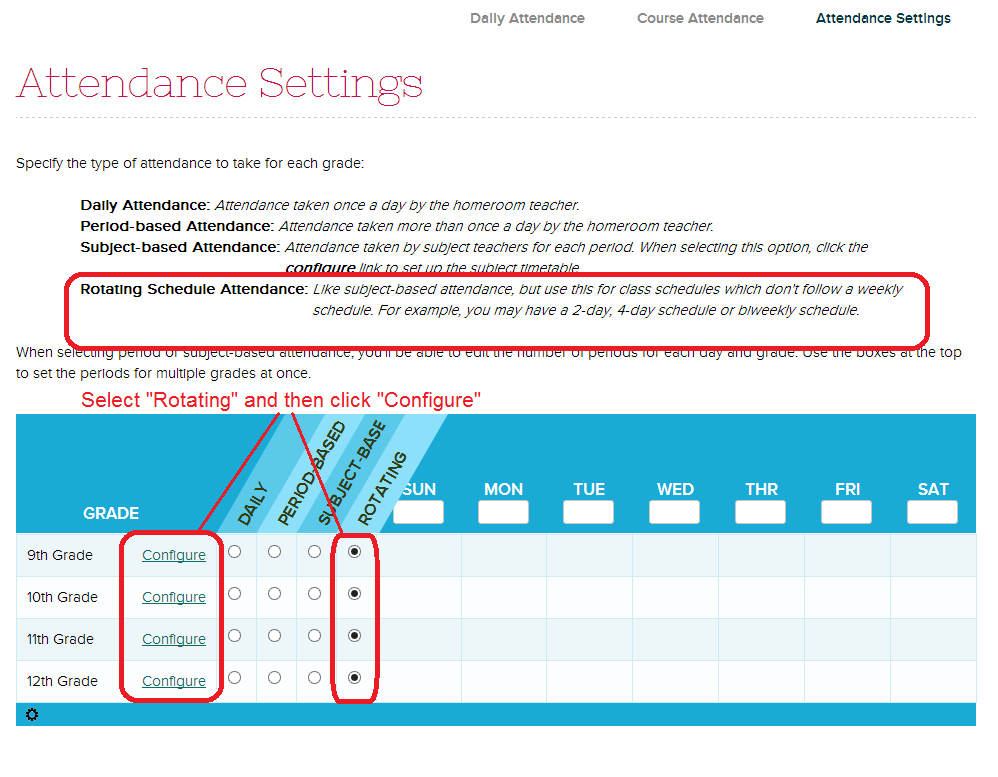
Attendance Settings with Rotating Schedule

You’ll need to set the appropriate grade levels to the “Rotating” attendance schedule. When you do that, a “Configure” button will appear next to the grade level. Clicking it will bring up the actual scheduling configuration for attendance:Read More »

Subject-Based Messaging via Class Discussions

The Class Discussions module in QuickSchools is becoming more and more central in the delivery of content to students, while keeping parents informed. Remember, you can use the Class Discussions module to share pictures, comments and files via the Parent Portal and the Student Portal.

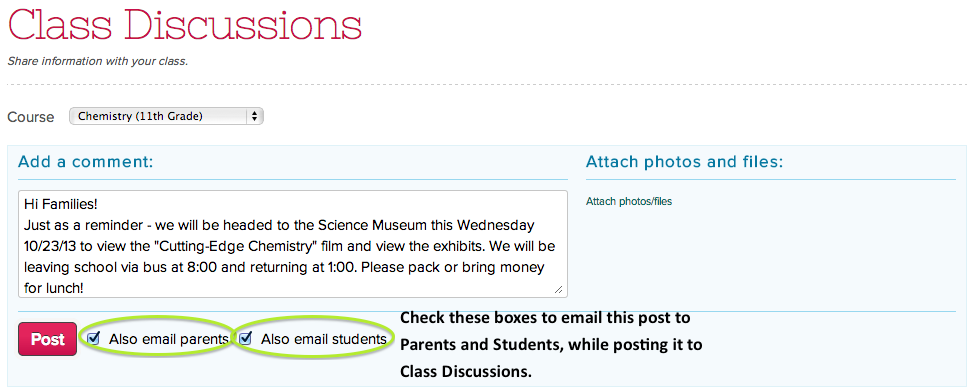
To help improve on this mode of communication, teachers can now send an email notification to students and parents when posting a new message to the Class Discussions module.

Class Discussions Emails

The entire post will be viewable on the email, similar to email notifications in the Private Messaging module. Users can then log onto their respective portals to view the entire thread and interact as appropriate.  By using the Class Discussions module (instead of the Mass Messaging module), all participants get to keep a record of previous messages and interactions in the class.Read More »