We have a pretty good 90-second Quick Tour video that introduces you to QuickSchools and what we have to offer. But for a more in depth overview, we have a 30-minute demo which we present to schools that are seeing us for the first time. We go over some basic points, some advantages of QuickSchools, as well as the overall philosophy.
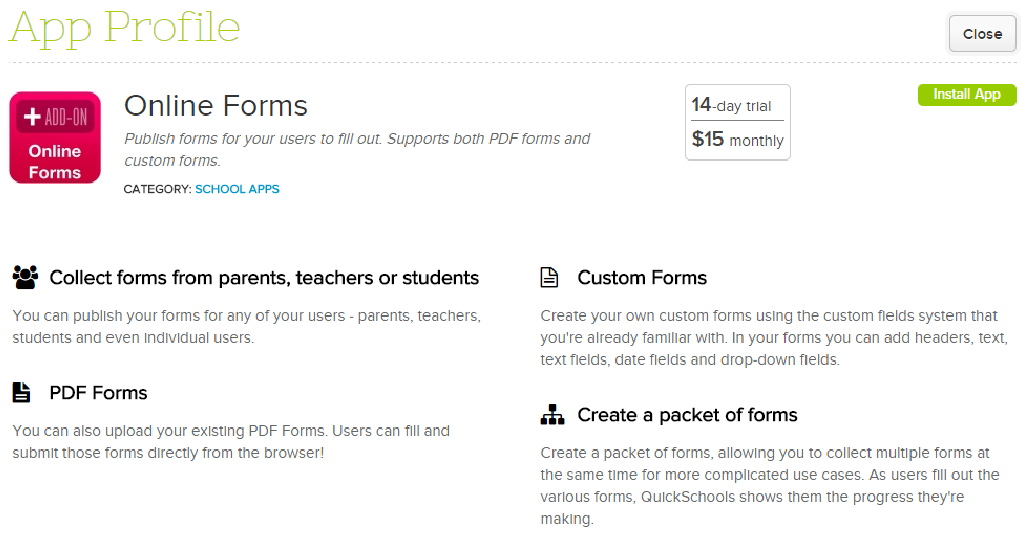
We’re rolling out our new Online Forms app for QuickSchools in a big way this summer. You’ve probably seen many articles about it (like the ones below):
And you’ll continue to see many more improvements to the Online Forms app in the weeks to come (we’ll blog about those soon too). But how is the Online Forms app different from the Admissions module which also has an Online Forms component? So here in this article, we’ll make a comparison.
QuickSchools Online Forms App
First off, let’s go over some similarities between the two modules:
Both handle enrollment of new students, including inquiries.
Both have an Online Forms component, for collecting data submitted online (from a public page).
Both support Email Templates, to correspond with inquiries and applicants.
But that’s pretty much where the similarities end. A key thing to note here is that the Admissions module is included in all subscription plans within QuickSchools, whereas the Online Forms is a paid app. To that end, the Admission module is designed with simplicity in mind, so schools can make use of it quickly. And the Online Forms on the other hand is designed with more robustness of functionality.
We’re testing a new version of the Lesson Plans that can now be specific to subjects. In the existing QuickSchools module, you can create a Lesson Plan Set. This set is applicable to multiple subjects across different semesters. However, with the introduction of Lesson Plan Dates, we decided to directly link Lesson Plans to each subject/section within a specific academic term. This new Lesson Plan module will operate similarly to the Gradebook and Homework modules. Just select the subject you’re teaching, and you can promptly add/edit lessons for that subject.
Lesson Plans by Subject
Here are some differences for comparison:
Current: Lesson Plan Sets (Shared and Re-Usable)
Private Beta: Lesson Plans by Subject (Archived and Re-Created)
You have to create a Lesson Plan Set first, and then apply it to a subject. You can re-apply the same lesson plan set to multiple subjects across different academic terms.
You simply select a subject, and the Lesson Plan Set is already created. When you select a different subject, you get a different Lesson Plan Set.
When you move to a new academic term/year, you can re-use the same Lesson Plan Set, and apply it to the new subject.
When you move to a new academic term/year, the old Lesson Plans are automatically archived, and you get a new (empty) Lesson Plan Set for the new term (similar to getting a new Gradebook for every term).
Lesson Plans can be shared with parents/students (just like Gradebook and Homework can be shared with parents and students) – COMING SOON
Enable the sharing of Lesson Plans with parents and students, similar to how Gradebook and Homework can be shared. – COMING SOON
These are some pretty significant differences, in terms of how the modules behave. Because this feature is in private beta, we are actively seeking ways to enhance the management of new lesson plans. You should still be able to easily copy lesson plans from previous terms into the new term. For instance, while you start each term with a new/empty lesson plan set, you can still use some previously created lesson plans. However, changing the lesson plans for the current term will not impact lesson plans archived in previous terms.
If you’re eager to test out this new version (currently in Private Beta), please contact our technical support.
We’ve released a new feature in QuickSchools within our Lesson Plans module that will now allow you to set the date for lessons (instead of using numbers). Notice the “Date” column on the left now shows the date of the lesson:
Lesson Plans with Dates
Compare that with what we had before, which showed the number:
As a company that works tirelessly to provide a system that is simple, intuitive, and easy-to-use, it’s often difficult to introduce new features, without making it more complicated for the majority of our customers. For us at QuickSchools, it’s less about simply providing a feature, and more about providing a feature that simply works.
With that in mind, we have several features that are intentionally hidden, either because (1) they are in private beta (and thus requires more testing before it goes out for public release), (2) they are designed for a specific target market, or (3) they are too complicated to enable without the help of our technical support personnel.
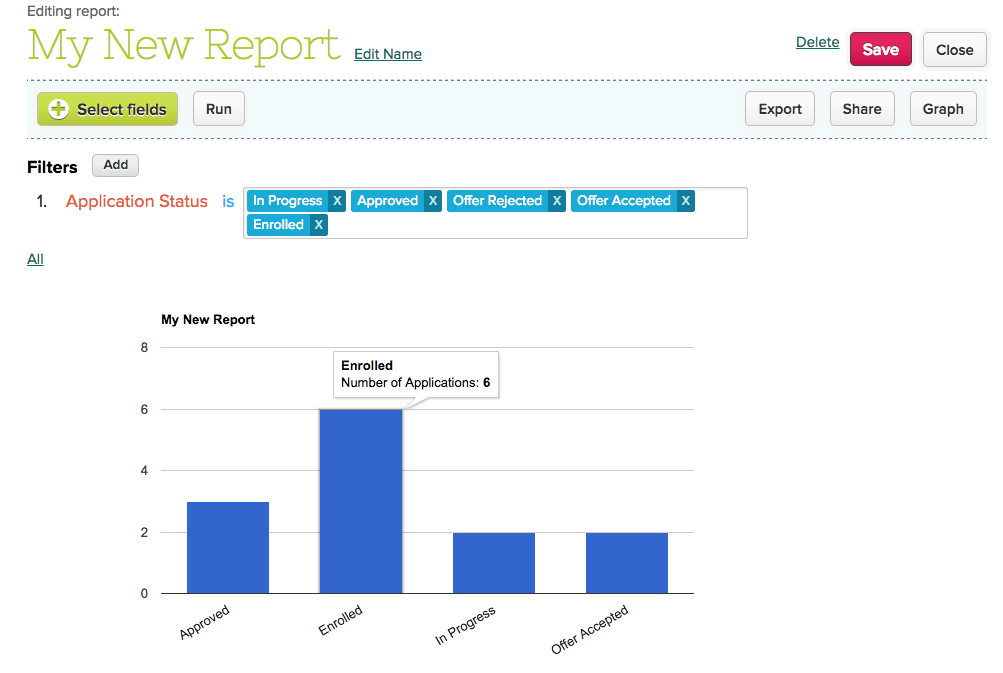
One such example is our Reporting feature. We only recently introduced our new Report Creator app, which was in private beta for several months. Before that, we had (and still have) an internal report designer that is very complicated to use but also much more flexible for those more complex reports. The aim is to provide a capability (in this case reporting) that simply works for the majority of our customers, but still have something more flexible for those that need that flexibility.
We wrote an article 3 years ago to address some of the concerns with using an online service like QuickSchools. Although many of the responses are still relevant, we wanted to expand a little bit on the section regarding our security features.
Our QuickSchools infrastructure has matured tremendously since we officially launched in 2009. We are now hosted on the Amazon Web Services (AWS) in Virginia. This means that in addition to the cloud-based infrastructure that allows us to scale and meet the growing demand of our customer base, we also get to piggy back on many of the security features provided by AWS. This includes network, hardware, software and on premise security. We have some details here: http://aws.amazon.com/security/Read More »
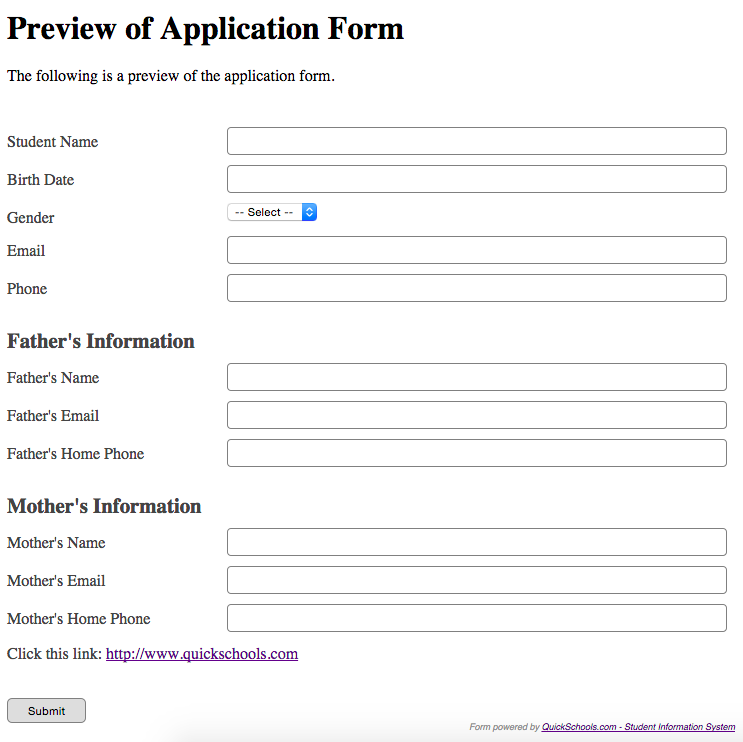
The Admissions Module that we offer at QuickSchools is student-centric, meaning that it is focused on recording student details. However, in an effort to keep the Online Form simple, we’ve actually left out parent details by default, especially since you can create multiple parent/guardian records per student. To remedy this, schools can actually use the Custom Fields section on the Online Admissions form to create the relevant fields to record parent details, and then we can customize the Admissions module to map custom fields to actual parent records for the student.
So here’s an example of how it can work. Go ahead and create the appropriate fields as custom fields on the Online Application Form. We recommend grouping fields under headers, so it’s easy to navigate. Also, all fields should be named distinctly, since mapping is done based on the field name:
Custom Online Application Form for Admissions
Once you’ve completed the mapping, contact our technical support team either via chat or email. We’ll need a few business days to complete the mapping (depending on the support volume).Read More »
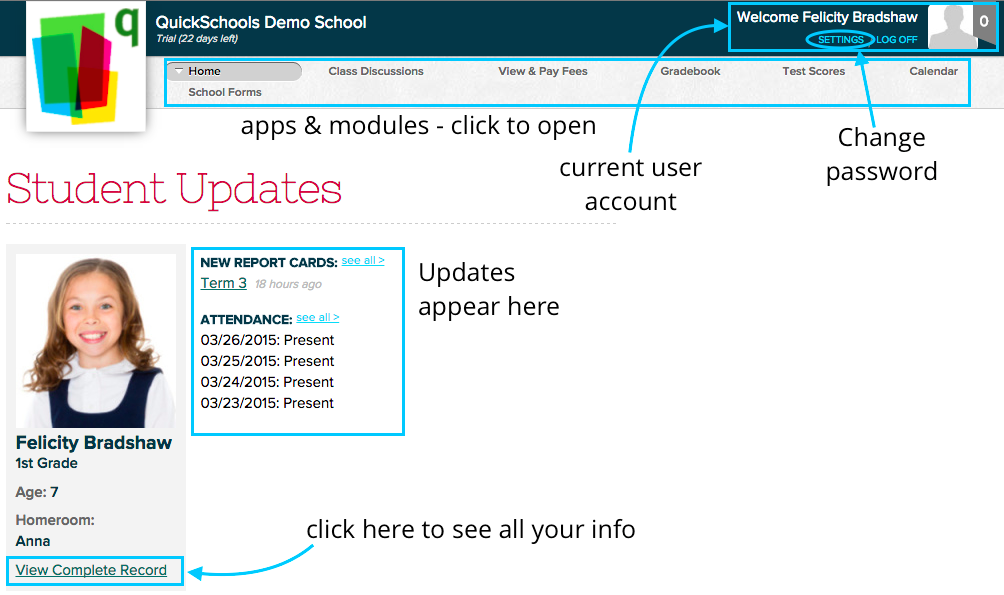
One of the awesome features in QuickSchools is the Student Portal. If you’ve seen the Parent Portal, it works very similarly. Either way – whether you’re a newbie student portal user or an old-hat, here’s a quick summary of some of the things you can do from within your student portal.
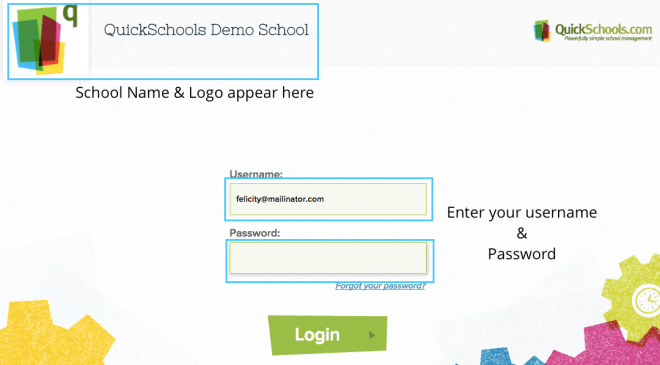
Login to your account–
Check your email from your school to get your username and temporary password
Click on the link or go to the URL given (it’s usually in the form yourschool.quickschools.com)
Enter your username and password (you can change it by going to to Settings in the top right of your screen)