I just wanted to express a quick thanks to all those who attended our webinar earlier today on the QuickSchools Gradebook. We covered a LOT of features in a short period of time, and so we went a little fast:
If you’d like access to a recording of the webinar, please fill in the survey that was sent to you. The recording is only available to subscribed schools. But we do have a copy of the presentation available below:
Finally, just a quick reminder that our Webinar Series will continue next month on the topics of Online Forms. This is also a large topic, and we may break it up into multiple sessions, to go over the various components. We look forward to seeing you there.
We have a webinar coming up for teachers, focusing on the Gradebook module in QuickSchools. This is part of our new Webinar Series. Be sure to register if you haven’t already.
QuickSchools Gradebook
During this webinar, we’ll be going over some of the more involved features, including:
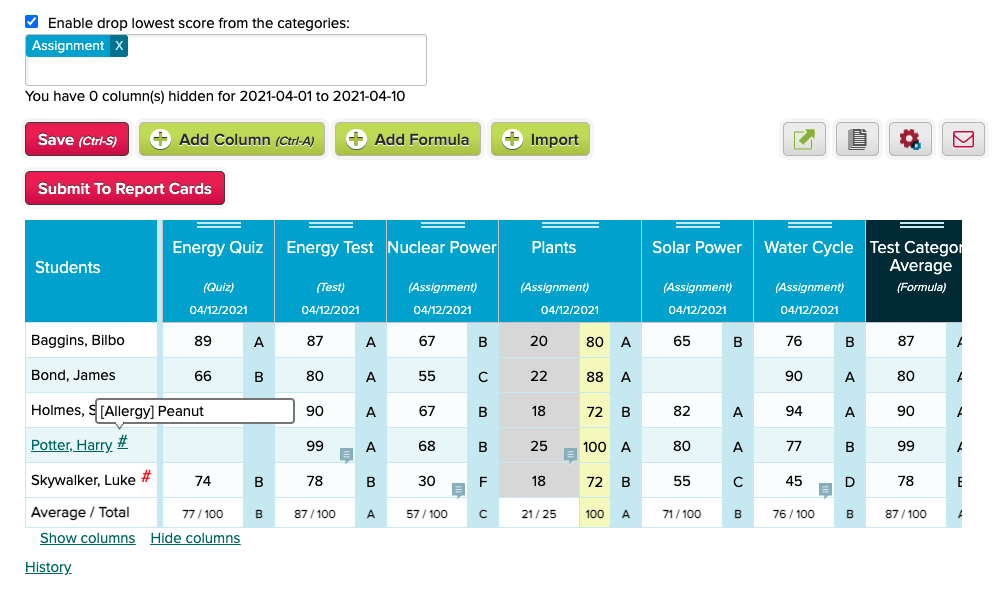
Gradebook Formulas and Weightages
These are the basics of using Weightages (or Weight Factors) to create formulas.
Introduce Send History when sending Email from Templates – See below
Improve performance when emailing attachments from modules (Report Cards, Gradebook, Fee Tracking)
Miscellaneous bug fixes related to attachments
Other General Improvements
NEW: Attendance Dashboard for Not-Yet-Taken (Beta) – See below
Improve how Summary Reports are run for long queries
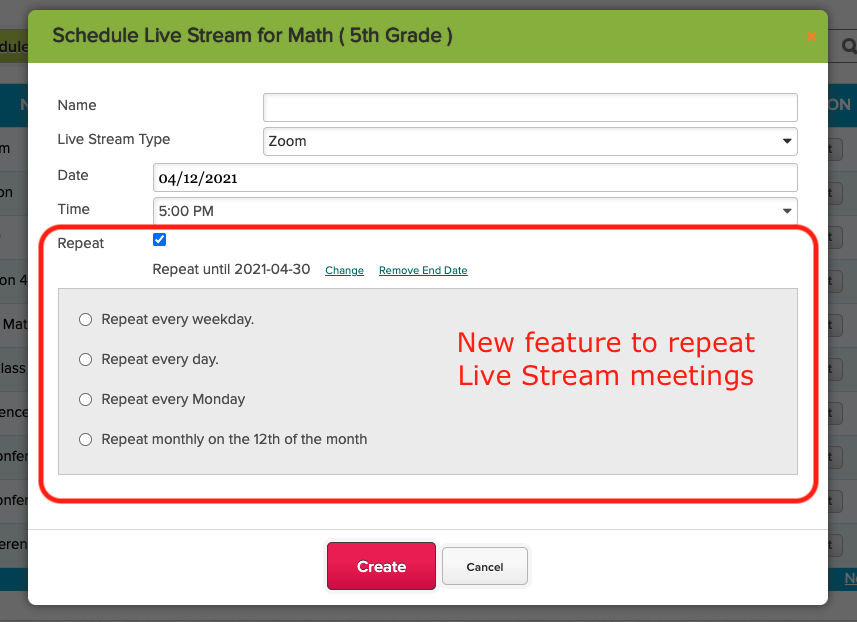
Live Stream now support recurring meetings
Search Student by Email Address and Phone Number
Ability to Schedule Synchronize with Sync
Ability to disable Chat Box for Online Forms – See below
Fileroom App now supports sharing with Students
Improve Search on Teachers Lounge (Beta)
School Notes for new Self-Enrollment (Beta)
Miscellaneous improvements to Announcements
Miscellaneous improvements to Master Scheduler
Bug fix when managing Live Stream for Teachers
Bug fix when a new document is uploaded to the Student record
Mapping Students in Google Classroom
When mapping students in Google Classroom, the system now displays the email address, so that it’s easier to match students. This is particularly useful when students use their own personal Google Accounts for Google Classroom, and thus may have names in a foreign language:
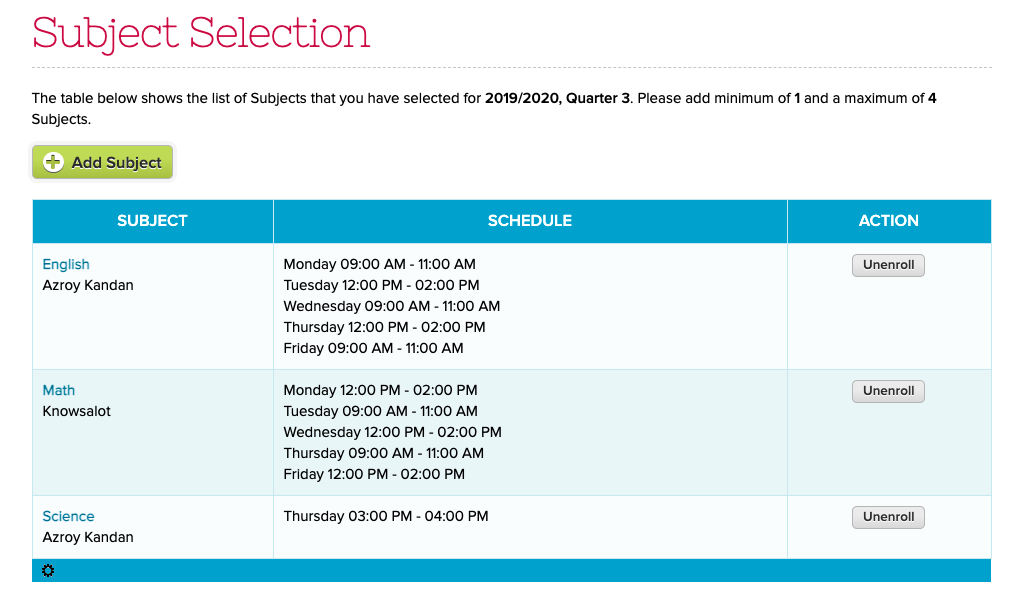
We recently released a new feature for students to Self-Enroll into courses. Students can review the courses they are enrolled in from within QuickSchools, and directly make changes. Here’s what the students can see from the Student Portal:
When selecting courses, the system can also check for conflicts based on the Simplified Scheduler:
This is an expedited Sprint (only 2 weeks instead of 3). We have a few beta features we’re pushing out, plus some miscellaneous performance enhancements and bug fixes.
New User Field in Interventions (introduced in previous release) is now reportable in Report Creator
Bug fix when deleting students
Timezone Bug fix when importing into Gradebook
Refactor framework for Email Messaging
New internal framework to support student subscription limits
Student Self-Enrollment (Beta)
This is a new feature to allow students to directly enroll into courses from the student portal (without using Course Requests from the Master Scheduler module). If the student is already enrolled into a courses, the student can unenroll from them:
New Self-Enrollment Feature for Students (Beta)
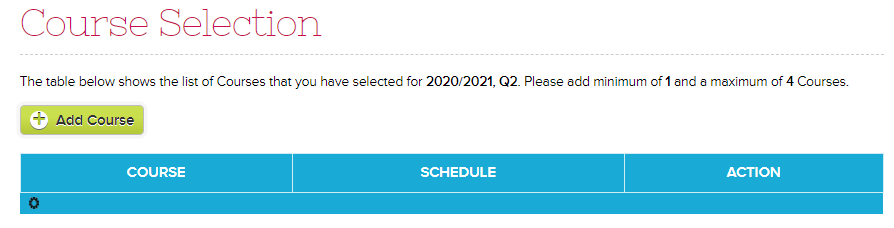
And there’s an “Add Course” button for students to select courses to enroll into:
One of the nice features about the Online Forms module in QuickSchools, is its ability to reduce work by the applicant by prefilling the fields where possible.
For example, if you have a form packet with multiple forms, where several forms make references to the same field (like the students name or address), as long as the fields are mapped correctly, once the applicant fills in the field on ONE of the forms, ALL forms within the packet will be automatically filled with the same information. How convenient is that? And it doesn’t stop there!
We’ve made strides to further improve the experience for applicants. And here we discuss 3 ways where applicants can make use of Pre-Fill functionality within our Online Forms app.
Mapping Fields to System Fields
So for users accessing the Online Forms from the Student or Parent Portal, any fields in the Form Packet that are mapped to a system field are automatically filled when the applicant starts a submission from their portal. This is because when parents / students access the Online Forms from their portal, the system is able to link the form with a student record, and the system can draw information from the linked student record, and pre-populate any fields mapped to system fields.
What this also means is that users accessing the Online Forms through a public URL will not get access to this feature. For that, check out the next section.
Starting a New Application for Public Forms
We have a new feature released recently that allows users to copy information from a previously submitted form into a new form. In order to utilize this feature, applicants simply need to click on the “Start New Application” link after completing a submission:
Applicants can quickly start a new application after submission
Once you start a new application, you’ll see a “Copy from Previous Submission” button for each form, allowing the user to pre-fill that form with all information previously submitted:
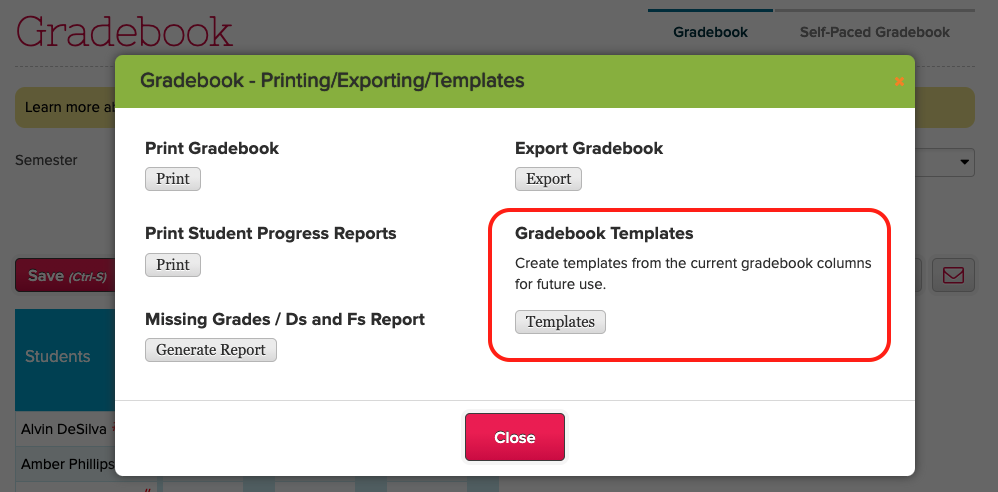
Use Gradebook Templates to copy columns between subjects
The Gradebook Template allows you to templatize an existing Gradebook, essentially allowing you to copy the columns in the current Gradebook, and insert them into another subject / course. Here we see several saved templates:
In QuickSchools, Academic Terms (or Semesters) provide a way to contain and separate student data. So for example, when you change the courses for a student within an academic term, it does not affect his courses from a previous academic term. And this extends to many modules, like grade levels / programs, subjects and gradebooks, simplified schedules, report cards, standard charges (from the Fee Tracking module), and so on. In this way, you can easily and safely introduce changes to the student record, while keeping archived data intact.
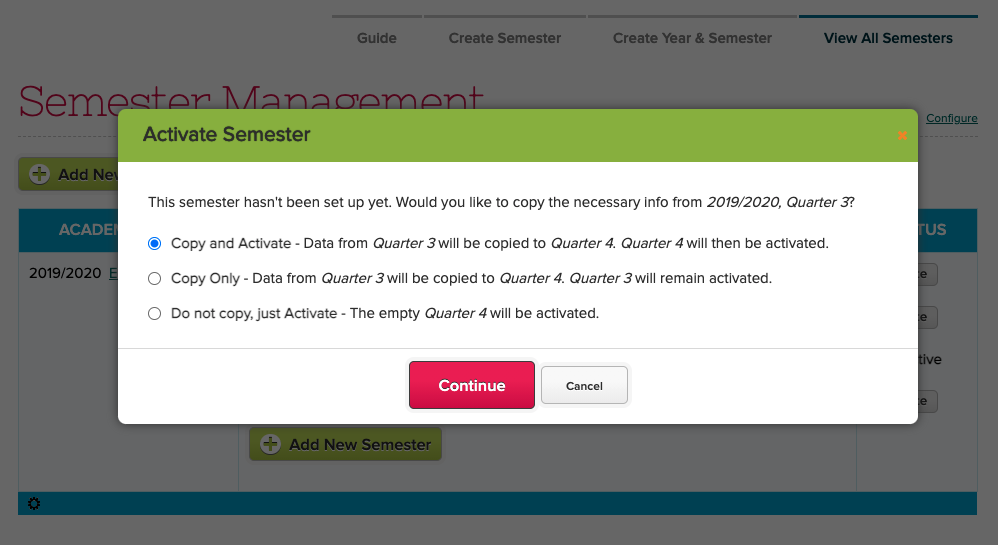
So when you activate a new Academic Term, it makes sense to copy certain information over, instead of recreating everything from scratch. By default, the system will ask you whether you want to copy data forward:
Choose whether to Copy data from the Previously Active Academic Term
There is an additional area to “Configure” additional information to copy over, like Gradebook Formulas and Admin Columns :