For those embarking on their inaugural year as new teachers in an unfamiliar school setting, we offer a selection of articles tailored to your needs. From different teaching tips to help your students, to the use of technology and apps, and fun activities you can do in the classroom to celebrate different holidays. These resources are intended to alleviate any apprehension surrounding the commencement of the school year, particularly the first day.
As the anticipation of one of the most significant holidays of the year builds, the school atmosphere is charged with a sense of joy and celebration. Educators navigating the festive season while still in the academic calendar have an excellent chance to blend the spirit of the holidays with engaging classroom activities. Let’s take a look at some fun arts and crafts classroom activities teachers may like to do with their students this holiday season.
These different activities are designed to boost creativity and knowledge, as well as be interactive and joyous. Feel free to adjust the theme to make it more suitable for your class. Let the following suggestions serve as inspiration for a week filled with festive learning:
Thanksgiving is fast approaching. That one time of the year when teachers all across America can think of fun Thanksgiving activities for their students. It that will definitely put them into the holiday mood!
Many different Thanksgiving activities can be done during class time. We wanted to share our top classroom activities you can do with your students. From elementary to high school, bringing some fall excitement into your school.
A report card is one of the most important documents that students will receive every year. Yet every report card season, though exciting, can be a very time-consuming and difficult period, especially for teachers. Manually entering all the results from different assignments, quizzes, and tests for every single student doesn’t just take time due to having to remember information or trying to recall forgotten scores, or having to go through the endless amount of paper, but is also prone to errors being made even though a calculator is being used. This then leads to rushing to get report cards done by the due date, and most likely a lot of overtime done.
No wonder report card season is so stressful and teachers are under a lot of pressure! Whilst the end of report card season is rewarding, especially for the students, school administrators need to find ways to help the teachers during this taxing time.
Not to worry, as QuickSchools is here to help! We have 9 reasons why signing up with QuickSchools will provide you with the best report card system you have ever had!
Attendance data management is not just about the students – it’s also for teachers. To create a holistic view of attendance statistics, attendance tracking extends to the entire ecosystem of the school. This means for your teachers too.
The Teacher Attendance App essentially allows you to:
Take attendance for all your teachers in your school
Tabulates an attendance history so you can see a summary of attendance for the active semester
3 types of attendance available (present, absent, tardy)
Configuring Access
Here you can configure access for the Teacher Attendance App depending on which users you want to be able to take attendance for the teachers. Only users who have been configured here will see this app appear on their menu.
Taking Attendance
Just like taking attendance for students, the Teacher Attendance App works in a similar way. Just click the “Take Attendance” button and begin tracking your teachers.
Once the app is installed, it will automatically pull the teacher names and auto populate them into the app.
Just click on any of the 3 predefined options (present, absent, tardy) and the status will update from “not yet taken” to your selected option.
Hit the “clear” button to change the status back to “not yet taken”. This is useful if you’ve accidentally pressed the wrong button or incorrectly marked attendance for any particular teacher.
Viewing Attendance History
So now that you’ve taken attendance, you can see the attendance summary per teacher for the active semester. This is a valuable snapshot for your school to identify teacher absenteeism for your active semester.
Your feedback is always valuable for us to serve you better. So do drop us a message to share your thoughts via the chat function or write to us at: support@quickschools.com! We hope this app comes in handy and look forward to hearing from you.
QuickSchools is fantastic for managing complex records and reports, such as the files kept for special education students. If you’re looking at how to setup your account to work best, given a handful of special education students – or a whole school body – here are some of the ways that we recommend tracking information.
The Students module can store tons of information – here are a few of the ways in which to use it for Special Education
Managing Records & Files
There are quite a few features that might be helpful for tracking forms, files, and special accommodations. Here are some highlights…
Documents – this tab in the Students module is like an online file-folder as it allows for files to be uploaded and stored online, with the student’s primary record. It’s great for IEPs, 504-plans, or other official files – written accommodations or otherwise.
Medical – this tab in the student record is a tidy way to enter student medical information. For situations where there are special accommodations due to allergies, illness, or physical disabilities, the medical tab can be a clear and helpful way to track the information.
CustomFields – this particular section of the student records is super-flexible, so it can be used as a way to make notes on a file. For example, students’ record can have custom fields areas for writing out necessary accommodations, or leaving notes for other teachers about how to work with a student
Private Messaging– As a communication system for special education teams, Private Messaging is a very powerful tool. It’s easy to have just one thread for each student’s group of support people. Parents and students can also be included in their special education threads, if needed.
Grading
Because QuickSchools is so flexible, there are quite a few different ways of going about managing grades are reports for special education classes. Here’s some information on the different features in the system that might be helpful.Read More »
As we head back into Report Card season, we’ve received quite a few requests for help setting up a Behavior/Work Habits/Social Growth grading system. In case you’re wondering the same thing, here are two ideas that we like to recommend when this question comes up.
Idea 1: The No-Credit Behavior Class
This is a nice way to setup a behavior grading system so that appears like a regular class in the student’s record and a teacher’s subject-based grading menu. It’s very convenient, and quite intuitive if you think of behavior/work/social skills as being like a subject for students. That said, it does have some drawbacks in that you need to hide the subject in each student’s transcript so that everything looks neat and tidy. If you’d like, you can set up a No-Credit Behavior class like this…
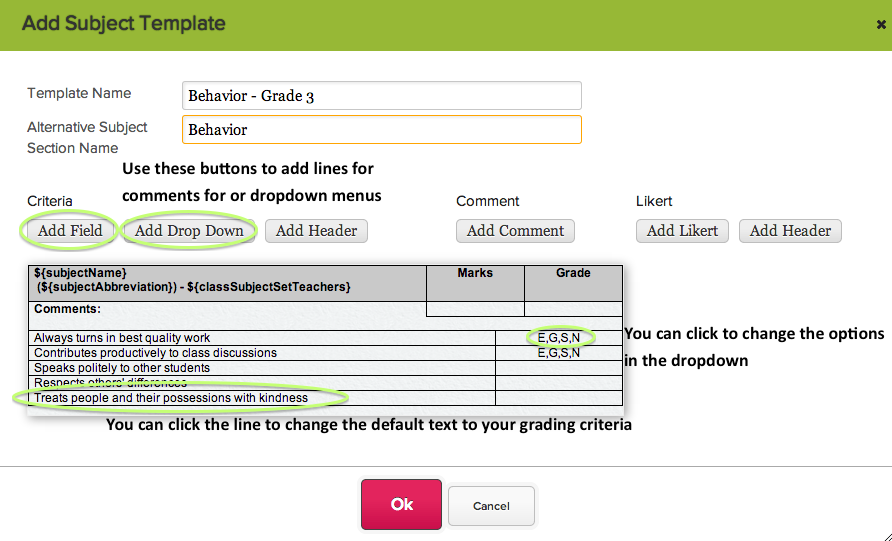
1. Go to Subjects and make a different Behavior subject for each grade.
Make sure to set the credit hours to 0 – so that it’s really “no credit”! 🙂
For this, first go to Setup Report cards, and scroll all the way to the bottom and click “Turn it on” for Subject Specific Grading Criteria. Then, click the new fourth tab in your Report Cards module.
Then, we can create a subject-specific criteria template. First click “Add Template”, then fill in your grading criteria
4. Assign the Template to the Class
Click the subject’s “Assigned Template” line to get a dropdown menu of possible choicesRead More »
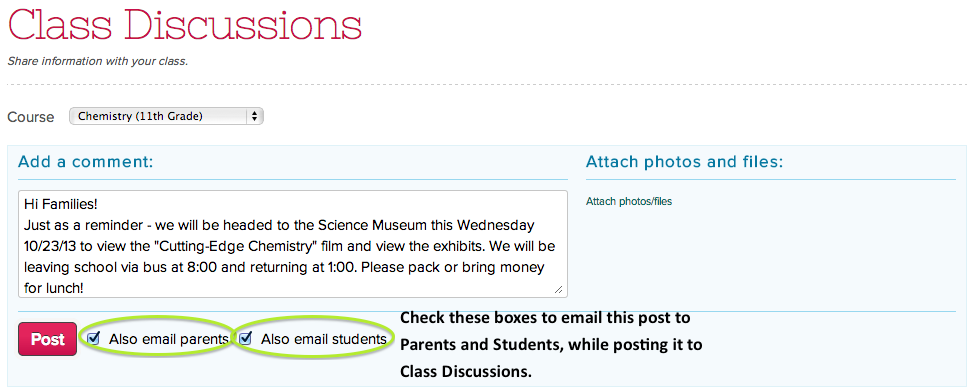
To turn on Class Discussions on QuickSchools, Admins go into the Settings → Turn Features On/Off menus. The Class Discussions module is connected to the Homework module, so they are turned on together:
To enable teachers to post updates to their own classes, as well as configure who can post for to others’ classes, head over to the configure menu. Now, as to a few ways to use it…
Announcements
Because Parents, Students, and Teachers connected to a specific class all see the Class Discussions, the module is a great way to get the word out about specific events related to your class. It’s especially well-suited to class-related announcements since your posts can be emailed to students and parents when they are posted.
Blog
Because so much communication is done online now, blogging is one of those useful skills that many teachers want to encourage their students to develop. Because all QuickSchools data (including Class Discussions) is completely private and secure, student work is entirely safe while they practice their skills at writing for an online audience. For example, students could be encourage to rotate at writing a blog post for each week.Read More »