Our latest QuickSchools release contains primarily improvements to the Orchestra Master Scheduler and API improvements for Zapier and Engage, with some general improvements to our Email Deliverability and Lunch Orders / Shopping Cart.
Match Tags on Course Requests against Teachers
Full list of improvements are below:
Master Scheduler
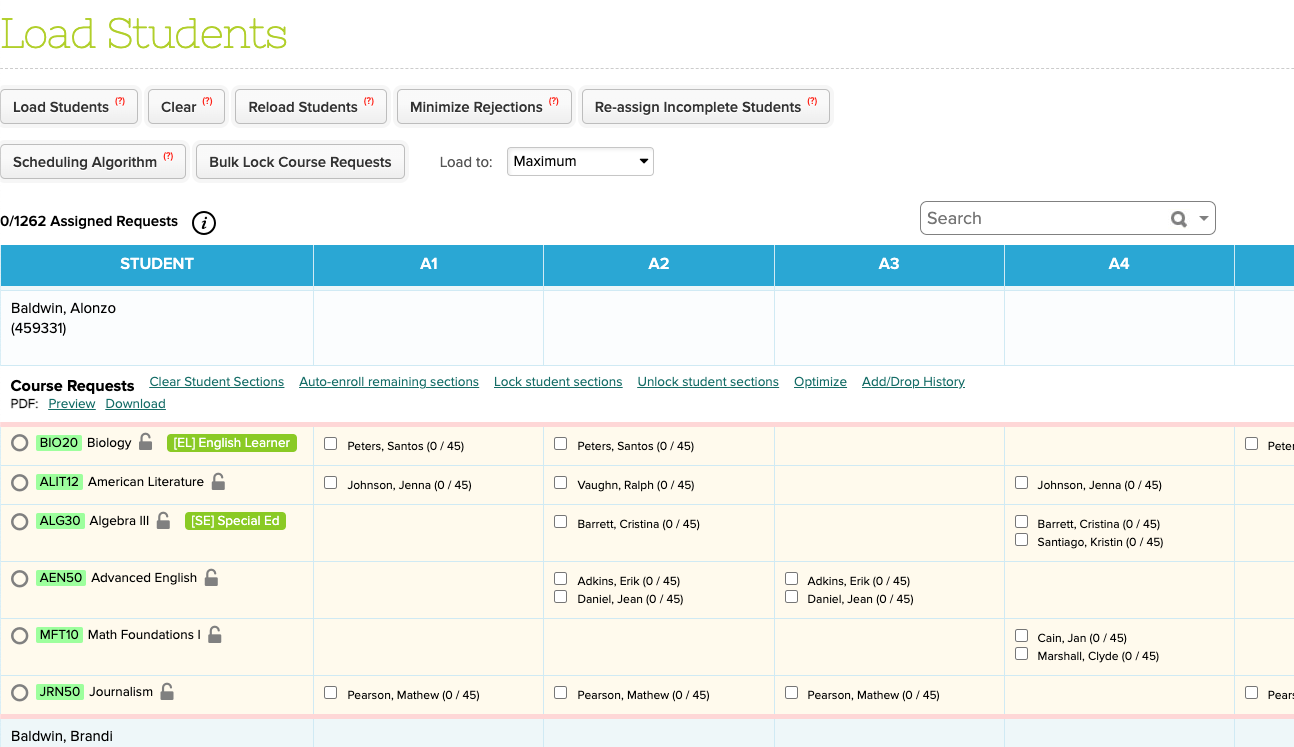
Optimize Step 5 “Load Students”
Expand Tag functionality in Step 5
Improve Multi-Semester Support for Schedule PDF
Improve Multi-Semester Support in Teachers Schedule
Improve Step 6 Add/Drop Notifications
Bug Fix Advanced Search for deleted courses
General Bug Fixes / Improvements
Bug fix Lunch Ordering for expired Shopping Cart items
Improve support for Lunch Orders PDF (without Homerooms)
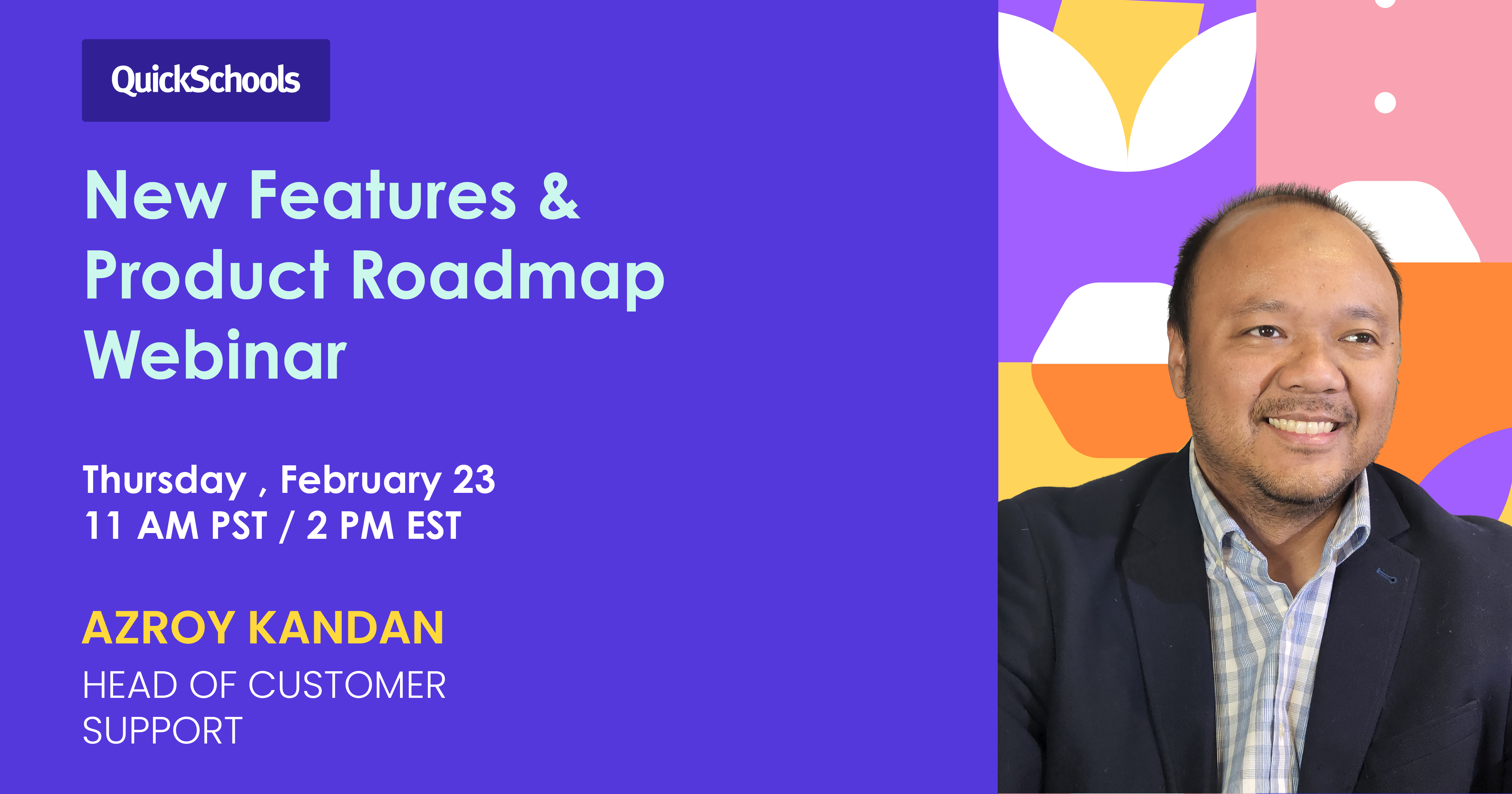
It’s finally here! QuickSchools’ first webinar of the year is scheduled for Thursday, February 23 at 11 AM PST / 2 PM EST.
Since our last Product Roadmap webinar in May 2022, we’ve launched and improved modules that rely on our Online Payments framework with Stripe, which includes:
Shopping Cart (with Lunch Ordering)
Payment Plan
Admissions / Online Forms
We’ll be revisiting some of these new improvements in more detail. We’ll also be discussing our soon-to-be-released Engage CRM, which is an extension of our Admissions module, to be offered as a standalone product.
This article describes how schools can setup Free Lunch Orders through our new Lunch Ordering App (with Shopping Cart). This may come in handy when certain cases require this, such as when prospective students visit the school and want to try out the Cafeteria.
A summary of the steps are as follows:
Create a Dummy Student and Parent Account
Invite Parent via Parent portal
Add Credits for the Parent’s Lunch Ordering
Order lunches through the Parent Portal
Setup Dummy Student and Parent Accounts
You will need to setup a dummy account for a student and parent. If you want to have separate lunch orders per Grade Level/Homeroom, a dummy student account would need to be created for each grade level. However, all students can still be linked to a single Parent Account.
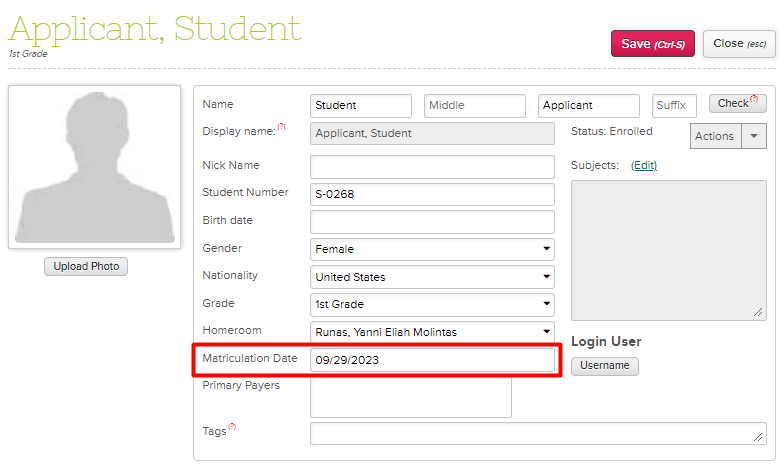
In order for the student to be excluded from the Attendance Roster (if Homeroom Attendance), set the Enrollment Date to a future date.
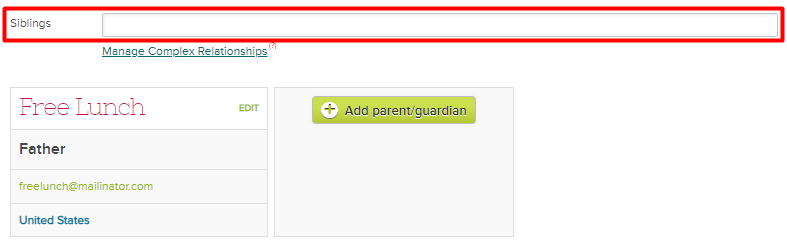
If you would be having more than one dummy student (one per grade), link the students as Siblings in order to access them all in a single Parent Portal.
Invite the Parent to the Parent Portal
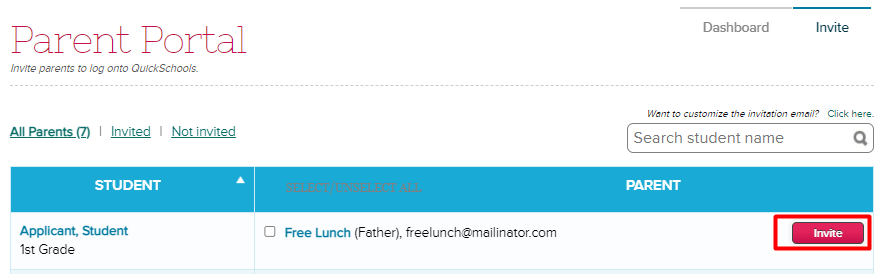
Invite the dummy parent account by going to the Parent Portal > Invite tab > Click on the Invite button for the dummy parent.
Add Credits
Without a valid credit card, parents can only submit orders using Credits. You will need to add sufficient credits to the parent account, so as to complete lunch orders as necessary.
COMING SOON At this time, credits can only be added by QuickSchools Support Staff. The ability for the School Admin to add credits to users will be available soon.
Order Lunch for Students
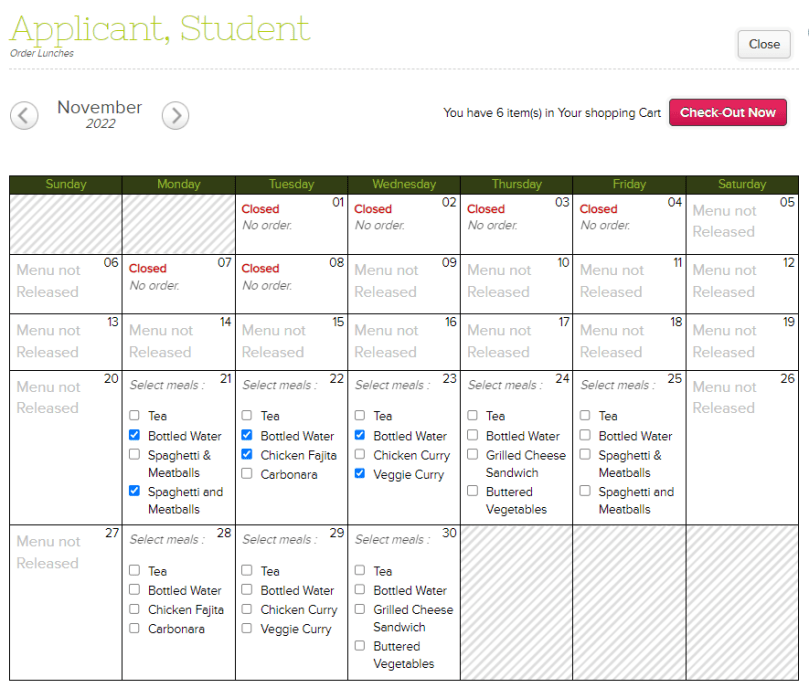
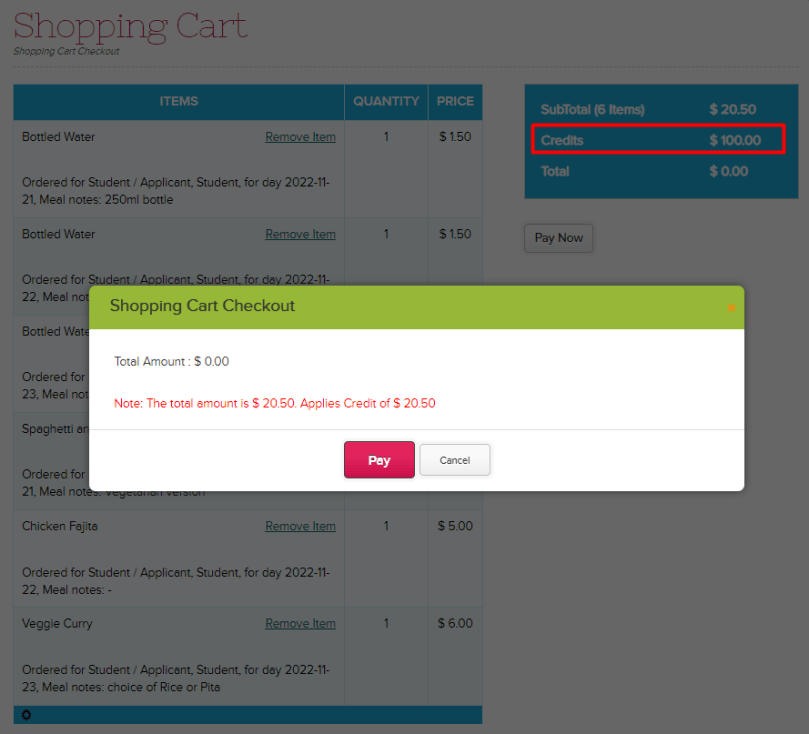
Once credits have been added for the Parent, you can order lunch via the Parent Portal and checkout using the credits.
Select Meals in Lunch Ordering
Checkout Meals using Credits
The lunch orders can then be viewed through either the Lunch Ordering > Order Fulfillment tab, or our Lunch Ordering Reports.
If you have any questions or concerns regarding setting up Free Lunches, feel free to chat in, or send us an email at support@quickschools.com. Feel free to provide any suggestions or feedback as well.