In the recent QuickSchools release on May 6, 2020, we introduced some new improvements to our Email Templating module. This article aims to highlight a few key features of this capability.
The Email Templates feature is currently available in several modules, namely:
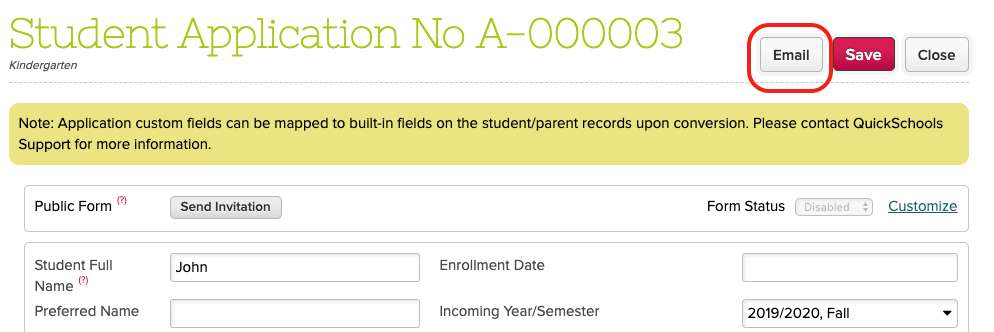
When accessing a record in these modules, there is an “Email” button that allows you to send emails that utilize fields from the module. Here’s an example from the Admissions module:
Send Emails from the Admissions module
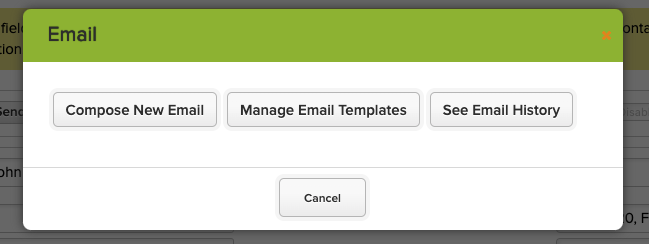
You then have the option of creating an ad hoc email, use a template, or view the history for this record:
Options when using the Email Template capability
Each module has its own set of fields that you can use. Just click on the “Insert Field” link to view list of fields:
The Online Forms App in the App Store can be used to update or enroll students in your QuickSchools account. This is done by mapping fields from your Online Forms into fields in QuickSchools. But every so often, you may want to update the fields on the Online Forms. How does this affect the process of updating/enrolling students from the Online Forms App?
If you’re using our standard Custom Fields to create your forms, then you simply need to update the existing custom fields, and the mapping info will be retained. And new custom fields can easily be mapped as well. But if you’re using PDFs, the process can be a little more involved.
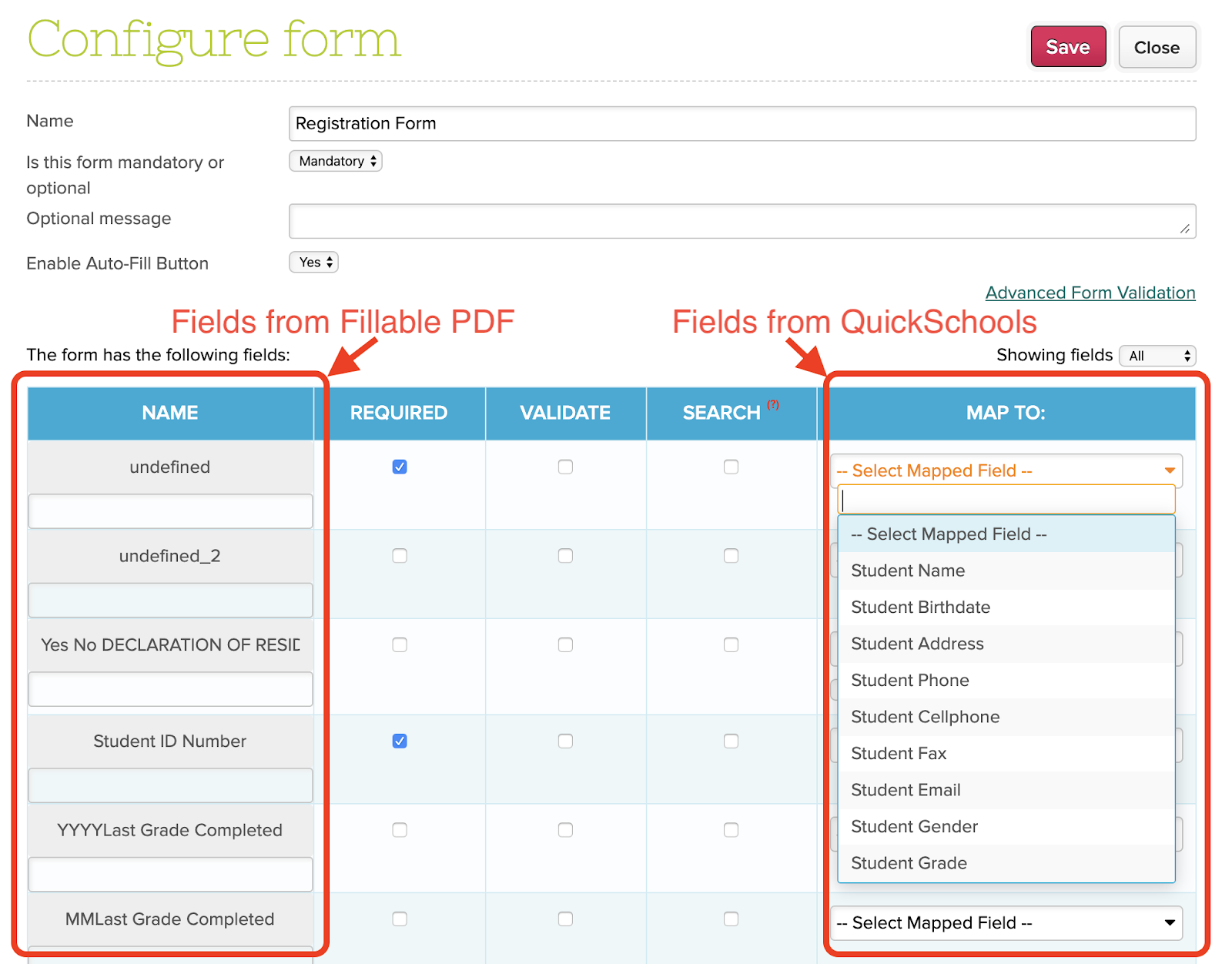
The Online Forms app will pick up fields from your fillable PDF in order to be mapped to fields in QuickSchools.
The important thing to note here is that QuickSchools uses the Field IDs from the PDF in order to map to fields in QuickSchools. If you change the Field IDs in the PDF and re-upload the PDF to QuickSchools, the system will regard those fields as NEW fields.
Preview your Online Forms PDF
In order to retain any existing mapping info within the Form Packet that you’ve already configured, it’s important to reuse the IDs for the fillable fields that have already been mapped. If you don’t have a copy of the PDF already, you can easily download a copy from the Form Packet. Just open the Form Packet to view the list of forms attached to the packet. Then click on the “Preview” button:
The Voice Messaging feature is part of the Messaging module included within QuickSchools. Like text messaging, voice messages incur an additional cost, and are typically used sparingly in case of emergency (like school last-minute school closures due to inclement weather).
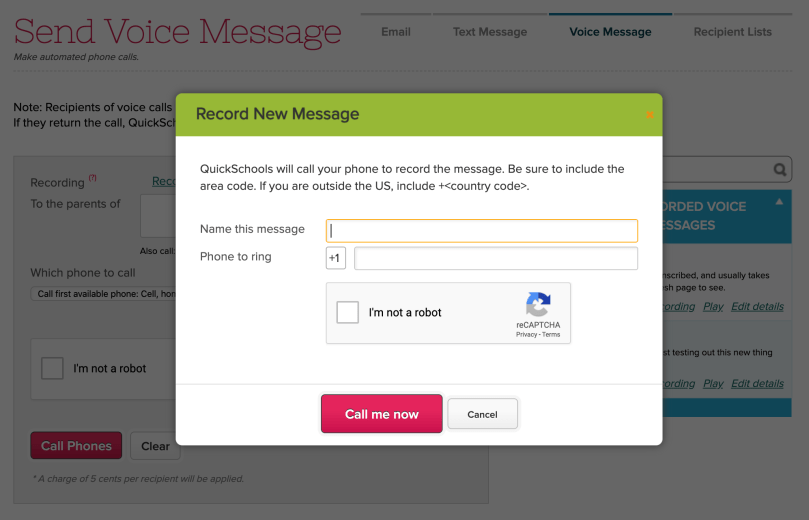
The cool thing about our Voice Messaging module is that you don’t need a microphone to record your message. To record a message, simply specify a phone number to call, and you can record your message over the phone:
Record a Voice Message by specifying a Phone Number to call
Once you’re done, press the ‘#’ button before hanging up, and then you’re done. The recorded message will appear on your screen. Previously recorded messages will also appear on the right, with transcriptions, so that they can be reused:
So you’ve published your report cards, and enabled access for users to view the report cards from the Parent and Student Portals on QuickSchools. Someone spots a mistake, and now you need to update the grades. This article describes the process of updating report cards AFTER report cards have been locked.
We will be going over the following scenarios:
The Basics: Manually updating grades
Re-submitting grades from the Gradebook
Clear Locked Values
Selectively migrate calculated values
The Basics: Manually updating grades
What happens when you lock the report cards?
IMPORTANT: Report cards are designed to PULL data from supporting modules like the Attendance and Gradebook modules. This happens when you (1) OPEN an individual report card for the first time, or (2) LOCK the report cards for the first time.
Once you have locked the report cards for the first time, the system will no longer pull data from the supporting modules. This means that you can safely unlock report cards, make changes to any individual report cards, and then lock them up again.
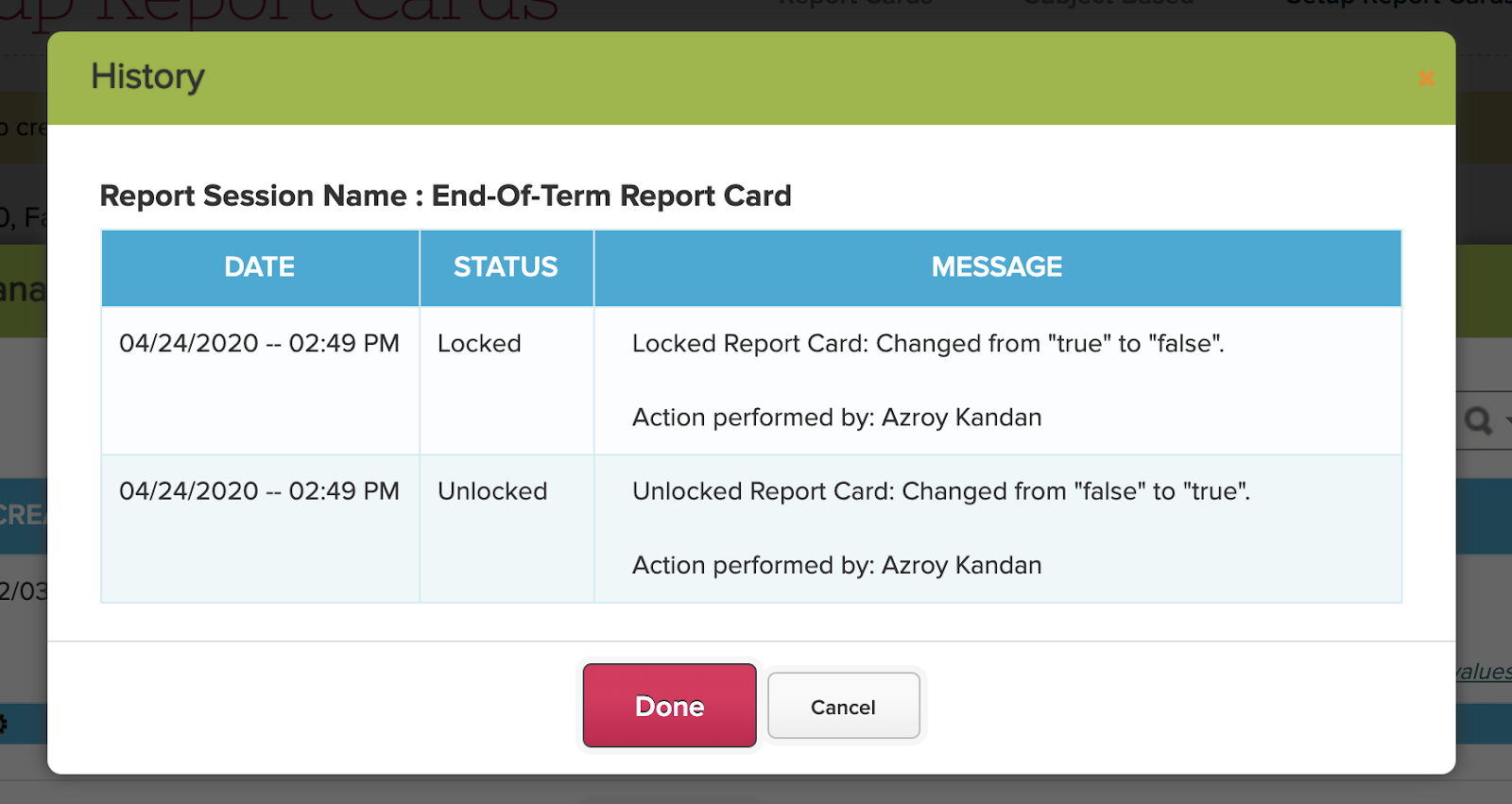
TIP: If you click on the “History” link for a particular Report Card session, the screen will show when the report cards where locked/unlocked, and by which user:
Manually updating grades in the Report Cards will NOT update the corresponding modules where the information would typically originate from. So for example, if you update a students Math grade from 80 to 90 in the Report Cards, this would be independent of the students Math grade in the Gradebook. Ideally, the Gradebook grades would match the Report Cards, but this would need to be managed manually after locking.
Re-Submitting Grades from the Gradebook
In some cases, you may have realized after locking your report cards, that one or more of your teachers had not updated his/her gradebook with the correct Final Grade calculations. As a result, the grades that were pulled from the Gradebook are incorrect. Do you need to update each grade individually in the report cards?
There is actually a new “Submit to Report Cards” function that was introduced in September 2019 as a beta feature, and later refined. You can enable this feature by configuring the Gradebook module:
The file size limit for attachments in Quickschools has been set uniformly to 25 MB as part of our latest improvements released April 13 2020. The 25 MB limit is in line with the current industry standard used. Specifically by mailing services such as Gmail, Mailgun and Sendgrid whose services we use for our mailing servers.
In today’s climate, there is more demand for larger files to be shared with students. More and more schools employ online tools to provide learning materials online. And schools may find themselves in situations where files are simply too large to be attached to an email, or uploaded into QuickSchools.
In such situations, we recommend using a file hosting / storing service that gives you the ability to generate shareable links. These links can then be shared in place of the large files, in an email, homework/assignment or class discussion.
Among the file hosting and storing services available online, the easiest and most commonly used are Dropbox and Google Drive. For instructions on how to create a public link using the aforementioned programs please visit the links below:
One Form Per Child (OFPC) is a setting within the Online Forms app in QuickSchools that allows you to designate one student per submission:
One Form Per Child (OFPC) setting for Online Forms
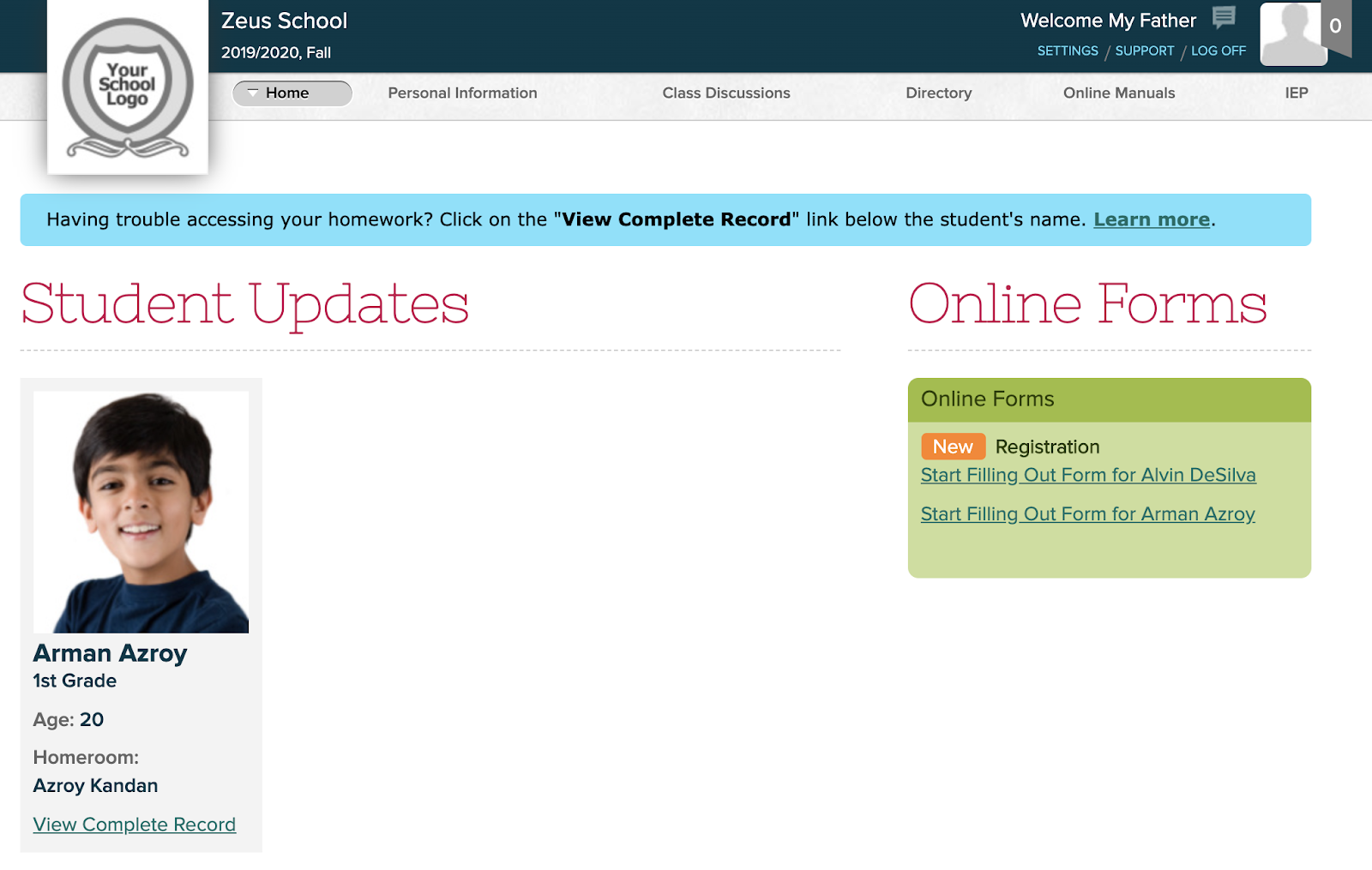
With this setting enabled, parents who log into the Parent Portal will see separate forms for each child that the parent has access to:
Online Forms on the Parent Portal
Ordinarily, when parents have to fill separate forms for each student, it creates extra work. But if forms are configured with mapped fields, the forms will be pre-filled with data from the student record. So this actually simplifies the submission process for parents.
Quickschools has made it easier for parents and students to pay for their school fees from their portal accounts using the Online Payments feature via integration with Stripe. In some cases, after parents have paid via credit card, the school may need to refund these fees for reasons like duplicate, overpayment, etc. To refund, follow the instructions below:
On your Quickschools account, go to Fee Tracking > Online Payments.
Online Payments tab
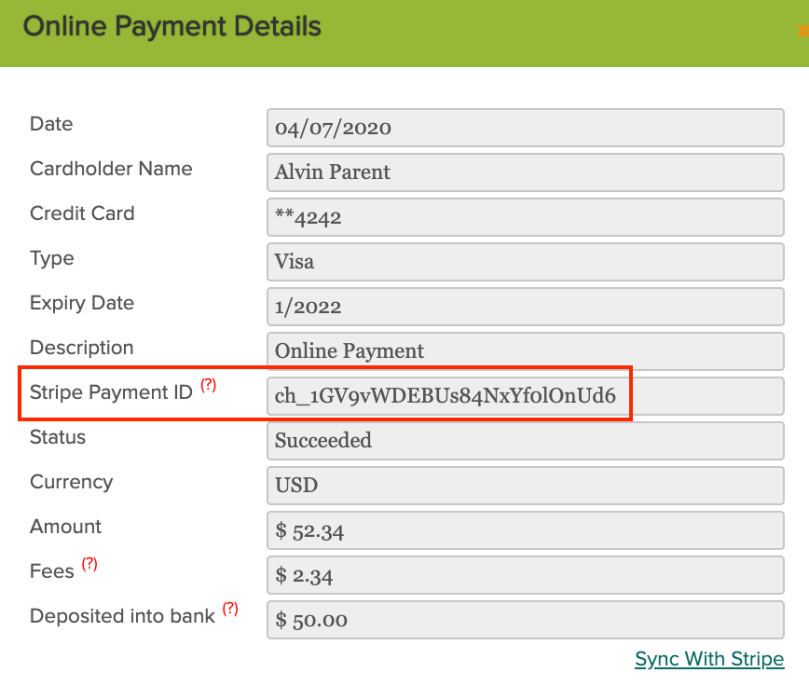
Open the payment transaction to be refunded and copy the Stripe Payment ID.
Stripe Payment ID
Open a new tab on your browser, go to the Stripe website and log in to your school’s account:
We have a new importer available in Quickschools, this time for the Online Forms app. The importer allows you to create new submissions within a form packet. You can then manage each submission as you normally would. The importer is currently in private beta, so you’ll have to request it via chat or email. Here’s how it works:
A new “Import” button is made available for all form packets:
The mapping process is the same across all of our importers. Just map the fields from your excel file to those in your form. To make things easier, the drop down will show the form name first just in case you have similarly named fields in other forms.