We have a webinar coming up for teachers, focusing on the Gradebook module in QuickSchools. This is part of our new Webinar Series. Be sure to register if you haven’t already.
QuickSchools Gradebook
During this webinar, we’ll be going over some of the more involved features, including:
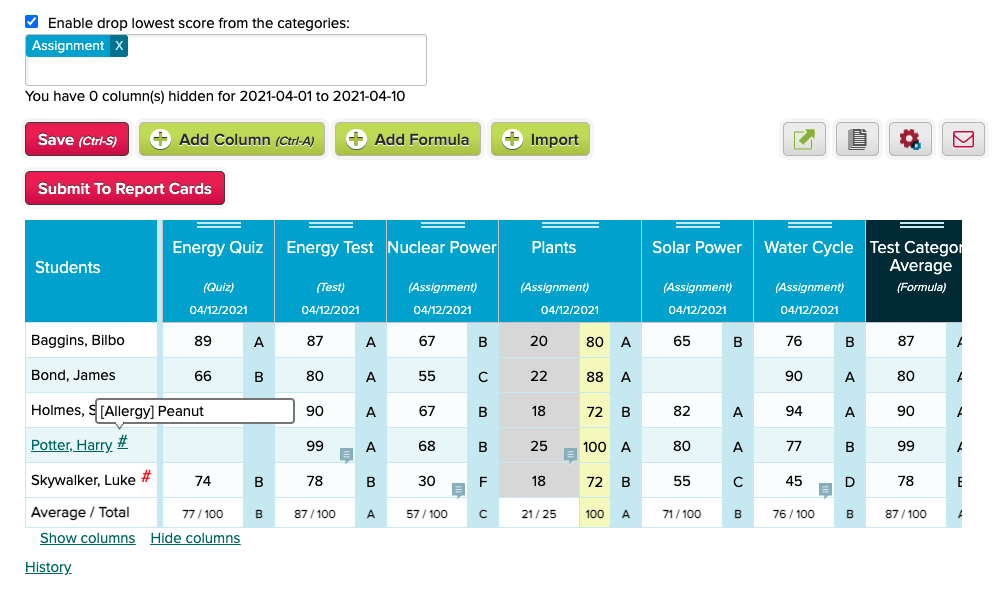
Gradebook Formulas and Weightages
These are the basics of using Weightages (or Weight Factors) to create formulas.
Our Google Classroom integration has been quite popular since its introduction back in late 2019. It’s received quite a lot of support from the schools that have it installed, as well as internally from our tech support and engineering teams. In short, the integration allows schools to pull grades from Google Classroom over to Quickschools, where report cards and transcripts can then be generated.
The integration itself can be a great time saver, as it removes the need for double entry into two systems. Of course, as with any integration between two separate systems, there are going to be nuances that may create differences between the expected behavior and the actual behavior. For that reason, we created the following Google Classroom troubleshooting guide:
One of the nice features about the Online Forms module in QuickSchools, is its ability to reduce work by the applicant by prefilling the fields where possible.
For example, if you have a form packet with multiple forms, where several forms make references to the same field (like the students name or address), as long as the fields are mapped correctly, once the applicant fills in the field on ONE of the forms, ALL forms within the packet will be automatically filled with the same information. How convenient is that? And it doesn’t stop there!
We’ve made strides to further improve the experience for applicants. And here we discuss 3 ways where applicants can make use of Pre-Fill functionality within our Online Forms app.
Mapping Fields to System Fields
So for users accessing the Online Forms from the Student or Parent Portal, any fields in the Form Packet that are mapped to a system field are automatically filled when the applicant starts a submission from their portal. This is because when parents / students access the Online Forms from their portal, the system is able to link the form with a student record, and the system can draw information from the linked student record, and pre-populate any fields mapped to system fields.
What this also means is that users accessing the Online Forms through a public URL will not get access to this feature. For that, check out the next section.
Starting a New Application for Public Forms
We have a new feature released recently that allows users to copy information from a previously submitted form into a new form. In order to utilize this feature, applicants simply need to click on the “Start New Application” link after completing a submission:
Applicants can quickly start a new application after submission
Once you start a new application, you’ll see a “Copy from Previous Submission” button for each form, allowing the user to pre-fill that form with all information previously submitted:
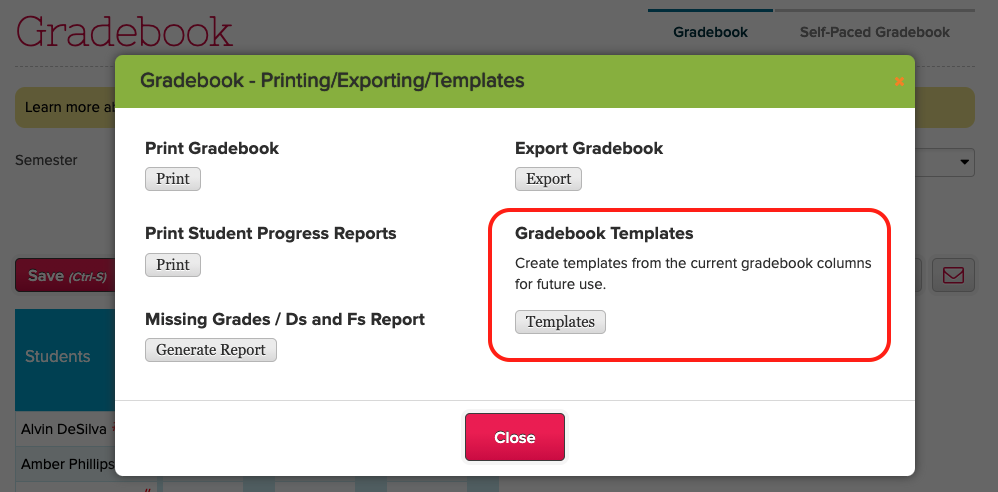
Use Gradebook Templates to copy columns between subjects
The Gradebook Template allows you to templatize an existing Gradebook, essentially allowing you to copy the columns in the current Gradebook, and insert them into another subject / course. Here we see several saved templates:
In QuickSchools, Academic Terms (or Semesters) provide a way to contain and separate student data. So for example, when you change the courses for a student within an academic term, it does not affect his courses from a previous academic term. And this extends to many modules, like grade levels / programs, subjects and gradebooks, simplified schedules, report cards, standard charges (from the Fee Tracking module), and so on. In this way, you can easily and safely introduce changes to the student record, while keeping archived data intact.
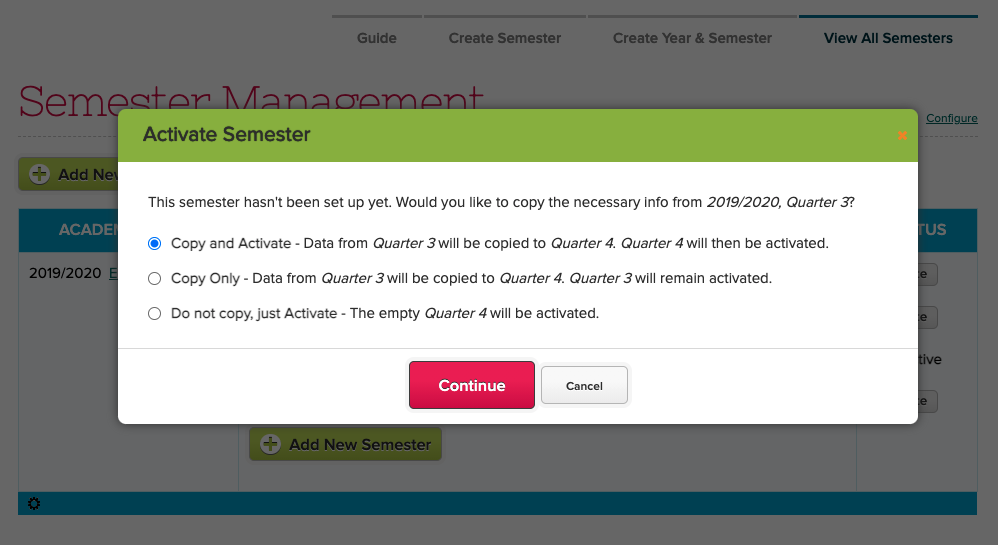
So when you activate a new Academic Term, it makes sense to copy certain information over, instead of recreating everything from scratch. By default, the system will ask you whether you want to copy data forward:
Choose whether to Copy data from the Previously Active Academic Term
There is an additional area to “Configure” additional information to copy over, like Gradebook Formulas and Admin Columns :
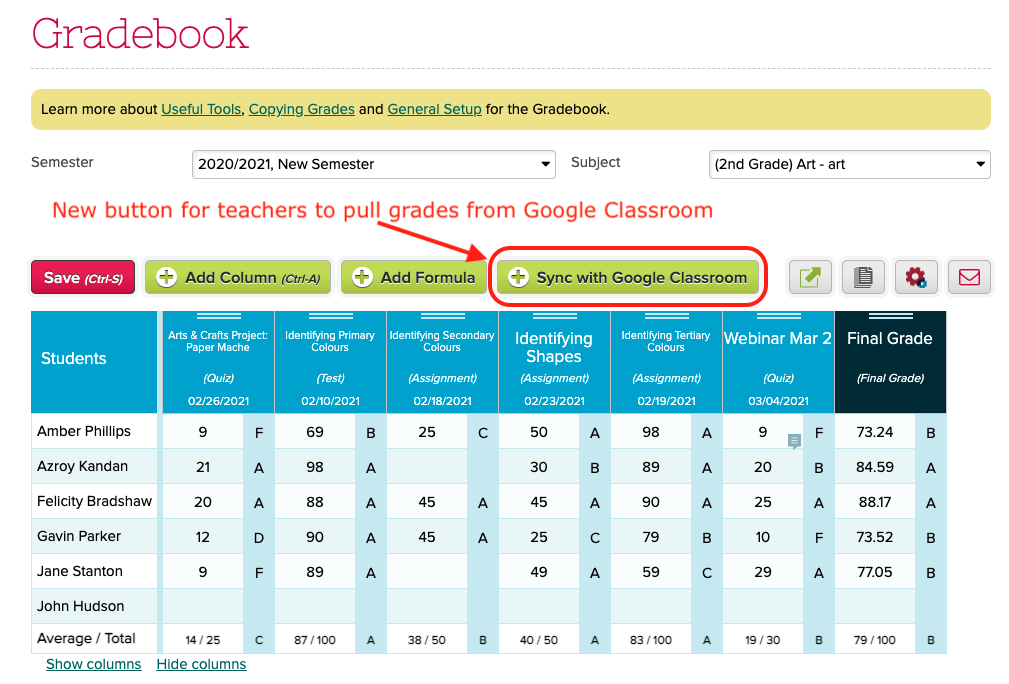
We are introducing a new feature in the Google Classroom Integration app, that allows teachers to manage and pull grades from Google Classroom for their own subjects in QuickSchools. When enabled, teachers will see a new “Sync with Google Classroom” button in their Gradebook:
Clicking on the button will initiate a synchronization with Google Classroom. Some things to note about the Google Classroom Integration:
The school admin needs to install and configure the Google Classroom Integration app for the whole school (available in our App Store). If the setup is incomplete, an error message will appear.
When synchronizing the gradebook, the student enrollment may change, depending on how your school administrator configured the auto-enrollment feature.
Some elements from Google Classroom will not transfer over, namely the category, final grade and comments. So teachers can freely update this information in QuickSchools. This data will not be overwritten by subsequent synchronizations.
NOTE FOR ADMINISTRATORS: The feature will require that the School Administrator configure the Google Classroom Integration app as follows:
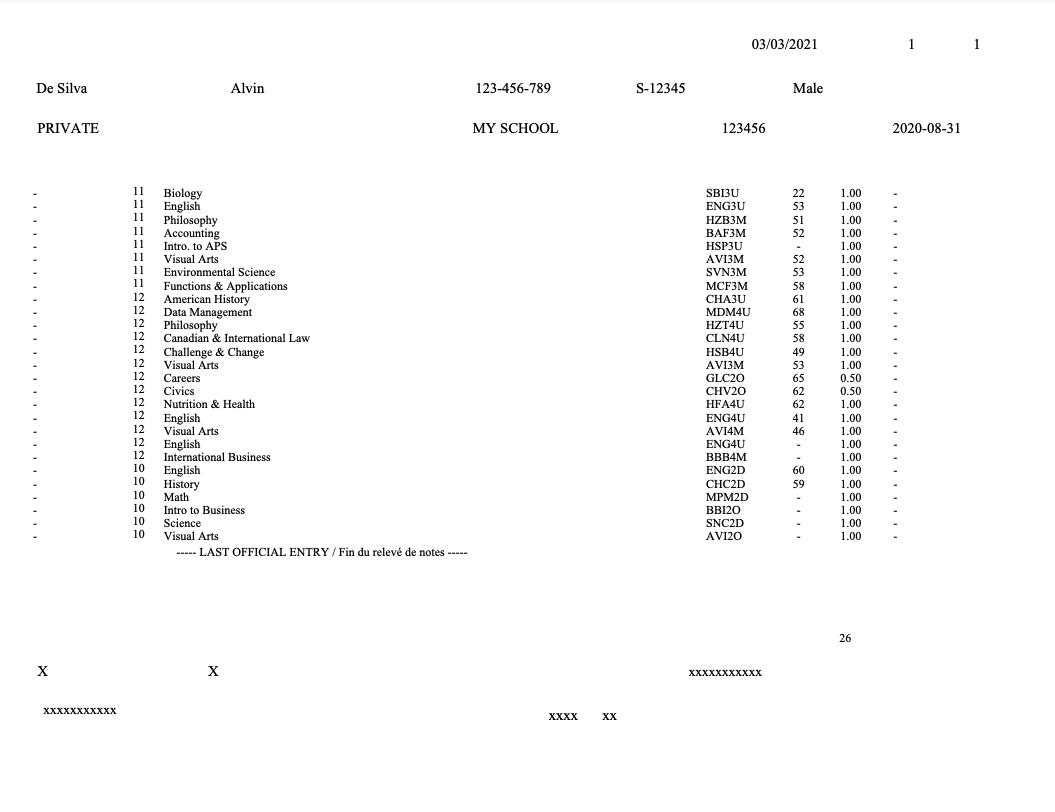
For schools in Ontario, Canada, QuickSchools actually supports report cards and transcripts required by the province. We have a separate article that describes the Ontario Report Card Template that we posted several years ago. More information here:
For Transcripts in particular, we can produce a PDF document containing transcript information that can be printed on the Transcript paper document (which contains the Ontario watermark):
Here’s an example of what the final Transcript can look like, once the PDF is printed on the watermarked Transcript document:
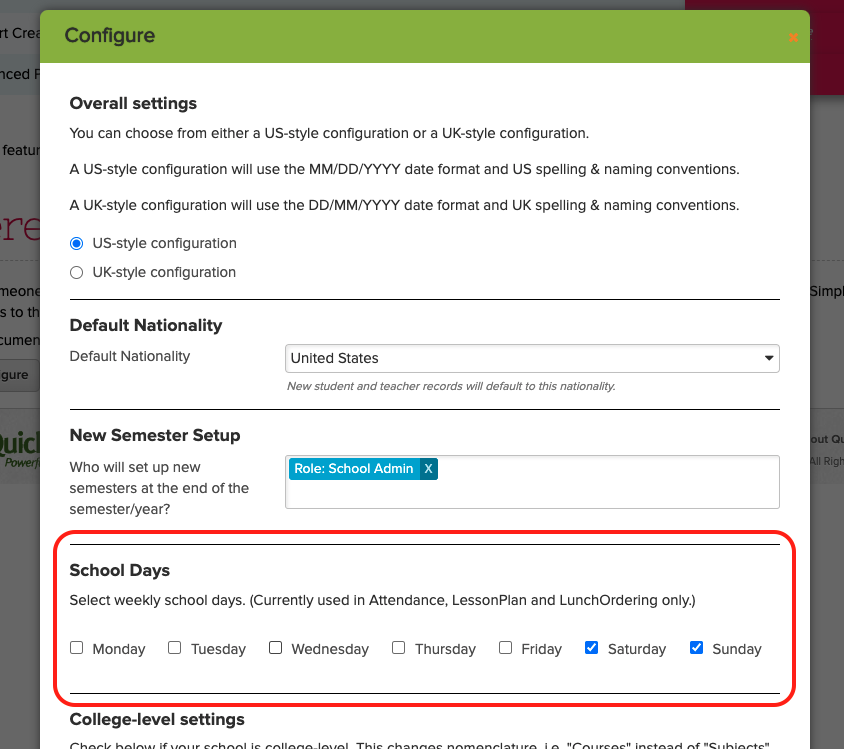
If you run a Weekend School (or any school that doesn’t run the traditional 5-day Monday-thru-Friday schedule), you can use the “Edit Overall Settings” feature under “Settings” > “Turn Features On / Off” to configure your School Days in QuickSchools:
As mentioned on the screen, this setting currently only applies to Lesson plans, Attendance, and the Lunch Ordering App. If you have a specific module that you’d like this feature to include, please do let us know:
School Days in Lesson Plans
Here’s an example screen from the “By Month” view of the Subject-Based Lesson Plans. Notice that it only shows the school days for Sunday and Saturday, as configured in the previous example: