The Report Card Sequencing Checklist

One of the awesome things about QuickSchools report cards is how flexible they are. You can set up as many Report Sessions as needed for any combination of progress, quarter (or cycle), or semester grades. However, once in a while, the grades might appear in the wrong column on a semesters-, cycle-, or quarters- style report card. For just this situation, we have Report Card sequencing – so you can chose the semester column for grades and attendance to appear.

Brand-new Report Cards that have been just setup can occasionally have a somewhat unexpected appearance, especially if you have a few Report Cards from the same quarter in your module. The system automatically treats each of these report cards like records individual, official quarters, which while often very helpful, isn’t always. If your report cards look a bit like the examples below, then it’s best to manually set the Sequence to help them to display properly.

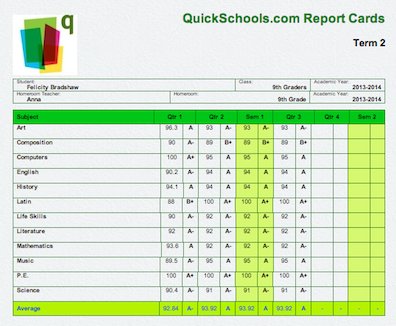
The Report Cards might have Term 2 Grades repeating through multiple columns…

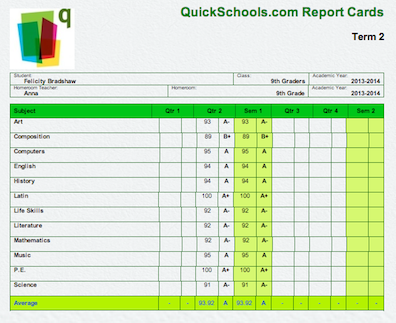
…or, Term 1 Grades missing entirely…

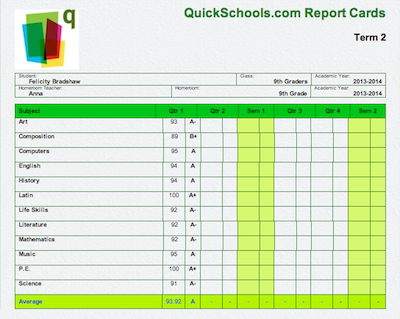
… or have Term 2 appearing in the Term 1 column.

Though they might not look so great at first, each of these examples can be fixed quickly with Report Card sequencing. Once you have made a new Report Card session, the Sequence can be set from the admin’s Setup Report Cards menu. If you’d like to sequence your report cards, here’s the step-by-step guide!Read More »

Re-Enrollment and Permissions Slips

Our new Student Custom Fields module is a powerful tool for collecting all kinds of data from all the different users accessing your QuickSchools account. And this comes from the ability for school administrators to define which users can edit which fields:

Adding a New Custom Field

Here we discuss 2 scenarios for using the Student Custom Fields to allow parents to interact with the school by recording important information about the student.

Student Re-Enrollment

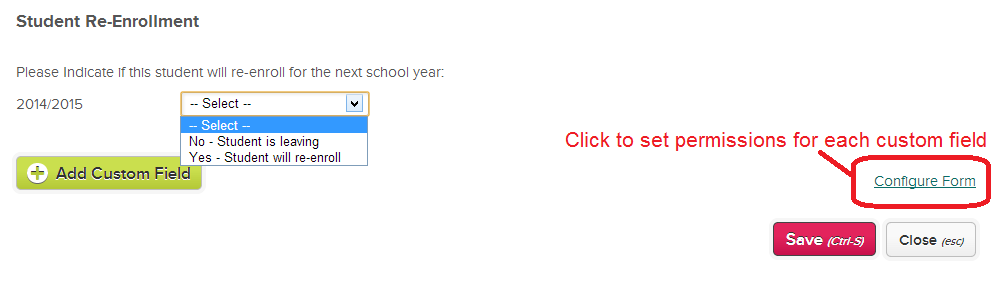
At the end of the school year, it’s often difficult to determine which parents will be re-enrolling their children for the new school year. One way of doing this is by creating a custom fields section for parents to record this information. Here an example:

STEP 1: Create the Custom Fields

Open a student record while logged in as a school administrator, and go to the “Custom Fields” tab. From there, just add the appropriate fields using the “Add Custom Field” button.

Create Custom Re-Enrollment Fields

STEP 2: Configure the Custom Fields

After clicking the “Configure” button, you can then define who has read/write access to each custom field that you created. You can also use this field to sort or edit fields as well, as discussed in the original post:Read More »

Customizing your Report Cards

We’re very proud of our Report Card module. It has been a labor of love for us at QuickSchools, as we sought to blend the complexities of what schools demand in terms of assessments, with something that’s simple and easy-to-use for teachers and parents alike. And thanks to your feedback, the module has been able to evolve (and continues to evolve) into what it is today.

But still, customizing report cards can be a complicated affair, depending on the specific needs of your school. And it has been a challenge for us to try to meet the varying needs of our customers. And so, we’re dedicating an entire section on our QuickSchools Blog just to showcase the report cards that we’ve been able to customize over the years. And we hope that schools can use these examples as they work on setting up or even improving their QuickSchools Report Cards.

All report cards customization will be categorized into the “Custom Report Cards” category, which is available here:

https://www.quickschools.com/blog/category/custom-report-cards/

In addition, all custom report cards will be tagged based on use-case / scenario. We’ll start with just a few examples per scenario, but the list of sample report cards will grow over time.

Report Card Examples

Here is a list of report card use-cases / scenarios:

Public vs. Private Templates

When you go to “Report Cards” > “Setup Report Cards”, you can click on “Select Template” to choose a public template for your report cards:

Read More »

Starting a New School with QuickSchools

So you’re planning to start a new school, you’re putting together the paper work, you have so many things to think about, funding, staffing, marketing, programming, maybe even accreditation. And you know at the end of the day, you’ll still need find and admit students into your program. It can be such a daunting task.

QuickSchools can help!

The Admissions process is one of those things that can start right away, concurrently with all the other activities of setting up a new school. You may not have teachers, or even a classroom, but you have an idea of how many students you’d like to have in the first year. And it would be nice if, when your doors finally open, you have a steady stream of students ready to enroll.

At QuickSchools, we only charge you for the active students in your account and our minimum subscription starts at just 30 kids. So guess what? For a new school you can begin your school journey on a robust enterprise program that much bigger schools use for less than fifty bucks a month!

You can build a slick Online Form on your website on day 1 of operations, and start processing both inquiries from prospective leads, as well as admissions applications. You can read about it here:

https://www.quickschools.com/blog/2013/12/12/online-admissions-a-powerful-tool/

This is by far the main benefit for using QuickSchools early on in the development of your school program. But starting a subscription early in the process provides some other great benefits:Read More »

Online Admissions a Powerful Tool

Since we released Online Forms for Inquiries and Admissions Applications back in May, we’ve made many adjustments to the module, thanks to your feedback. Here’s a summary of what the Online Forms for the Admissions Module can do for you:

  • Create and organize your own Custom Fields for your inquiries and applications
  • Allow applicants to upload supporting documents when submitting an online form
  • Customize the email that is sent to the applicant when the online form is submitted
  • Configure recipients to be notified via email when an online form is submitted
  • Preview the Online Form before publishing it on your website

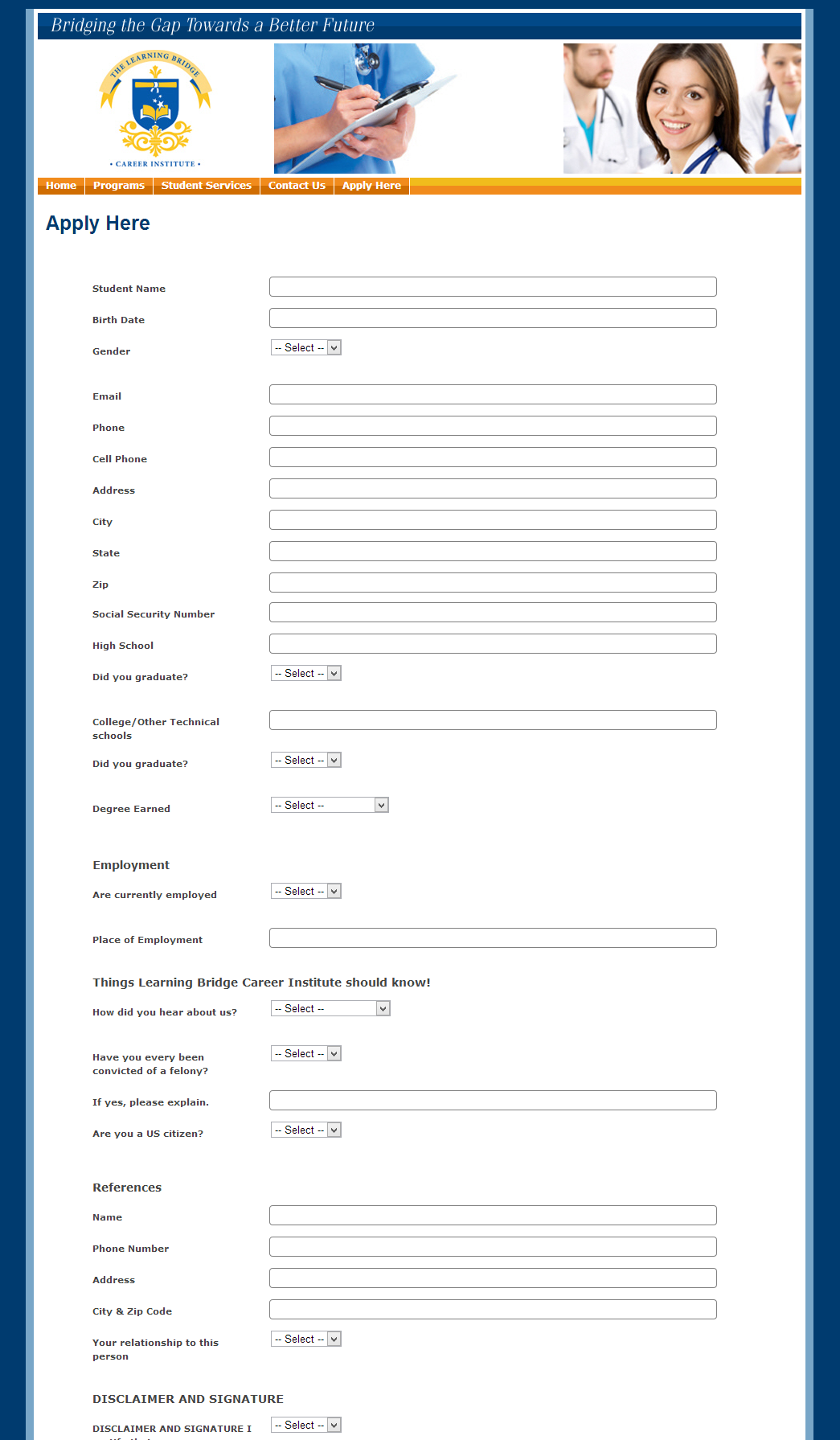
With these tools, you can completely customize your admissions form to look something like the following:

Sample Online Admissions Form

Once an inquiry or application is submitted online, a record appears in your QuickSchools account for further action. Here is a summary of what you can do with the Admissions Module (after a record is created / submitted):Read More »

The Report Card Checklist

The other day, one of our awesome new schools requested a checklist for how to set up report cards. The checklist is such a fantastic idea that we decided to share a step-by-step guide with everyone. So, whether it’s your first time setting up Report Cards, or your umpteenth time, here’s the how-to (with nifty pictures, of course!)

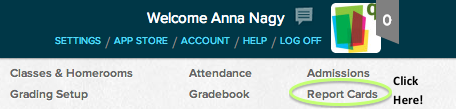
1 – Go to “Report Cards”


2 – Click on “Setup Report Cards”


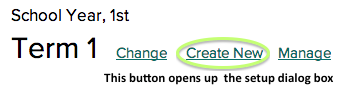
3 – Click “Create New”


4 – Give your Report Cards a descriptive nameRead More »

FAQ: To Delete or Not To Delete

Recently, we have been helping out with several questions related to deleted data. So if you’re clearing out records or thinking about deleting data here are some of the best times to delete or not to delete –

Mistake – Delete

You made a mistake. No worries – it happens! 🙂 Maybe a batch of student records are imported with the wrong names, a duplicate report card session is created, or a subject is made for the wrong grade- these are all great moments for the “Delete” button.

Student Left School – Don’t Delete

If your student transfers or moves away or even simply goes on leave, rather than deleting the student’s records, you can just mark the student as left. Go to the student’s record → “Actions” → Set Leave Date. And if the student is also no longer taking any classes, you just can unenroll them.
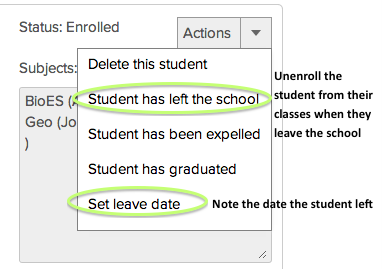
Once you note the student as left, their record will disappear from view and be removed from your billing at the next monthly cycle. However, you will still have access the records, including their transcript, and if they return, you can restore their record to your Students module.

Semester is Over – Don’t Delete

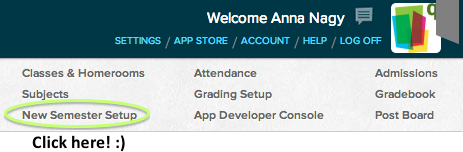
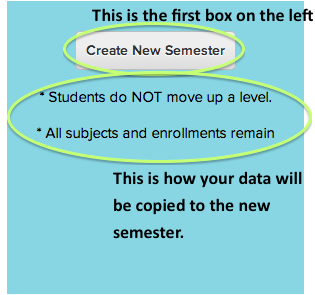
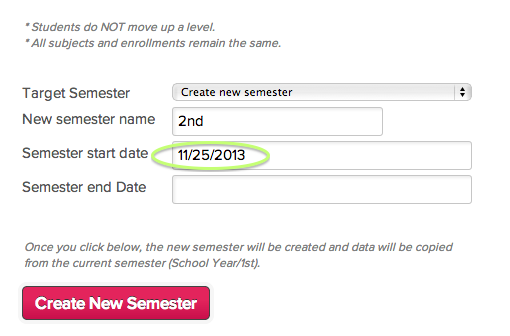
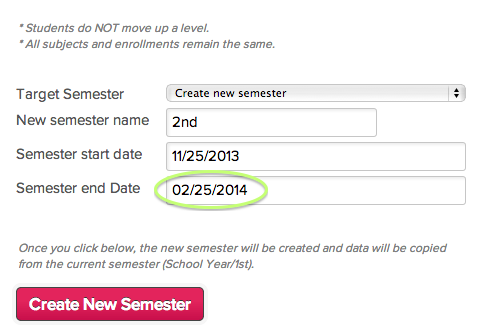
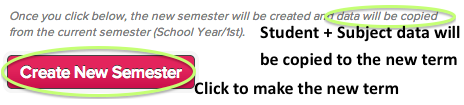
At the end of semester, it’s best not to delete any data – just go to New Semester Setup and make a new semester. This will automatically archive your previous semester’s data.
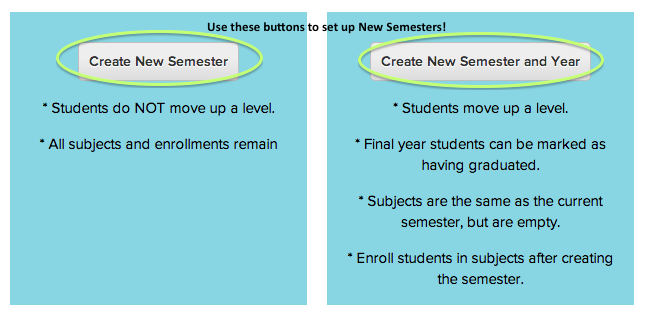
If you make a new Semester, your previous semester’s data will still be accessible in Report Cards and Transcripts and you will be able to activate the previous semester to see all of the information.

Report Cards – Don’t Delete

We totally understand how important it is that Report Cards are exactly correct, but even if you think you made a mistake in the report cards or no long need a certain batch of them, it’s best not to delete a Reporting Session (a group of report cards). Teachers may have entered grades or comments onto the report cards, and if the Reporting Session is deleted, their work on the report cards will be deleted too!

So instead of deleting, try making a second version of report card, and letting everyone know which one is the correct one to use (maybe via Teacher’s Lounge? 🙂 ) One tip to consider is using a nifty naming convention to show which version is the most recent and the right one to use.
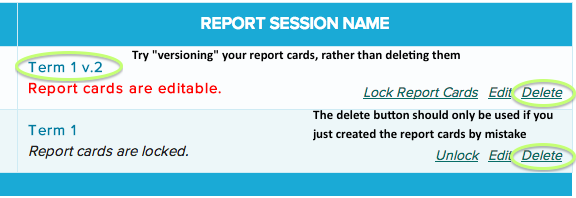
Especially with report cards, it’s always better to be safe and keep your data, rather than delete it!


An Important Note on Data Recovery

While we do frequent backups and often can recover lost data, we can’t guarantee deleted data will be restored. But if you do run into an issue with accidentally deleting things, please let us know. We’ll hunt high and low to recover anything that might have been lost, but we can’t be certain that deleted data will still be around. Most of the time, deleted data recovery is successful, but it’s always better to be safe by archiving old data, rather than deleting it. In general, a good rule of thumb is “Delete if it didn’t happen” – deleting is for errors that weren’t ever accurate in reflecting what was actually happening at school.

Hope this helps answer a few questions you might have about when to delete things and, more importantly, when not to delete! If you have any questions or if there’s anything we can do to help, please feel free to chat in.