Sign-In Sign-Out App Review

The Sign-In Sign-Out app has been on the QuickSchools App Store since 2014, with various improvements made over the years:

This article aims to clarify some of motivations behind the app.

This Sign-In Sign-Out app was originally designed to digitize a paper process. So if a student arrives late, and is required to sign-in at the front office, instead of filling in a paper sheet, an administrator can record that the student came in late via this app in QuickSchools. The staff would simply select the student from a list of students, in order to sign the student in or out. The system would record the date and time of the event.
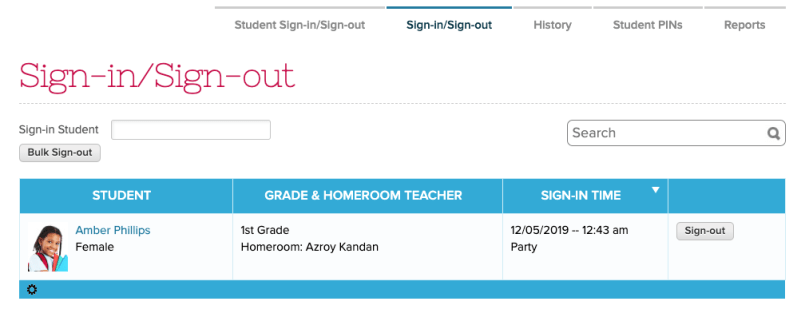
Sign-in/Sign-Out for Administrators
Read More »

Connecting to Canvas

So for new schools connecting to Canvas for the first time from QuickSchools, Canvas has added a new security feature, where you have to authorize external systems for integration (via a Developer Key). Remember that the integration from QuickSchools to Canvas only works for the paid version of Canvas for schools (not the free version for teachers).

Enabling the Developer Key

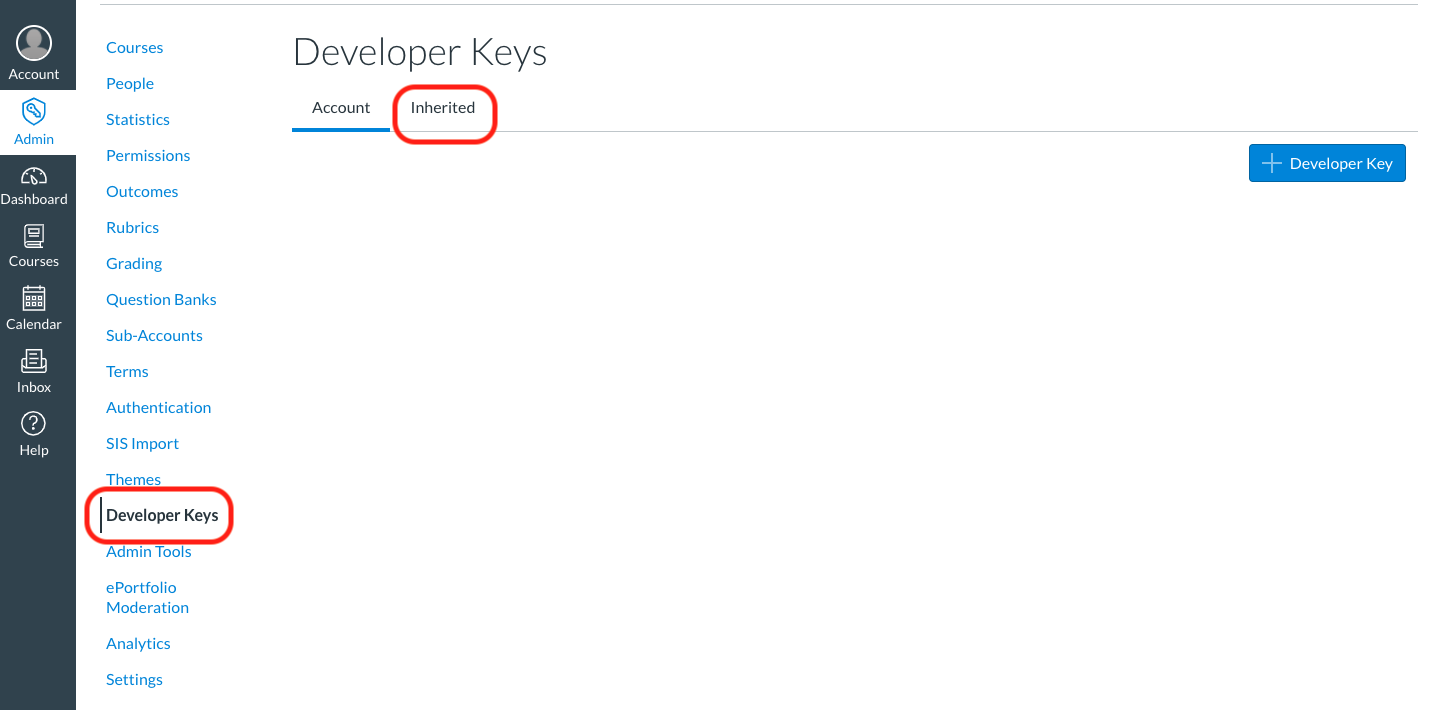
In Canvas, go to “Admin” > “Developer Keys” and click on the “Inherited”:

Enable Developer Keys in Canvas to connect to QuickSchools

From there, scroll down and find the “QuickSchools” app. You may need to to click on “Show All Keys” at the bottom to view more apps:

Enable the Developer Key to QuickSchools in Canvas

Finally, just turn on the Developer Key.

Connecting in QuickSchools

Back in QuickSchools, once the app is installed and enabled from the App Store, go to the Canvas App and click on the “Connect to Canvas” button:

Read More »

Online Forms for Districts / Groups

If you have a group-school or district setup in QuickSchools, you can actually configure your Online Forms to be shared across multiple sites. This means that you’d only need to set up a single form packet to process applications for ALL schools in the group/district. Applications can then be routed to the appropriate school as needed.

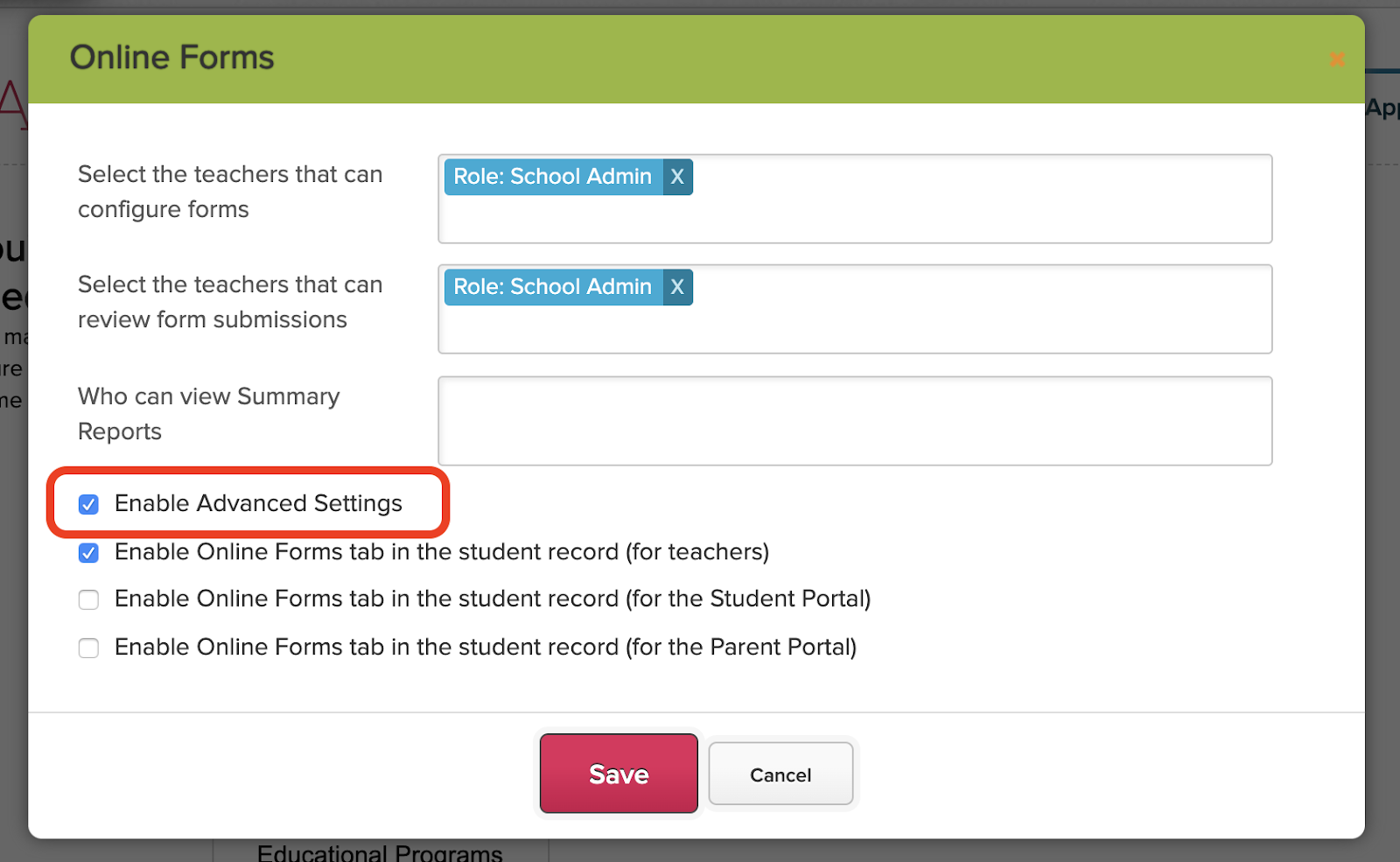
To set up this feature, you’ll first need to enable the Advanced Settings in the Online Forms app from the App Store:

Enabled Advanced Settings for the Online Forms App

Once that’s enabled, clicking “Configure Form Packet” will include the “Advanced Settings” at the bottom of the page.

Configure Form Packets

To share the form packet with other sites in your group/district, simply add any additional schools to the list under the “Advanced Settings” section:

Read More »

One Form Per Child (OFPC)

One Form Per Child (OFPC) is a setting within the Online Forms app in QuickSchools that allows you to designate one student per submission:

One Form Per Child (OFPC) setting for Online Forms

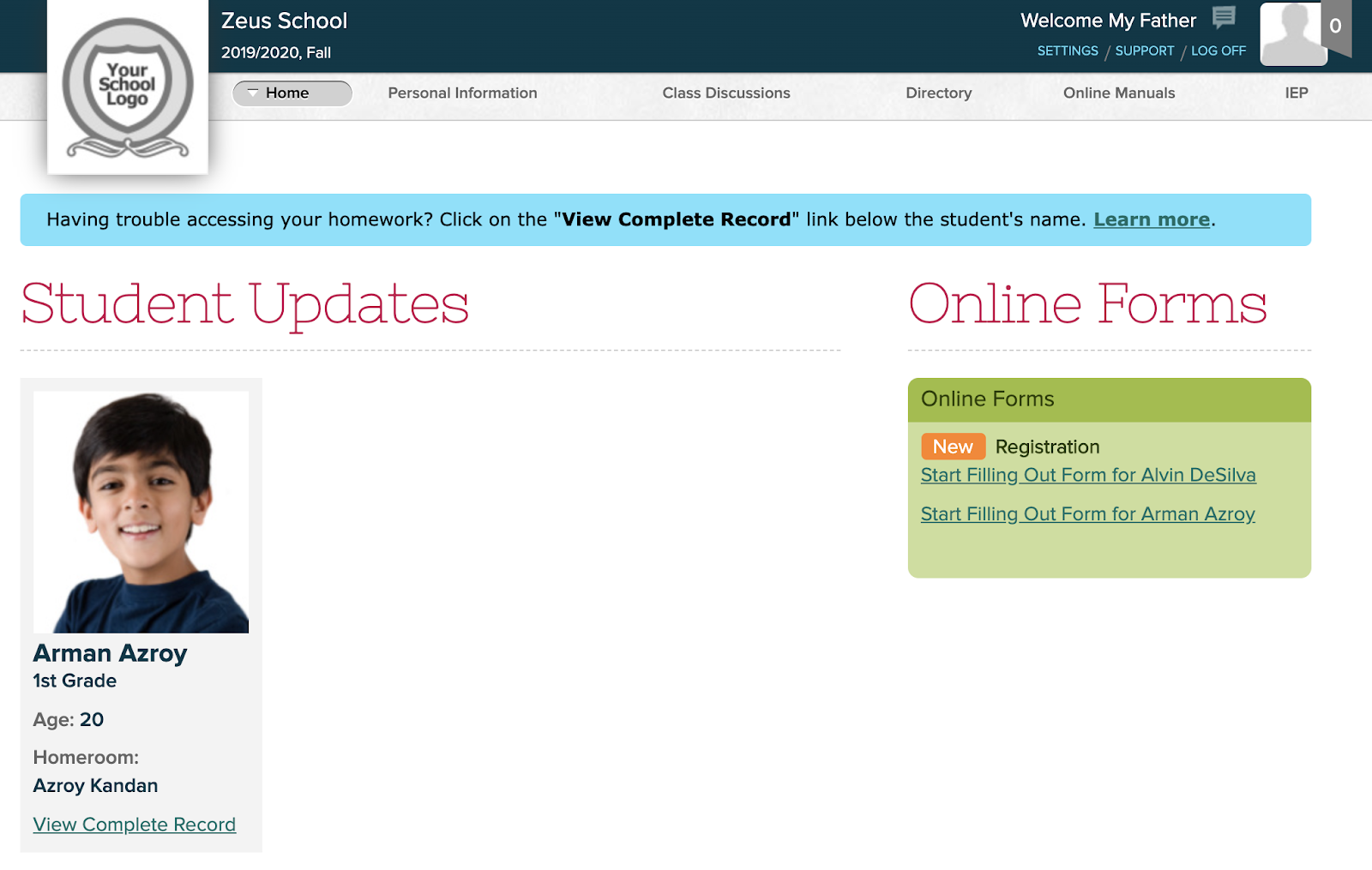
With this setting enabled, parents who log into the Parent Portal will see separate forms for each child that the parent has access to:

Online Forms on the Parent Portal

Ordinarily, when parents have to fill separate forms for each student, it creates extra work. But if forms are configured with mapped fields, the forms will be pre-filled with data from the student record. So this actually simplifies the submission process for parents.

Read More »

Collecting Data via Online Forms

We’ve made several improvements to the Online Forms app in recent months. In this article, we wanted to highlight the different ways you can give parents (or students) access to online forms in QuickSchools, in order to submit data that you’re collecting for the schools.

The methods to be discussed are as follows:

  • Portal Access (recommended for existing parents/students)
  • Public URL
    • Non-authenticated users
    • Inviting Applicants
  • HTML code snippet (i.e. Embed Code)

The access configuration elements are located near the top of the screen, right below the “Instructions” field:

Configuring Access to Online Forms

Don’t forget that the Online Form Packet needs to be “Published” in order for access to be enabled. Once published, you should see a green check mark on the top of the screen, with a button to “Unpublish”:

Read More »

Google Classroom Integration

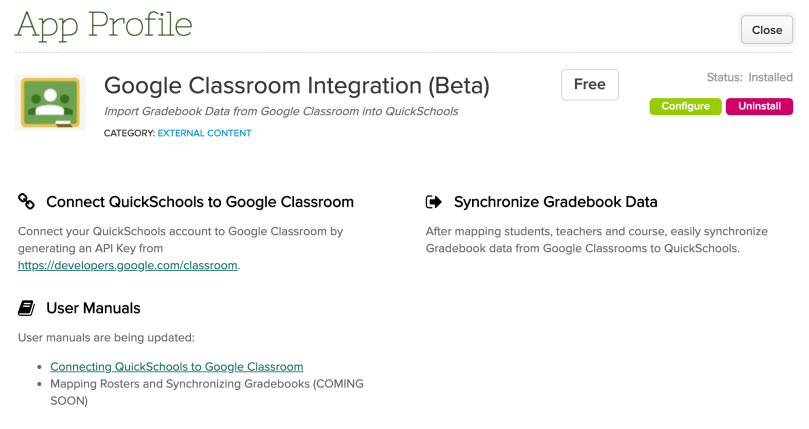
After several months of work, we now have a working (LMS) integration app with Google Classroom. This is currently still an early Beta version, but the app is able to pull data from Google Classroom to your QuickSchools Gradebook.

Google Classroom with QuickSchools
Google Classroom Integration (Beta) App

Some things to note about this app (as it currently works):

  • The app cannot EXPORT the roster. App assumes that you have already created student, teachers and courses in Google Classroom.
  • However, once students, teachers and courses and mapped, when Synchronizing the Gradebook, the roster will be pulled into QuickSchools. This means that if a student gets enrolled into a course, you can invite the student in Google Classroom, and the student will be automatically enrolled into the mapped subject in QuickSchools when the Gradebooks are synchronized.
  • Currently, the app does not support mapping of Mark Categories from Google Classroom. The API is not yet available, but when it does, we will be mapping and pulling this data as well.
  • The app assumes a SINGLE Google Classroom account for the entire school. This means that teachers cannot use their own Google Account to map data. But with a single school-wide Google Classroom account, you can still map individual courses to specific teachers.
Read More »

New Sign-In/Out App Reports

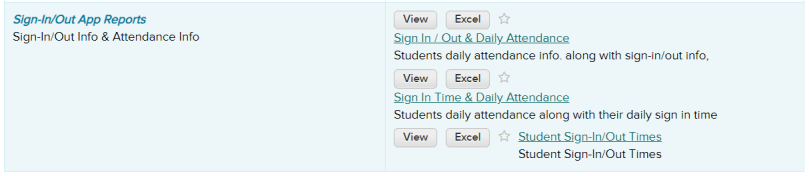
The Sign-Out/In App is a popular app in the QuickSchools app store. Schools use this app to handle many different needs such as tracking when parents drop off and pick up their students, tracking what time students enter and leave after-school programs and activities, etc. We recently added a few new reports to the Sign-In/Out App app to help see your data in different ways. Once the app is installed you will see the reports under the Summary Reports tab:

Sign-In/Out App Reports
Read More »

Custom Attendance Codes

The Custom Attendance Codes app has been in the QuickSchools App Store for several years now. The app itself has not changed much, but there are a couple new features to mention. So we thought we’d revisit this app and it’s functionality.

The Custom Attendance Codes app essentially allows you to

  • Create additional attendance codes specific to your school
  • Allow teachers to use custom attendance codes while taking attendance
  • Note/record attendance codes to be applied in the future
  • Inform teaches of applied attendance codes when taking attendance

Configuring Access

The Attendance Codes app essentially has 2 components that in combination can address the scenarios above, and these are (1) the Attendance Codes themselves, and (2) a Daily Status which is essentially the application of the Attendance Code on a date range. When configuring the app, you can keep these components purely for administrators, or you can allow teachers to view them on their Attendance roster:

Configure Access to the Attendance Codes App

Custom Attendance Codes

Users with administrative access to the Attendance Codes app will have the ability to view/edit Attendance Codes under the “Codes” submenu (under the main “Attendance” menu):

Manage Custom Attendance Codes for your School

When adding/editing an Attendance Code, the following fields are available to you:

Read More »