Lunch Ordering App

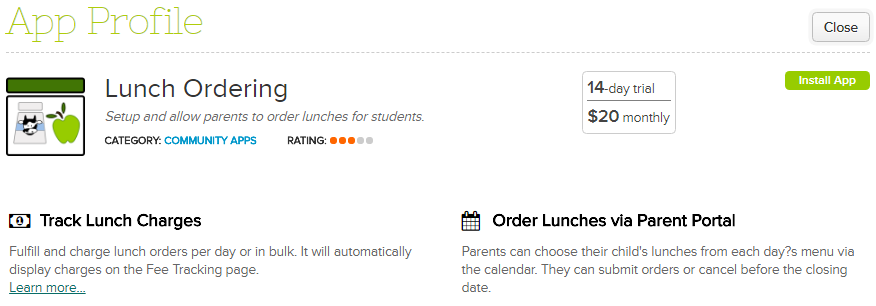
QuickSchools is proud to announce our new Lunch Ordering app, now available in our App Store. Parents can now easily order student lunches online via the Parent Portal.

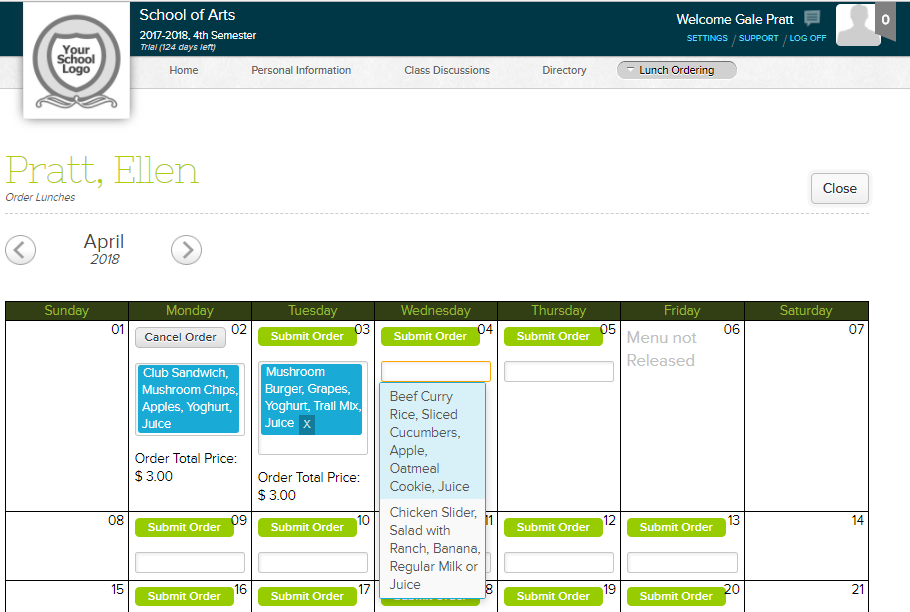
Administrators for the app will have full flexibility in setting up meal items, meal prices, along with a daily menu. Parents and students can then select items available from the menu for any given day. The screenshot below shows how Lunch Ordering looks like in Parent Portal:


Lunch Ordering integrates with
Fee Tracking for streamlined charging of students. So parents can view charges for their lunch orders via Fee Tracking, and they can also make payments through this module.

For more info about Lunch Ordering, please see our support article here.

We’d love to hear from you. Please chat with us if you have questions!

Getting Started Guide

If you’ve just signed up with QuickSchools and don’t know where to start, you’ve come to the right place! This Getting Started Guide can help you out.

The steps below describe the basic workflow to set up your account:

Now you’re ready to get everyone on board! Teachers can now start entering grades, taking attendance, posting homework, etc. Additionally, here are some of the common tasks that teachers and staff can start working on as you begin using more of the QuickSchools service:

You can also check out our other Getting Started Guides if you need more information.

QuickSchools Getting Started Guide (Part 1)
QuickSchools Getting Started Guide (Part 2)

However, if you have any other questions or require any assistance, please chat with us. We’d love to hear from you!

UPDATE – July 19, 2018:

If you need help learning the software, we also offer training sessions. Check it out here: https://www.quickschools.com/blog/quickschools-training-packs-2/

Frequently Asked Questions

Who should complete the QuickSchools setup process?

School administrators or designated staff members should complete the initial setup because they manage users, permissions, modules, and school information

What should schools do first after signing up for QuickSchools?

Schools should begin by adding teachers and students, configuring modules, and setting up subjects and enrollment.

How do administrators add teachers to QuickSchools?

Administrators can create teacher accounts and configure their access permissions so teachers can manage assigned classes and classroom activities.

How are students added to QuickSchools?

Students are added by administrators through the student management area and can then be assigned to subjects and classes.

What are QuickSchools modules?

QuickSchools modules are feature areas that schools can enable based on their needs, including Gradebook, Attendance, Report Cards, Scheduling, and Homework.

How do schools control user permissions?

Schools use User Access settings to determine which features teachers, parents, students, and staff members can view or manage.

What can teachers do after QuickSchools setup is complete?

Teachers can enter grades, record attendance, post homework, participate in discussions, and manage classroom information.

How do parents start using QuickSchools?

After administrators invite parents, they can access available student information through the QuickSchools Parent Portal.
Frequently Asked Questions (FAQs)

We are constantly looking for ways to help you, our customers, to quickly resolve problems you may encounter while using Quickschools. So we’ve posted a Frequently Asked Questions (FAQs) article that we think would improve your Quickschools experience. We have highlighted some of the items below:

FAQ: Some of our grades are not showing automatically in the Report Card. Why aren’t the final grades from the Gradebook transferred over?

Please check the Gradebook and make sure that the “Is final grade” checkbox is checked.

FAQ: My homework is missing! How can I retrieve them?

Homework links on the student’s main Home page will only be available 2 days after it is posted, and 2 days before its due date. To access all posted homework assignments, please click the “View Complete Record” link below your child’s name and go to Homework tab.

My school is non-K12, can I still use QS?

Definitely yes. We have several non-K12 users which includes language schools, nursing schools, music schools and dance schools, etc. Please check out the links below to help you set up Quickschools for your account:

https://www.quickschools.com/blog/2011/12/07/course-structure-for-non-k12-schools-with-rolling-enrollment-no-academic-terms/
https://www.quickschools.com/blog/2014/04/10/rolling-enrollment-account-setup/


Why are we being charged? Classes are over and we’re not using Quickschools right now.

We charge customers on a monthly basis. Should you wish not to be charged at this time, please email us at support@quickschools.com so we can hibernate your account.
To re-activate your account when the classes resume, simply send us an email again.


To view the entire FAQs list, click
here. Let us know what you think!