
Helping Children with Learning Disabilities: Tips on How to Cope

tips on how to cope with helping children with learning disabilities

All children need love and attention. For kids with learning disabilities, positive reinforcement such as words of encouragement and support can help them feel a strong sense of self-worth and have the determination to keep going even when things get tough. Learning disabilities emotionally affect the child and produces a ripple effect on family, friends, teachers, and peers at school. Children with learning disabilities often absorb what others unthinkingly say about them, even when it was not said to them. They are most likely to believe themselves to be “behind” or “different.” It is always important to speak kindly, and hopefully, with these tips, we can help them build self-confidence and find success at school, and in life. 

Read More »

Top 4 Tips on How Teachers Can Build Realistic Optimism this Year

As human beings, we tend to give more importance to negative experiences than to positive or neutral experiences. You are not alone, it’s our nature to fixate on bad news, a phenomenon known to psychologists as negativity bias. Sometimes we can’t help but focus on the negative even when they are insignificant compared to other positive instances.

Schools have been under enormous pressure to ensure that education for the students had as little disruption as possible when the Covid-19 outbreak began. Now that schools have been operating normally again, it is more important now than ever for school leaders to ensure the welfare of their students.

Read More »

Our top 10 teaching tips for new teachers who are just beginning their career

teaching tips for new teachers

When the new school year starts after this summer break, young educators will be entering school to begin their new journey in the education world. While having to reel the trauma from being a teacher, especially during these trying times must be hard to process, it is only normal that new teachers may experience confusion and high levels of stress. Teachers bring creativity, channel high levels of energy, and bring light to the classroom. 

We hope that these teaching tips might be of some help to all new teachers around the globe.

Read More »

New Feature – Custom Grading Categories

We’re excited to announce a nifty new feature – Custom Grading Categories in Gradebook! With this feature, teachers can make their own categories in their own subjects, in addition to the ones already setup in school. Let’s take a look at how it works.

First, administrators will need to enable this feature by going to Turn Features On/Off –> Gradebook / Report Cards “Configure” menu, and select “Teachers can create their own grading categories”. Now, teachers can begin to create their own categories from the Gradebook.

Gradebook
Grading categories are used in the Gradebook, so teachers are able to setup their own custom categories within the Gradebook.

Within a Gradebook, scroll down to the bottom of the page and select “Change Grading Scale”. This brings up the Gradebook configuration page.

Change Grading Scale
Use the “Edit your own categories” link to setup your courses’ grading categories.

Next, select the “Edit your own categories” link:

Read More »

How to Run Reports on Report Cards

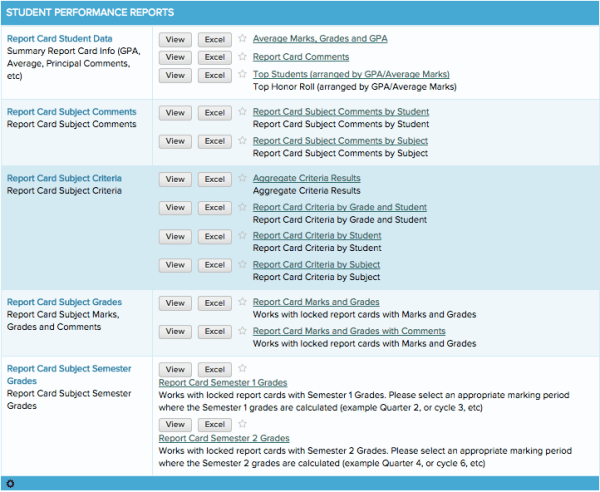
Report Cards handle all sorts of averages and compilations of student date that aren’t reflected anywhere else (except for maybe Transcripts). As such, if you want to see information like semester or final averages, report card comments, GPA, or grades for subject specific criteria in a handy summary report, you’ll want to run one of our reports that give you information from your report cards. Here are some quick tips on best practices for keeping your report cards in shipshape for reporting and some tips on how to setup your report cards so you can run reports on them quickly and easily.

default-rc-reports
Here is the listing of the Report Card reports that come default with all QuickSchools accounts

Read More »

Subject-Based Grading – Regular & Customized

The Subject-Based grading screen is designed to make entering a class’ worth of grades and comments quickly and efficiently – without opening a single report card! And, like everything else about QuickSchools Report Cards, it’s entirely customizable. Not only can you configure it to your liking with Subject-Specific Criteria, but also when we create a custom template, we can make all sorts of special grading and comment fields available in the Subject-Based grading screen.

To use the Subject-Based Grading Screen…

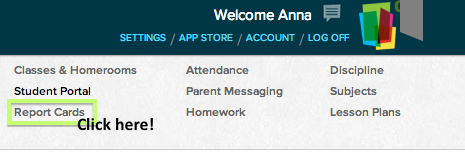
1 – Go to to to the Report Cards module

step-by-step guide on subject based grading

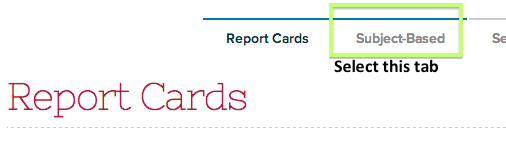
2 – Select the “Subject-Based” tab

select subject based tab

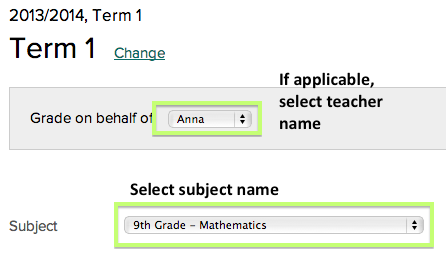
3 – Select the teacher name & class

select the teacher's name

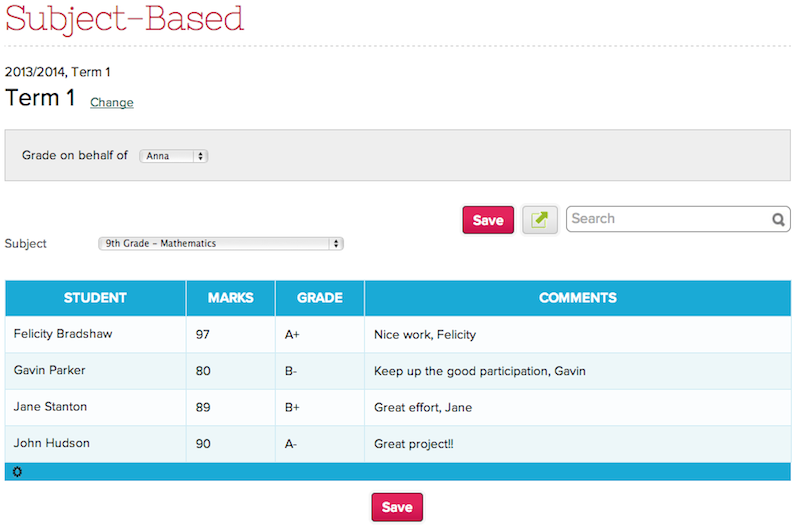
Now, you’ll be at the Subject-Based grading screen! Depending on how your Report Cards are configured or customized, the screen might look a bit different. Subject-Specific Criteria will appear in the Subject-Based grading screen, and depending on the Report Card template, the screen will be configured differently as well. In addition, if your template draws marks and grades from the Gradebook, these will already appear on the screen, and if your template has room for comments, there will be space for these as well. Though there are all sorts of ways the Subject-Based grading screen can look, here are a few different examples.

Classic White – this public template is a popular choice, and very flexible. Currently, it is configured to show marks, grades, and comments.

classic white template

St. Monica Catholic School Template – this private template is a great report card for showing conduct grades alongside academic grades. It also has space for exams and semester grades.

Read More »

The Report Card Sequencing Checklist

One of the awesome things about QuickSchools report cards is how flexible they are. You can set up as many Report Sessions as needed for any combination of progress, quarter (or cycle), or semester grades. However, once in a while, the grades might appear in the wrong column on a semesters-, cycle-, or quarters- style report card. For just this situation, we have Report Card sequencing – so you can chose the semester column for grades and attendance to appear.

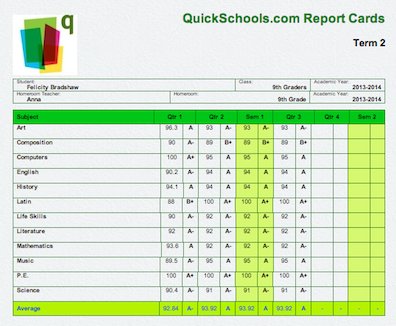
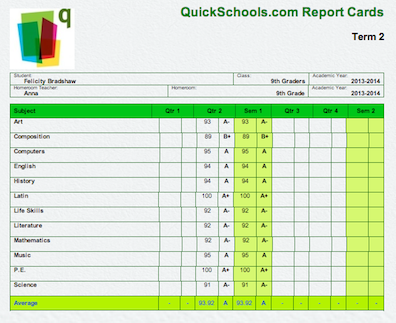
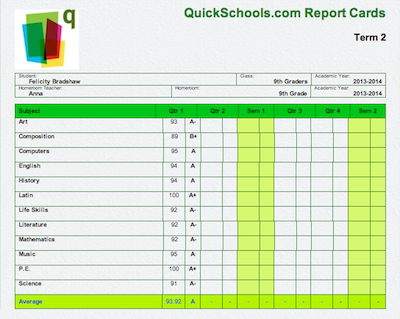
Brand-new Report Cards that have been just setup can occasionally have a somewhat unexpected appearance, especially if you have a few Report Cards from the same quarter in your module. The system automatically treats each of these report cards like records individual, official quarters, which while often very helpful, isn’t always. If your report cards look a bit like the examples below, then it’s best to manually set the Sequence to help them to display properly.

The Report Cards might have Term 2 Grades repeating through multiple columns…

…or, Term 1 Grades missing entirely…

… or have Term 2 appearing in the Term 1 column.

Though they might not look so great at first, each of these examples can be fixed quickly with Report Card sequencing. Once you have made a new Report Card session, the Sequence can be set from the admin’s Setup Report Cards menu. If you’d like to sequence your report cards, here’s the step-by-step guide!Read More »