Sending Homework to Teachers

As more and more schools go virtual in today’s changing climate, students need a way to submit homework assignments to their teachers online. Quickschools is still building a dedicated homework submission feature. But for the interim, students can use the Private Messaging feature to submit their work. Here are the steps:

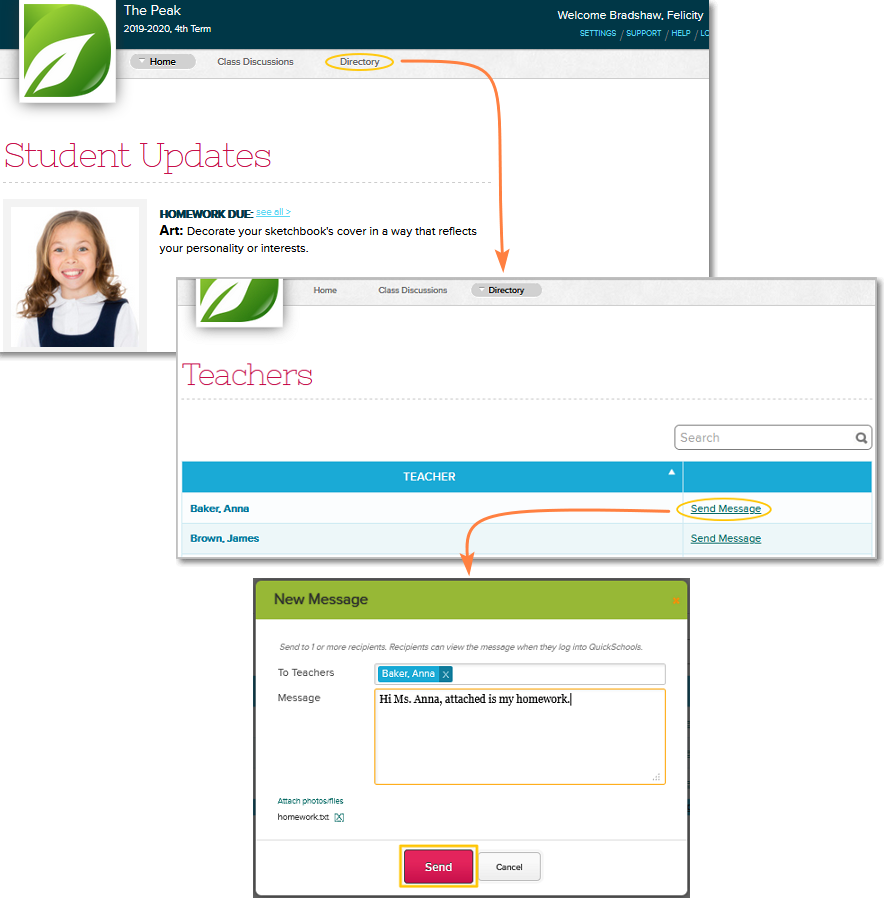
  1. Log in to Quickschools and go to Directory tab
  2. Search for the teacher then click the “Send Message” link across the teacher’s name
  3. Write a message, attach the homework and click Send
homework for online schools


To view all private messages, just click the mailbox icon next to your name on top of the page:

Read More »

Privacy Shield

As an online software provider, the security and privacy of your data is super important. QuickSchools does not share your data with third party vendors without your expressed consent. To that effect, we have certified ourselves with the EU-U.S. and Swiss-U.S. Privacy Shield Frameworks administered by the U.S. Department of Commerce’s International Trade Administration (ITA). Details below:

We are looking to certify with the Student Privacy Pledge too. You can see a current list of signatories here:

Expect to see us on this list of signatories in the coming weeks.

If you have any questions or comments about our privacy policies, please feel free to chat with us, or send us an email.

Color Scheme (E7)

With the recent E7 release, schools can now customize the colors that appear when logged into QuickSchools. You can read about that here:

https://www.quickschools.com/blog/2019/05/13/new-release-sprint-e7/

But just how much can you really change the colors that appear on your QuickSchools account? Here’s an example of what’s possible with the “Customize Style” feature:

Customize the Colors on your QuickSchools Account

In this example, we only changed a few elements that are available. But you can of course explore changing other elements like pop-up dialog boxes and buttons. The color changes also extend into mouse overs (i.e. when you hover your mouse over buttons, text and other areas). Here’s a screenshot of the changes we applied in order to produce the color scheme above:

Read More »

Importing Attendance (Beta)

Our new Attendance Importer allows you to import attendance records into your QuickSchools account. Whether migrating from another system or if you just want to centralize your historical attendance records, this tool allows you to upload attendance data for multiple students at once.

The attendance importer lets you import attendance from an excel file:

Still in beta, we’d be glad to make it available for you if you need it. Just send us an email at support@quickschools.com.

For more information, please check out our support article: Importing Attendance.

If you’d like us to import attendance data for you, we’d be happy to assist. Feel free to send us an email so we can review your request.

Entering Historical Grades

Entering historical grades may be necessary if you’re transitioning to Quickschools. We have import tools to make this easier for you. Our import tools allow you to import data from an excel file.

PRE-REQUISITES

The following data should already be in the system before you enter historical grades:


Here we discuss the final 2 steps to enter historical grades:

  • Import subject enrollments
  • Import grades


1.
IMPORT SUBJECT ENROLLMENT

See Import Subject Enrollment for detailed instructions.

Turning on this feature enables it for admin users. Should you need a non-admin user to have an access, please send us an email at support@quickschools.com.

2. IMPORT GRADES

There are two ways to import grades to the system:

  • Import per gradebook
  • Import for multiple gradebooks (beta)

Import Per Gradebook

You can populate a gradebook with multiple columns at once using our Import tool. The columns represent entries like assignment, quizzes, exams, etc. Once enabled, this feature is available for all teachers. See Gradebook Import for instructions.

Import for Multiple Gradebooks (beta)

This tool allows you to import grades for multiple subjects at once. Please email us at support@quickschools.com if you need access to this importer.


For schools who just need to show final grades for Transcripts, they may do so by importing solely the student final grades. The final grade automatically appears in the student
Report Cards, as well as Transcripts.

Please note that this procedure is only applicable for subject grade marks. This does not apply on subjects that use subject criteria to grade students.

We’d love to hear from you, please chat with us if you have questions!

Copying Grades from one Gradebook to another

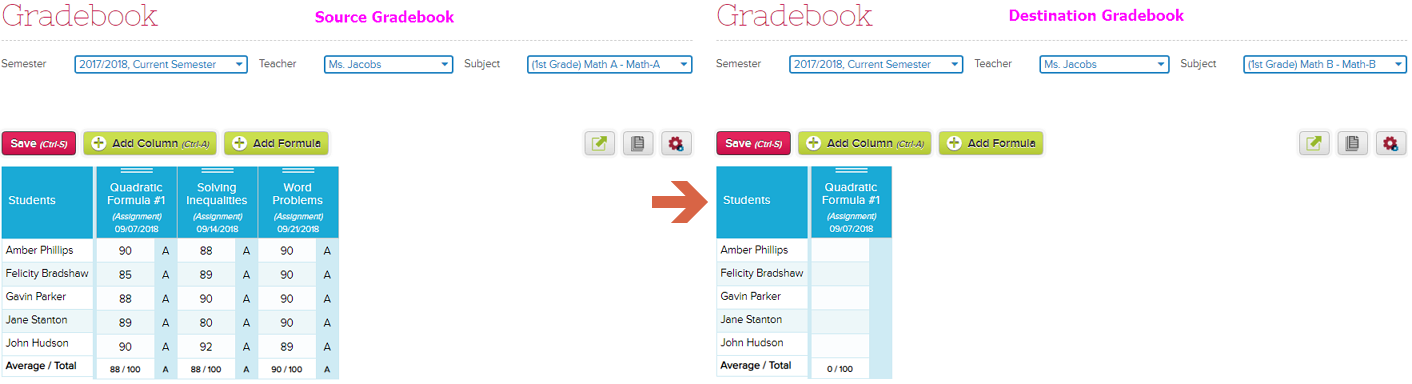
QuickSchools allows teachers to copy grades from one of their gradebooks into another existing gradebook. This could be helpful if the teacher needs to merge gradebooks, or if a student moves to another class.

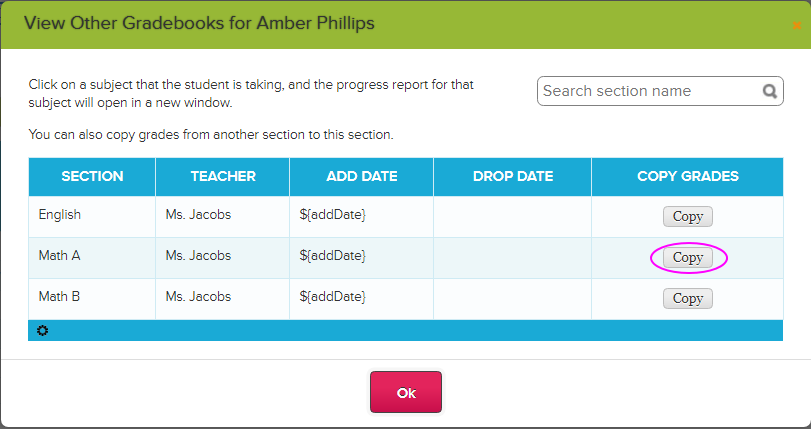
First, go to the Gradebook where the grades are to be copied into (i.e. the destination gradebook) and click any student name. This will bring up a window that lists all the subjects the student is enrolled in. Click the Copy button to start the copy of grades:

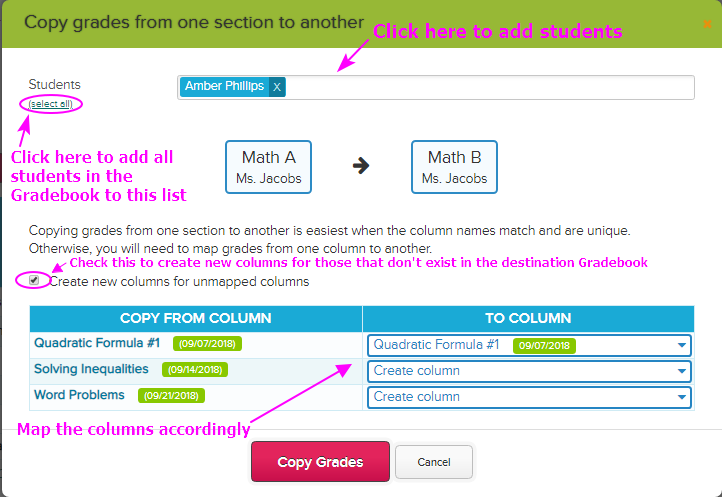
The ‘Copy grades’ window appears where you can add students whose grades need to be copied. You can also map the columns accordingly:

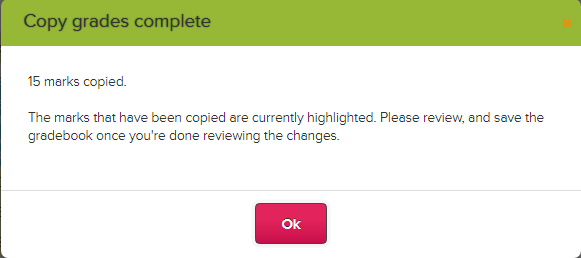
Click the Copy Grades button to initiate the copy. A popup window will appear to confirm the copy:

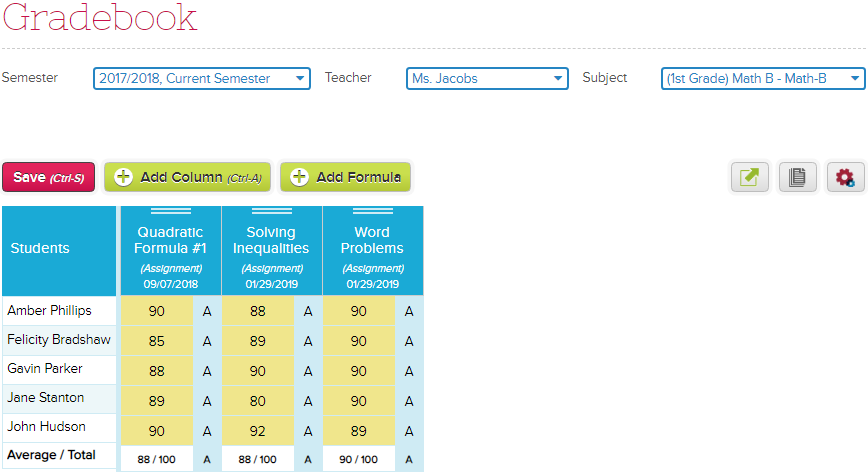
Review the grades then click Save to complete the process.

For more information, please click our support article here: Copy Grades From One Gradebook To Another

Role-Based User Access

Quickschools allows school administrators to granularly control access to each module. Administrators can streamline access by using roles, or provide direct access to specific users.

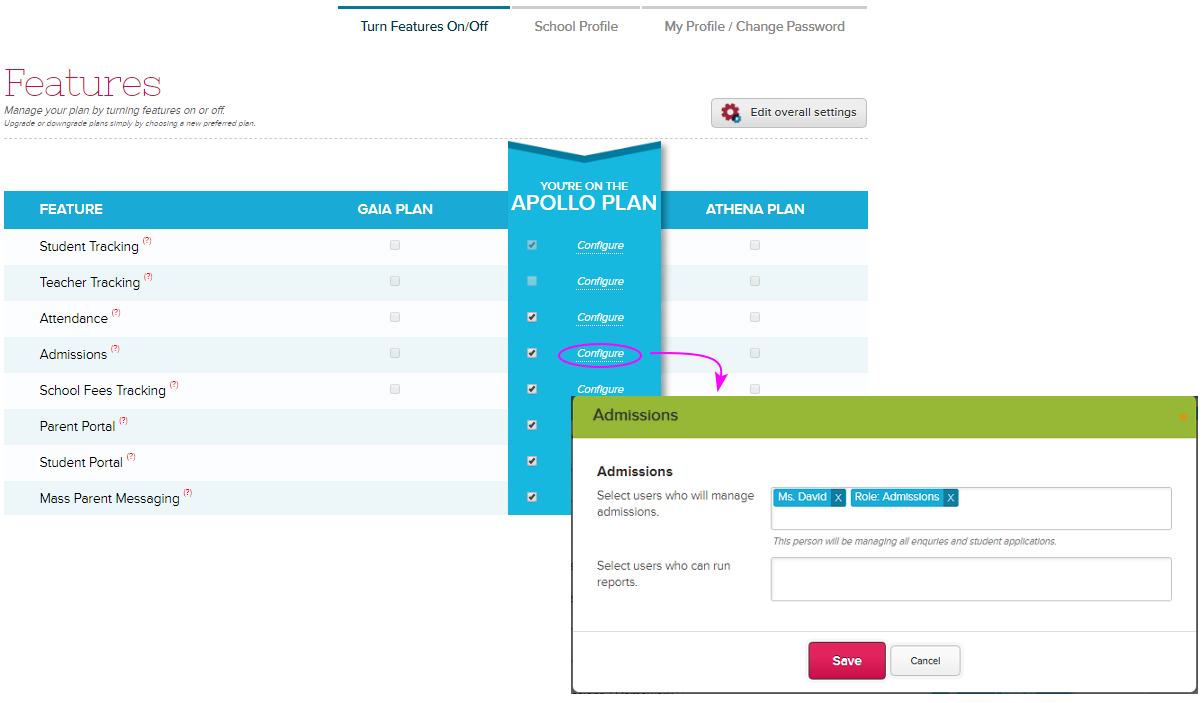
Using TURN FEATURES ON/OFF, you can specify which user or role/s has access to each module:

Role-based User Access

Creating a role allows you to streamline user access. Assign multiple users to the same role, and then assign access to that role. Each user assigned to that role will then inherit all access given to that role. So instead of allowing access to multiple users from the Features page, you can just enter the role.

For example, in the Admissions module, instead of entering 2-3 names in the list of users, you can create an Admissions role and just enter this role when assigning access to Admissions module.

To create role/s, click SETTINGS > School Profile > School Roles:

In our example above, the Admission role has access to the Admissions module, but you can also give it access to other modules like say the Students module. So if you have a new Admission staff, simply add the user to the Admissions role and he/she will instantly have access to all assigned access, which in this example would be the Admissions and Students module.

We’d love to hear from you, please chat with us!

Taking Attendance via Seating Chart

Quickschools offers a new way to take attendance! Seating arrangement allows teachers to easily spot who’s absent in the class – and makes taking of attendance way easier. Having said so, we are introducing a new app called Homeroom Attendance Seating Chart. Teachers can then easily mark absent students in a single glance. No need for a roll call!

This feature currently supports Homeroom Attendance.

If you want to use this feature, simply download our app  via APP STORE. For instruction on how to install and set this up, please check out our Support Site article: Homeroom Attendance Seating Chart